
It is important to update Universal Analytics data before it goes offline on July 1, 2024. After that, the data will not be accessible.
To ensure a smooth transition and to preserve your analytics insights for future reference, please take action using one of the steps listed below.
There are several ways to export data from your Universal Analytics property:
- Export individual reports into the following formats: CSV, TSV, TSV for Excel, Excel (XLSX), Google Sheets, or PDF (Recommended)
- Install the Google Sheets add-on for Analytics (Recommended)
- Use the Google Analytics Reporting API to export data to Cloud storage and connect to Looker Studio.
- Export to BigQuery (Google Analytics 360 customers only)
1. Export a Report
To export a report, follow these steps:
1. Open: Open the report you wish to export. Ensure that you’ve adjusted the date range and report settings as desired, as Analytics exports the report in its current display state.
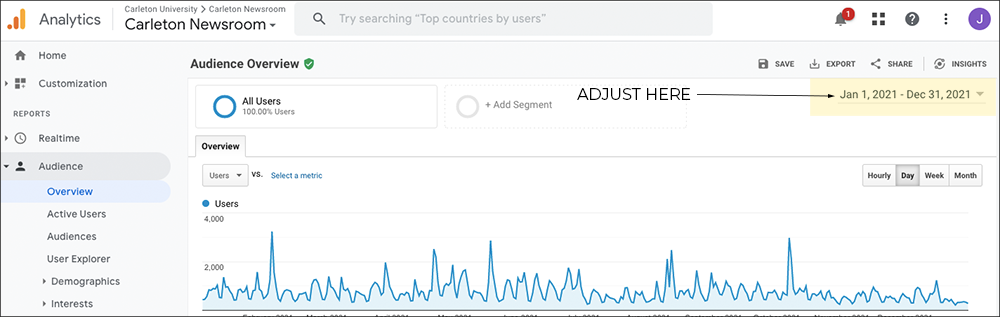
2. Export: Click on the “Export” button located across from the report title.
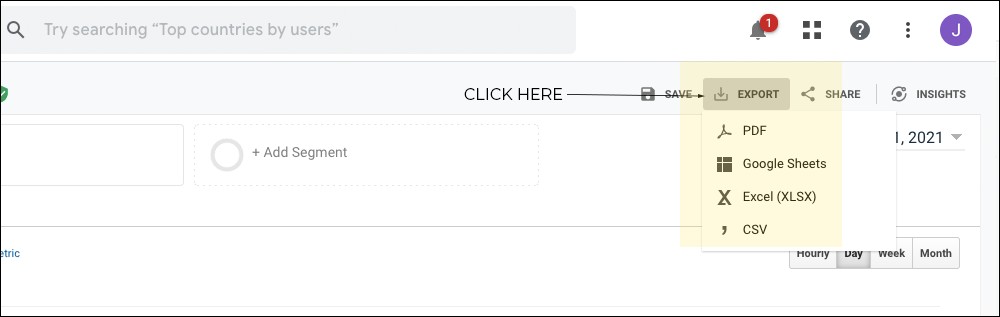
3. Select format: Choose from the available export formats, which include:
- CSV
- TSV
- TSV for Excel
- Excel (XLSX)
- Google Sheets
Your file will be automatically generated and can be found in the download directory on your computer.
2. Using Google Sheets
This add-on simplifies the process of accessing and working with Google Analytics data by enabling users to pull data from their Analytics accounts directly into Google Sheets without needing to write custom code or use the Google Analytics API.
Open Google Sheets: Go to https://sheets.google.com and sign in to your Google account if you’re not already signed in.

1. Open a new Google Sheet
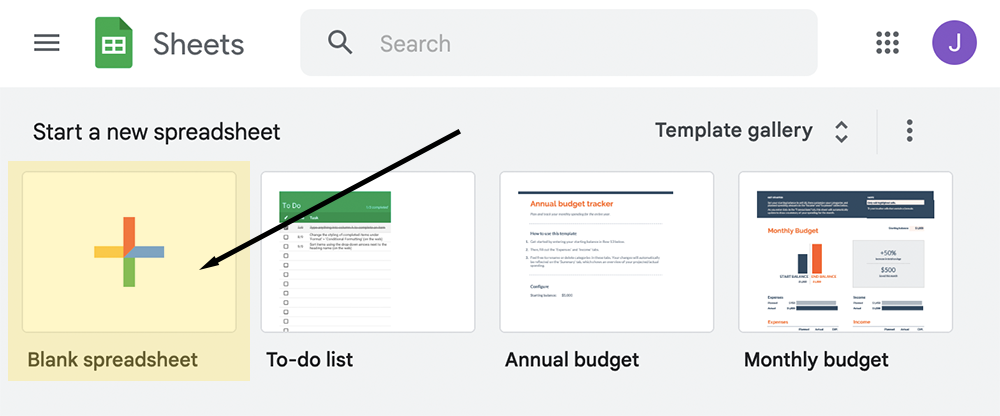
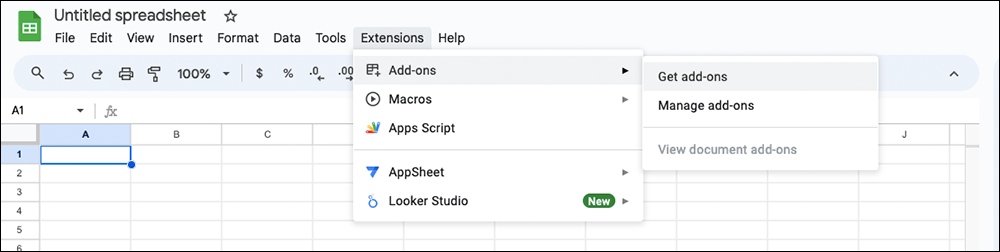
2. Access the Add-ons menu
- Once you’re in Google Sheets, navigate to the top menu bar and select Extensions.
- Click on “Add-ons” in the menu.
- Click on “Get add-ons”
3. Install Google Analytics:
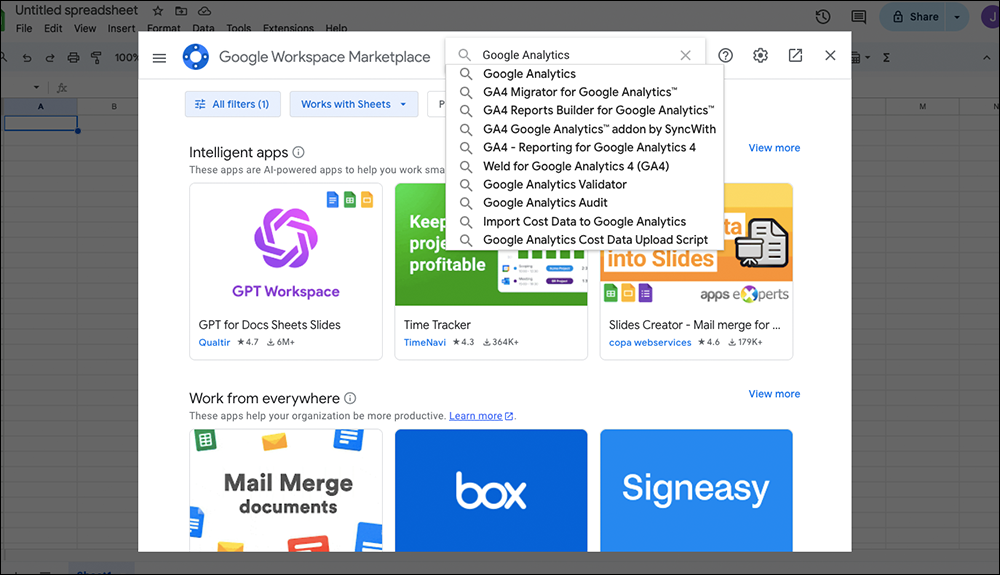
- In the Google Workspace Marketplace, you’ll see a search bar at the top of the screen.
- Type “Google Analytics” into the search bar and hit Enter.
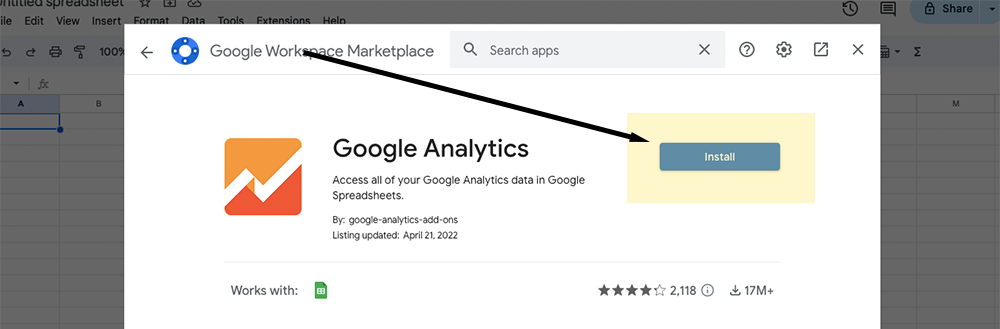
- Click on the add-on card to open its details.
- Click the “Install” button.
- If prompted, review the permissions required by the add-on and click “Continue.”
- Then, click “Allow” to grant the necessary permissions.
5. Access the installed add-on:
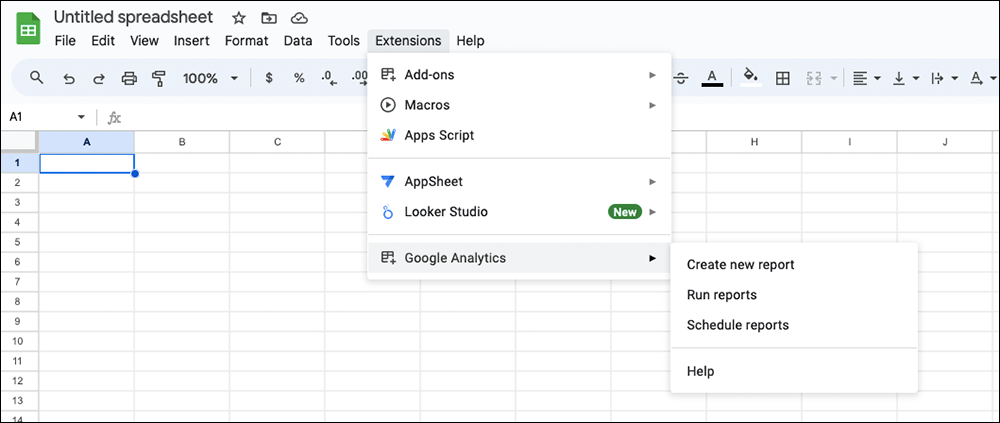
- Once the installation is complete, you can access the add-on by going back to the Add-ons menu in Google Sheets.
- You should see “Google Analytics” listed in the menu.
- Click on “Google Analytics” to start using the add-on.
6. Create a report:
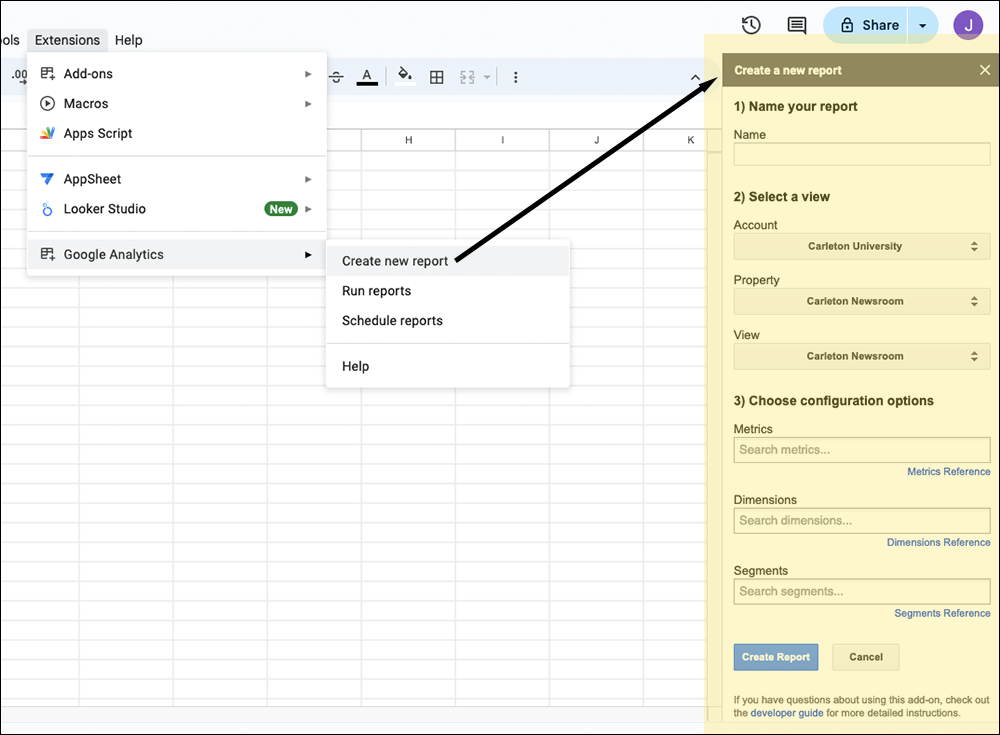
- Through the Google Analytics menu, you can now create a new report.
- Choose the view (profile) from which you want to pull data.
- Select the metrics and dimensions you want to include in your backup report. Ensure you include all the necessary data you want to backup before Universal Analytics goes offline.
- When ready, click the blue ‘Create Report’ button. This will generate a new tab with information pertaining to your report. The next step is where you will see your data.
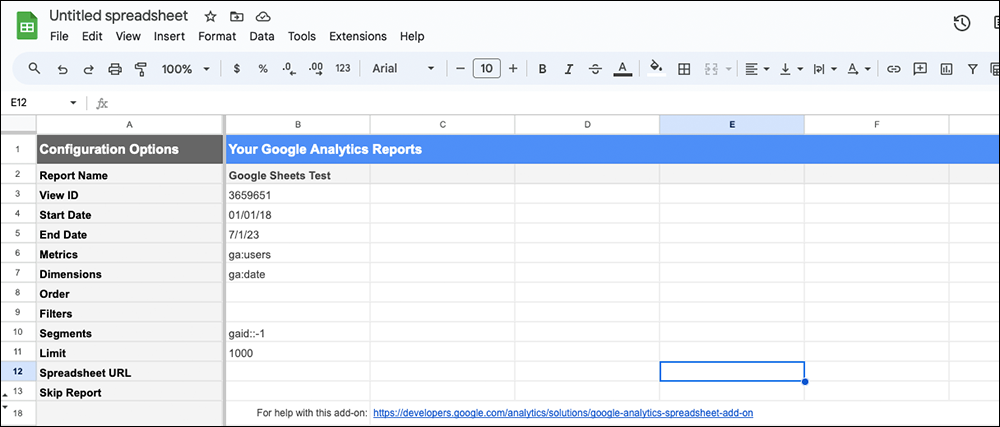
7. Configure the report
- With the newly “Report Configuration” tab generated, specify the ‘Start Date’ and ‘End Date’ with this format: day / month / year (ex: 01/31/21). Universal Analytics stopped collecting data on July 1, 2023, so ’07/01/23′ would be ideal to use in the ‘End Date’ field. It’s recommended to select a date range that covers all the historical data you want to preserve.
- Choose any additional options or filters as needed.
8. Run the report:
- Once you’ve configured the report settings, click Extensions > Google Analytics > Run Report in the navigation menu to run the report.
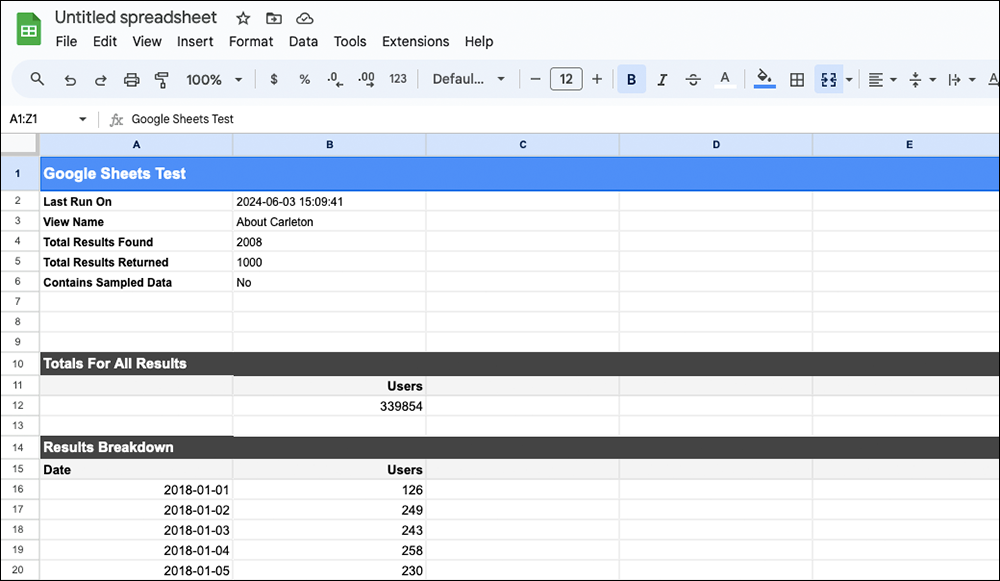
- The add-on will fetch the data from Google Analytics based on your configuration and import it into a new tab within your Google Sheets document.
9. Save and export the backup:
- Once the report is generated and imported into Google Sheets, review the data to ensure it’s complete and accurate.
- Save the Google Sheets document containing the backup report to your Google Drive or download it to your local computer.
- Consider exporting the Google Sheets document to another format (e.g., CSV or Excel) for additional backup options or compatibility with other systems.
3. Google Analytics Reporting API
The Google Analytics Reporting API v4 is a programming interface provided by Google that allows developers to programmatically access and retrieve data from Google Analytics accounts. It offers a way to request and retrieve report data in a structured format, such as JSON, rather than manually accessing it through the Google Analytics interface. With the API, developers can create custom applications, automate reporting processes, integrate Google Analytics data with other systems or services, and perform advanced data analysis beyond the capabilities of the standard Google Analytics interface.
To use the Google Analytics Reporting API v4 to backup Universal Analytics data, you’ll need to follow these general steps:
1. Set up Google Analytics API access: Before you can use the API, you need to create a project in the Google Developers Console, enable the Analytics API, and create API credentials (OAuth 2.0 client IDs). This process involves creating a service account or obtaining user credentials, depending on your requirements.
2. Authorize access to your Google Analytics account: Once you have the necessary credentials, you’ll need to authorize access to your Google Analytics account. This involves obtaining an access token using the OAuth 2.0 protocol. The access token will be used to authenticate your API requests.
3. Make API requests to retrieve data: With access authorized, you can now make API requests to retrieve data from your Universal Analytics account. You can request various types of data, such as traffic metrics, user demographics, and behavior data, using the appropriate API endpoints and parameters.
4. Process and store the retrieved data: Once you’ve retrieved the data from the API, you can process it as needed and store it in a secure location. This might involve saving the data to a local file, uploading it to a cloud storage service, or storing it in a database for future reference.
4. Export to BigQuery
BigQuery is a fully managed, serverless data warehouse provided by Google Cloud Platform (GCP). It is designed for analyzing and querying large datasets using SQL queries. BigQuery is a powerful tool for organizations that need to process and analyze massive volumes of data quickly and efficiently.
You can export session and hit data from a Google Analytics 360 account to BigQuery, and then use a SQL-like syntax to query all of your Analytics data.
For more information on using BigQuery to backup Universal Analytics data, visit the Google Support website.
Banner image by Negative Space / Pexels