Addresses and Aliases
- Are jane_doe@carleton.ca and jane.doe@carleton.ca both email aliases?
-
Prior to 2012, Carleton email aliases used an underscore separator: jane_doe@carleton.ca. In 2012, the separator was changed to a “.” Any who had an alias with an underscore had that format grandfathered, so that they have two aliases, one with an underscore and one with a period; both forms of their email alias are accepted interchangeably. Any new faculty or staff member will only have the newer jane.doe@carleton.ca format as their alias.
- If my alias is jane.doe@carleton.ca, why do some recipients see janedoe@cunet.carleton.ca?
-
Your actual Carleton Exchange email address is (and has always been): janedoe@cunet.carleton.ca.
However, Carleton had been intercepting outbound messages from the on-premise Exchange 2007 mail server and altering each message’s email header so that it appeared to be coming from the email alias: jane.doe@carleton.ca.
Unfortunately this practice of altering outbound email messages had drawbacks:
- it introduced another point of failure and delay, since it requires all outbound email messages pass through an additional process at Carleton, where the alteration of the email from-address can take place;
- it prevented the use of per-message encryption, as any encrypted messages were flagged as having been “tampered with” when their from-address was altered.
- when the on-premise Exchange 2007 mail server was retired, it would have been difficult to implement for Exchange O365, since it would haved required all outbound messages from this hosted service be first redirected back to Carleton for alteration of their from-address, before then being sent onward to their destinations.
Given these drawbacks and the fact that your email is still always delivered to you, regardless of whether it is addressed to your actual Exchange address, or to your email alias, continuing to intercept and alter the from-address of all outbound email messages was not desirable.
While some of your recipients may “see” your actual Exchange email address, you can continue to include your email alias in your message signatures, on your business cards, and on your web sites. Regardless of which address your recipients use, your messages will be delivered to you.
- I subscribe to a listserv. I still get the emails, but I can no longer post for some reason?
-
When you subscribe to a listserv, it notes your from-address. Depending on when you first subscribed to a particular listserv from Carleton, your from-address could have been any of:
- jane_doe@carleton.ca
- jane.doe@carleton.ca
- janedoe@cunet.carleton.ca
Whichever of those it was, email addressed to it will still arrive in your mailbox. So if all you wish to do is continue receiving emails you need do nothing.
However if you wish to post (i.e. send an email to to your listserv), and you receive a message that you are no longer authorized, you will need to update your email address with the listserv to:
- janedoe@cunet.carleton.ca
Check the bottom of a recent listserv message. Many listservs append instructions or a link for updating your email address. Worst-case, you can unsubscribe and then re-subscribe to allow you to once more post to your listserv.
All users
- How to forward your Exchange address to another
-
- Log onto exchange.carleton.ca with your MC1
- Follow Microsoft’s directions: support.office.com/en-us/article/Forward-email-from-Office-365-to-another-email-account…
- Turn off “View by Conversation”
-
- View by Conversation” may have been enabled. This attempts to sort messages by similar subject lines (i.e. by conversation). To arrange messages by date-received:
- PC Outlook 2010
- PC Outlook 2013
- Web Version: exchange.carleton.ca
- Your from address: problems sending to list-servers
-
Your email from-address may now display to some recipients in the format of your real email address, janedoe@cunet.carleton.ca, rather than in the format of your email alias, jane.doe@carleton.ca. This is cosmetic.
- Your actual or real email address is, and always has been, of the form: JaneDoe@cunet.carleton.ca
- But any messages addressed to your email alias, Jane.Doe@carleton.ca, will still be delivered to your mailbox; you can safely continue to use your alias on your business cards and websites.
- Note for List server users: If you have previously signed up to an external-to-Carleton list-server using your alias, you will continue to receive the list server mailings.
- But if you wish to submit or post messages to your list server, you will need to update your list server settings with your real email address, JaneDoe@cunet.carleton.ca. The instructions to edit your email address or re-subscribe with your real email address vary by list-server, but are often found at the bottom of each list-server mailing.
- Your actual or real email address is, and always has been, of the form: JaneDoe@cunet.carleton.ca
- Enabling/disabling Microsoft’s automatic “Clutter” folder
-
Clutter is now turned off by default: carleton.ca/its/clutter, but can be enabled/disabled by each email user:
- Log into OWA, the web interface to Exchange: exchange.carleton.ca
- Click on the Gear icon in the upper right-hand corner; select Options or search for “Clutter”, then click on Clutter in the left-hand navigation list (see image)
- Check/uncheck “Separate items identified as clutter”
Q. Can I remove the Clutter folder?
A. No. However using the Outlook Web Interface above, there is a link by which you can provide feedback to Microsoft about any aspect of Clutter, including your desire to hide the Clutter folder if you have disabled it.Q. How does Clutter decide?
A. windowsitpro.com/blog/faq-answers-common-office-365-clutter-questionsMore Info: carleton.ca/its/2016/an-intuitive-feature-to-de-clutter-your-inbox.
- How to view “mail headers”
-
- When you are not sure mail is really from who it says it is, you can look at the actual email headers.
- You may also be asked to send the mail headers to the Service Desk if you call with a question.
- In PC Outlook 2016/2013/2010, Mac Outlook 2016: in5stepstutorials.com/ms-outlook/view-email-headers-in-outlook-2016-2013-2010.php
- In Mac Outlook 2011: utexas.edu/its/help/managing-unwanted-email/1945
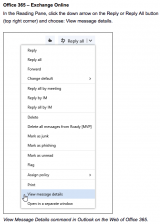
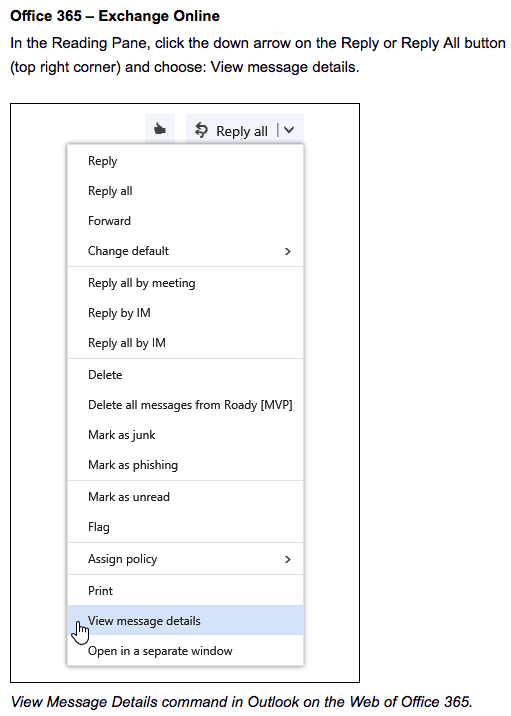
- In Outlook Web Access (OWA) aka exchange.carleton.ca:
block users
- … a sender by email address
-
How to block a sender by email address
- Login to exchange.carleton.ca
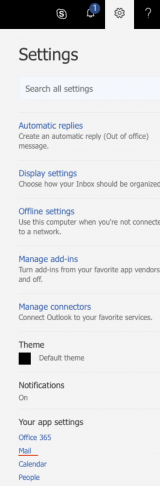
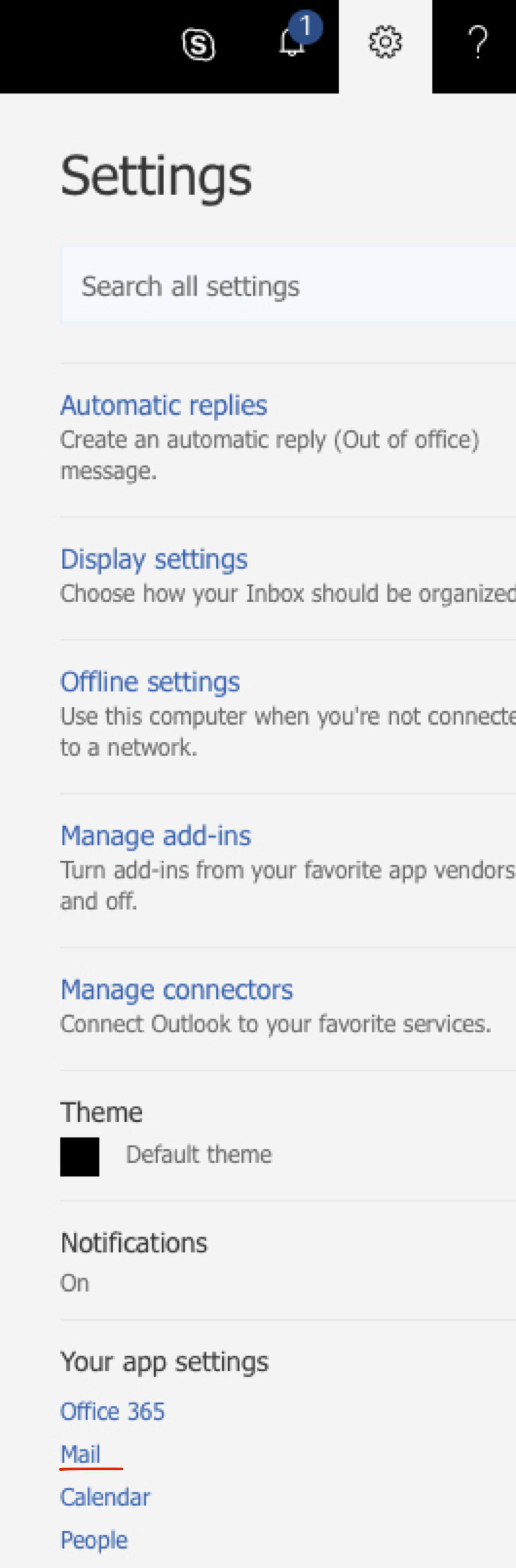
- Click on the “gear” icon in the upper-right hand corner
- Click on Your app settings > Mail
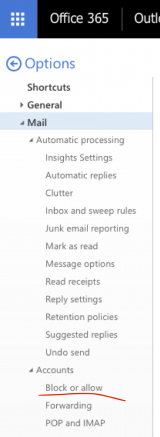
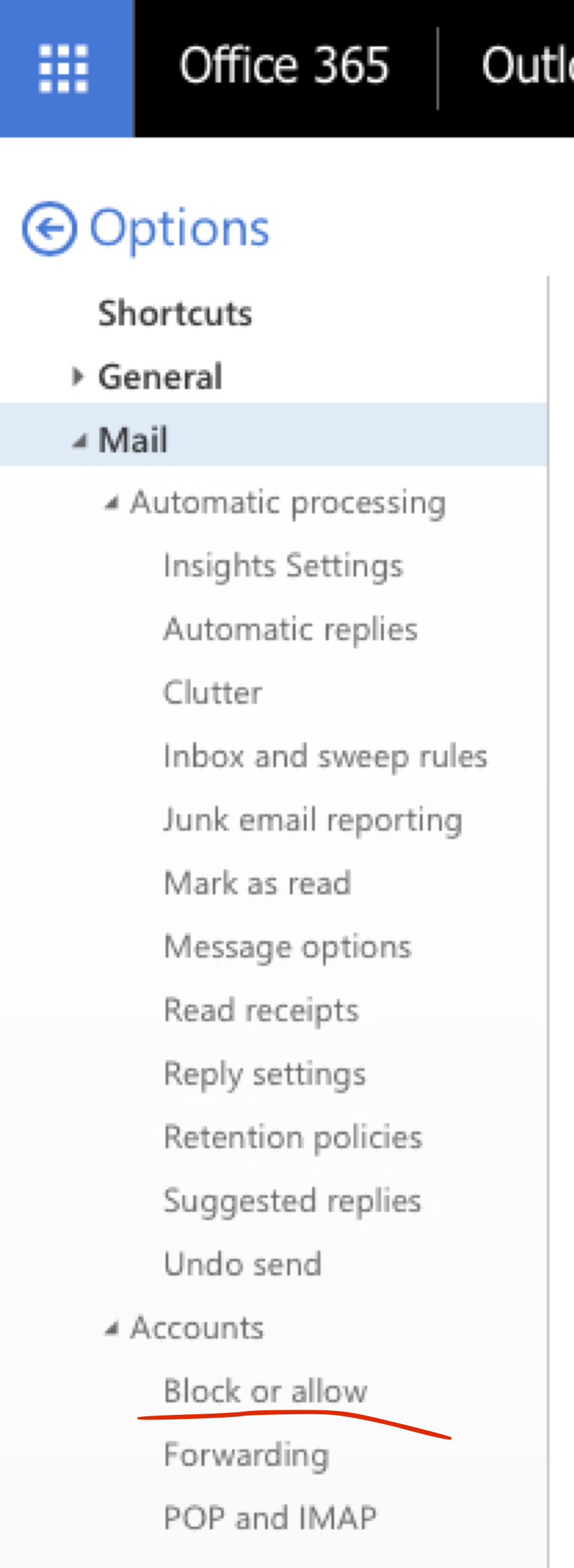
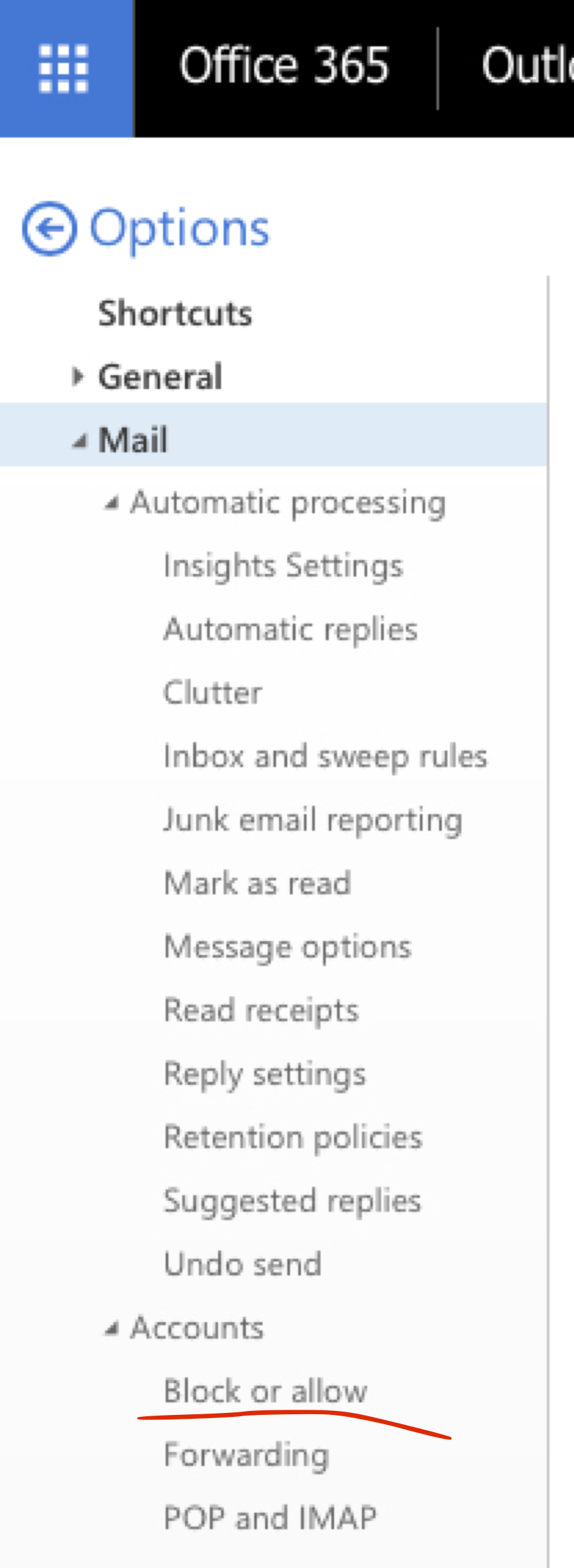
- On the left-hand column that appears, click on Accounts > Block or Allow
- Enter the email address into the Blocked Senders list
Reference: support.office.com/article/block-or-allow-junk-email-settings-48c9f6f7-2309-4f95-9a4d-de987e880e46
- … a sender by ‘from’ name
-
How to block a sender by ‘from’ name
- Login to exchange.carleton.ca
- Click on the “gear” icon in the upper-right hand corner
- Click on Your app settings > Mail
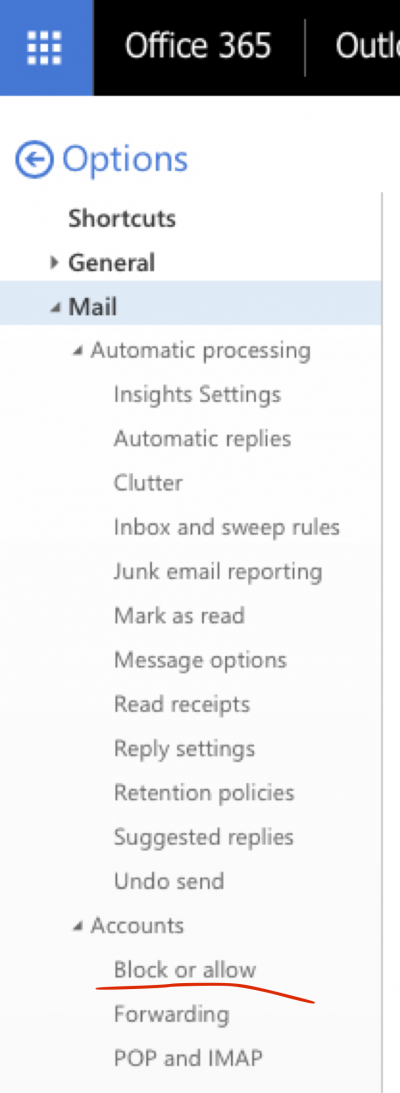
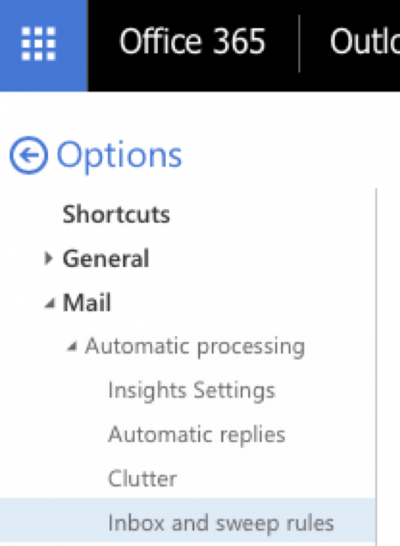
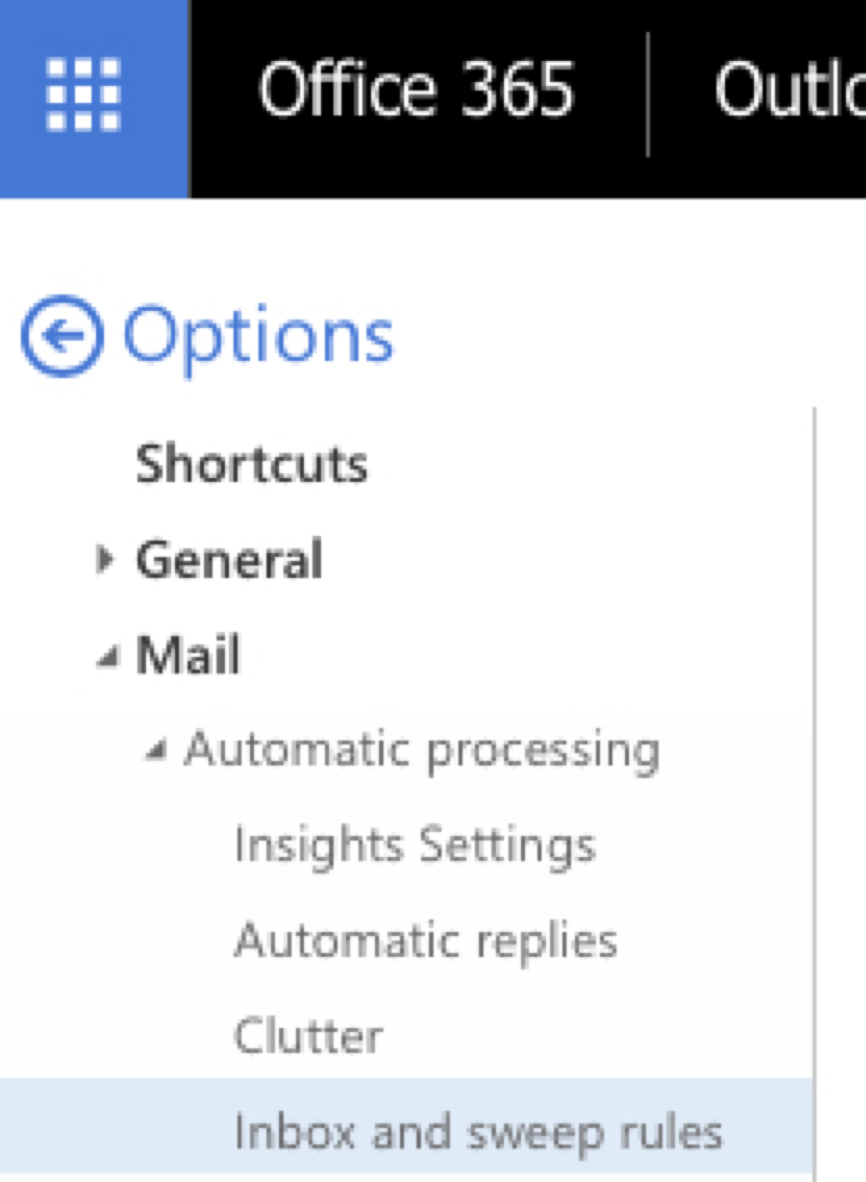
- On the left-hand column that appears, click on Automatic processing > Inbox and sweep rules
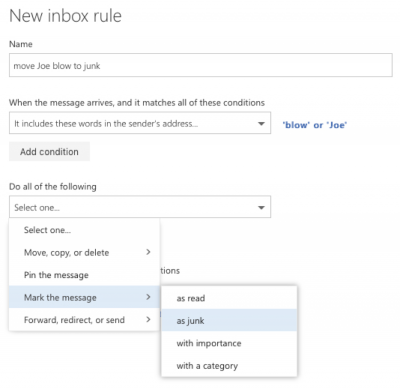
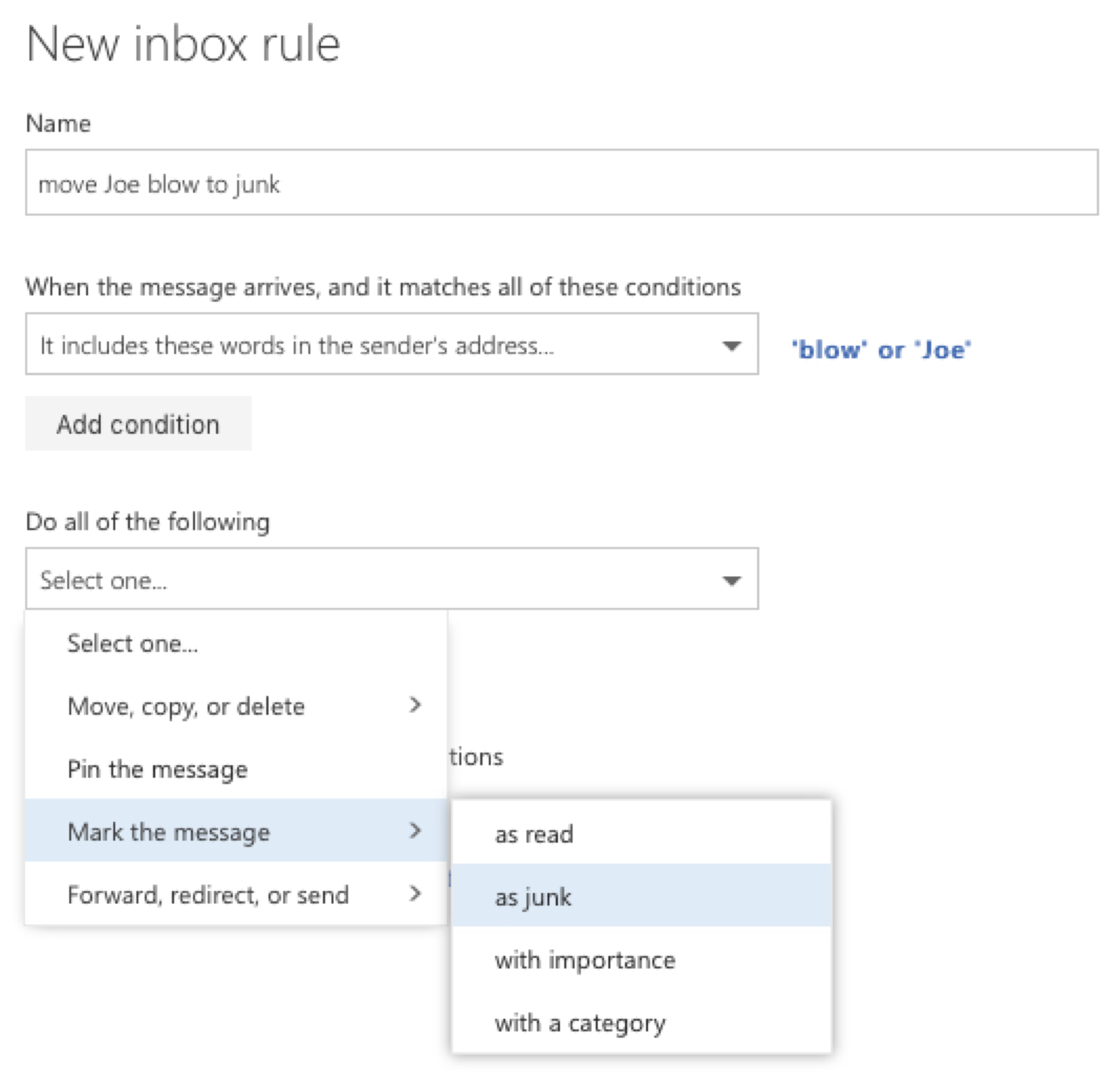
- Click on the “+” icon to add a new rule; enter a name
- Under When the message arrives and it matches all of these conditions, select It includes these words in the sender’s address
- Enter the name(s) used by the sender
- Under Do all of the following, select Mark the message as junk
Reference: support.office.com/article/inbox-rules-in-outlook-web-app-edea3d17-00c9-434b-b9b7-26ee8d9f5622
Mac Users
- Mac Mail.app
-
- Check for updates for your version of OS X—this will keep mail.app up-to-date:
Apple > About This Mac > Software Update… - No reported problems using OS X’s built-in Mail.app with Exchange O365
- Check for updates for your version of OS X—this will keep mail.app up-to-date:
PC-Outlook Users
- Outlook intermittently fails to connect
-
- The inability for a PC to resolve the mailserver name, outlook.office365.com, and hence connect, has been reported associated with a popular anti-virus tool: malwarebytes
- If you are using malwarebytes , and cannot connect to the mailserver, right-clicking on the malwarebytes task bar icon and disabling its Web Protection feature.
- Otherwise, this problem can sometimes be be resolved by:
- Disabling the PC’s Wi-Fi, if it is plugged into Ethernet.
- Repairing MS Office Suite: support.office.microsoft.com/en-us/article/Repair-an-Office-application…
- Creating a new Outlook Profile: support.office.microsoft.com/en-ca/article/Create-an-Outlook-profile…
- If the problem persists, contact the ITS Service Desk.
- The inability for a PC to resolve the mailserver name, outlook.office365.com, and hence connect, has been reported associated with a popular anti-virus tool: malwarebytes
- Outlook SPAM settings
-
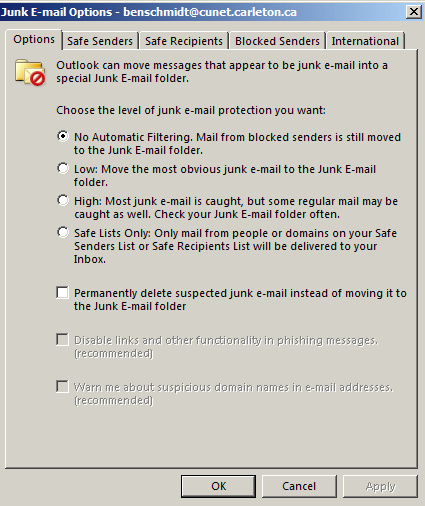
If you are unhappy with the spam filtering in Outlook you can tighten or loosen the spam settings, open the Outlook app and Select: Home > Junk > Junk E-mail Options…
- To tighten Spam filtering: select the tabs labeled, Blocked Senders or International
- To loosen Spam filtering: select the tab labeled, Safe Recipients > enter an address or an email domain, e.g. @mofa.go.kr
Ref: support.office.com/en-US/article/Mark-an-email-message-as-not-junk…
Ref: support.office.com/en-us/article/Overview-of-the-Junk-Email-Filter… - To turn off Spam filtering: select the tab labeled, Options > No Automatic Filtering…
Ref: www.slipstick.com/outlook/how-to-disable-outlooks-junk-email-filter
You can also safelist (Microsoft’s terminology for whitelist) all messages from a given email address:
- Outlook 2013: How to safelist an address: howtogeek.com/185017/how-to-add-an-email-address-to-the-safe-senders-list-in-outlook-2013
- To tighten Spam filtering: select the tabs labeled, Blocked Senders or International
Settings
- Why is IMAP not recommended for Exchange O365?
-
IMAP was designed to only sync mail messages between your computer and your mailserver. For connecting to the Exchange mail service, IMAP is not recommended for these reasons:
- IMAP does not support calendar integration. Selecting “Exchange” rather than “IMAP” in Outlook (PC/Mac), Mail.app (Mac), or the built-in mail apps on your iOS, Android, Windows or Blackberry smartphone, synchronizes not only your email, but also your calendar and address book.
- The most common IMAP email clients are either no longer supported (e.g. Eudora), or have minimal support (e.g. Thunderbird).
- Thunderbird has difficulty filing “sent” messages in the “Sent Items” folder on Exchange mail servers. Sent messages by default end up being saved on the local drive of the computer running Thunderbird. There is a work around, but many Thunderbird users are unaware there even is problem until they lose the only copy of their “sent” messages when their computer fails or is lost.
- Duo users cannot use IMAP as Microsoft does not support 2-factor authentication over IMAP.
The above reasons not withstanding, one might still choose to use an IMAP client of their choosing, but at least keep a bookmark to the Exchange O365 webmail site handy, as a fall-back: exchange.carleton.ca
Web browser users
- Set Timezone
-
Time zone setting in Web set incorrectly to “(UTC) Monrovia, Reykjavik?”
- Login to Exchange O365 Outlook Web App
- Set time zone to Eastern Standard time, UTC-5:00: support.microsoft.com/kb/2298834
- Problems logging into Hotmail at same time as Exchange O365? Or into multiple Office 365 accounts?
-
- Use a separate browser, if you want to be logged into Exchange O365 and your personal Hotmail or Windows Live mail simultaneously:
e.g. Use Chrome for your Exchange O365, and Firefox for your Hotmail
- Use your browser’s Private or Incognito mode to force a login prompt for the credentials for the desired Office 365 account.
- If you regularly access two or more Office 365 accounts, you could use Microsoft’s generic portal: portal.office.com to which you can add each account. Note: Be sure to specify each Office O365 account using its complete email address, e.g. janedoe@cunet.carleton.ca, janedoe@live.com, janedoe@queensu.ca…
- Problems signing out of Exchange O365 – especially Safari users
-
- Safari Only: Safari > Preferences… > Privacy > Cookies and website data: [✓] Always allow
- All Browsers: To fully log out of Exchange O365 you must quit the browser. There is no need to log out first — but if you do you will be taken to a page to remind you to quit the browser. The technical reason for this is that web access to Exchange O365 is via an on-premise, Carleton Federation server. Signing out of the Exchange O365 web app will not sign you out of the Carleton Federation server — but quitting the browser will.