PDF stands for portable document format. This is the best type of file to send to any printer. PDF files can be seen on any platform, ensures that what you send is what your finished product will look like and also ensures there will not be any re-formatting of your document, which is often seen with programs such as Microsoft Word when being viewed on different computers. If your page is formatted for the correct page size, and it is sent as a PDF file, your print job will come out the way you planned it to.
Different Ways to Save Your PDF File
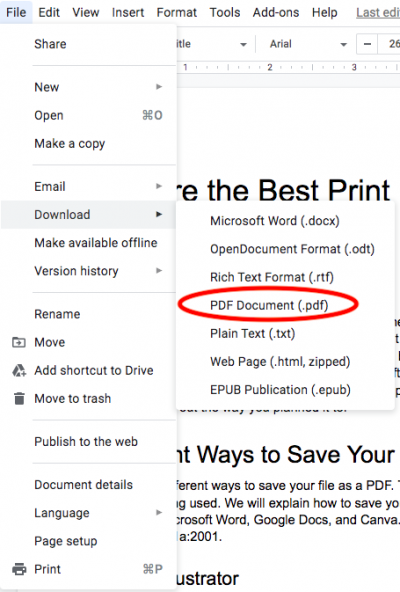
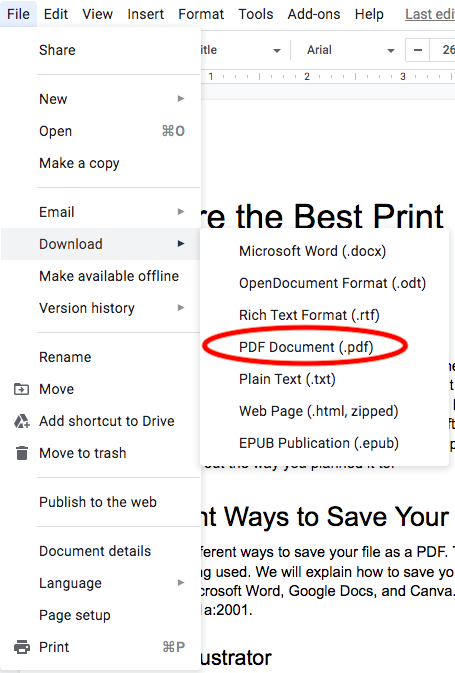
There are different ways to save your file as a PDF. This changes slightly depending on the software being used. We will explain how to save your file as a PDF in Adobe Illustrator, Adobe InDesign, Microsoft Word, Google Docs, and Canva. For the best quality we recommend saving as a PDF/X-1a:2001.
Adobe Illustrator
Using the Save As Feature in Adobe Illustrator
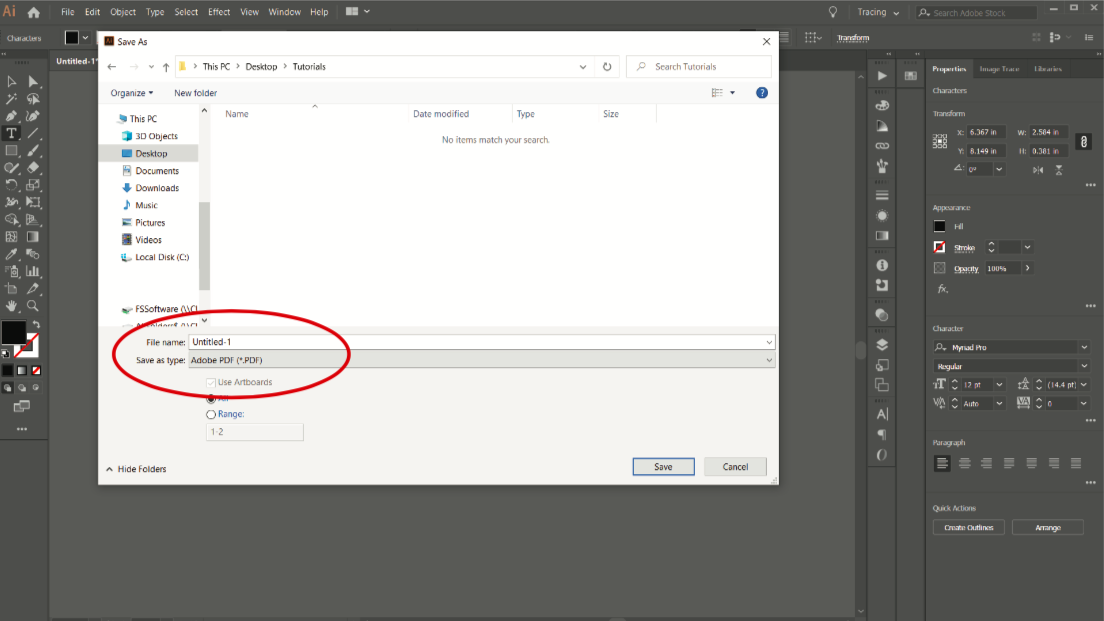
Click ‘File’ and then ‘Save As’
Choose the location in which you want to save the document
Name the file
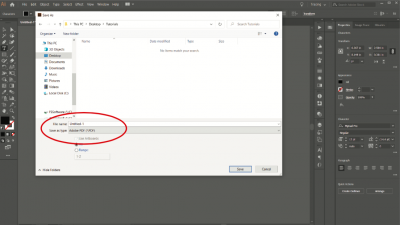
Select ‘Adobe PDF (*.PDF)’ in the ‘Save as type’ dropdown menu
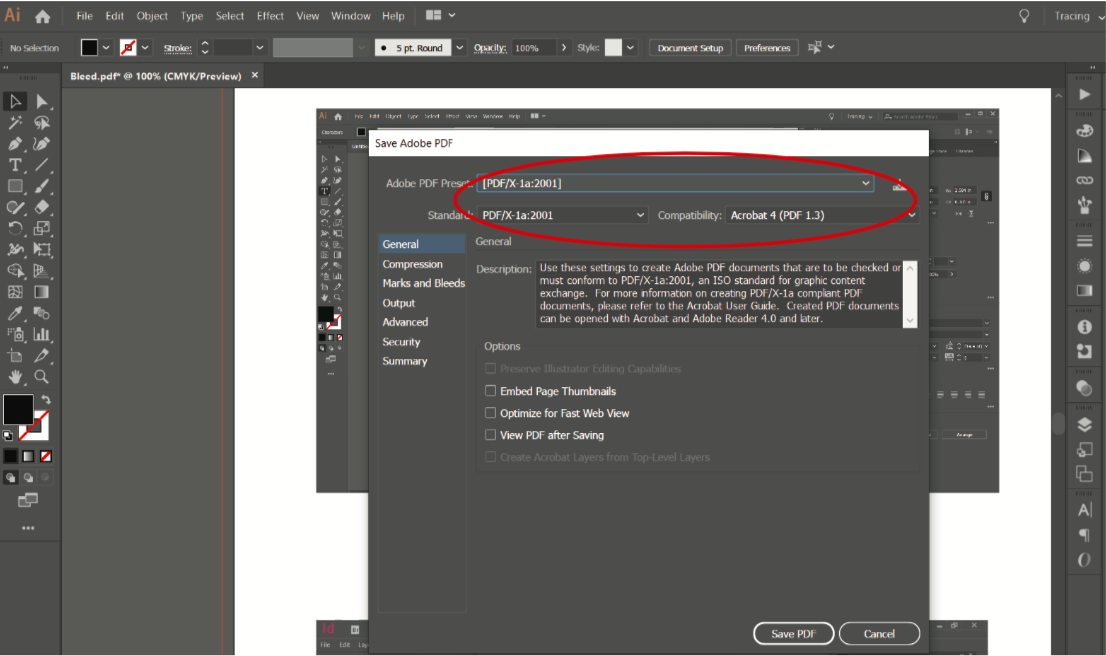
Click ‘Save’ and this brings you to the Adobe ‘Save Adobe PDF’ window
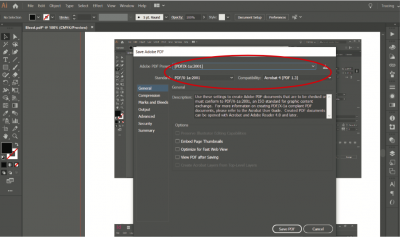
Ensure ‘PDF/X-1a:2001’ is selected in the ‘Adobe PDF Preset’ dropdown menu
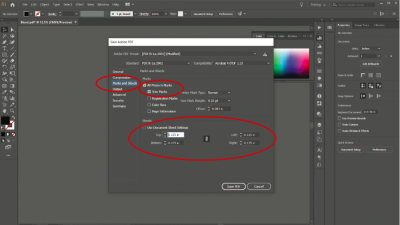
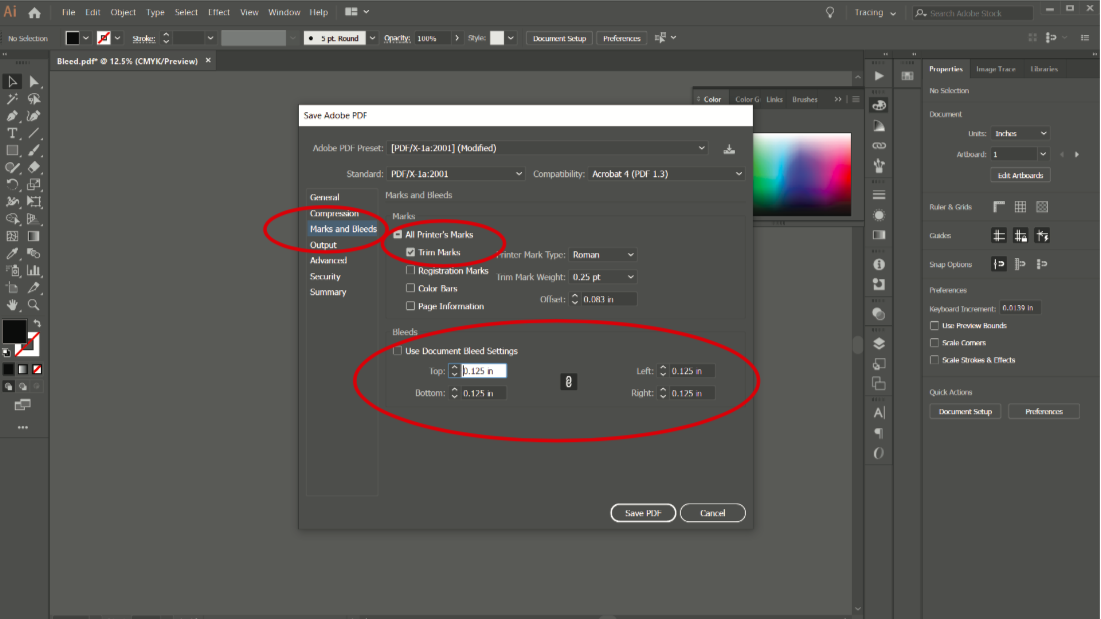
If your document has a bleed, ensure to add bleed and marks to your document in the ‘Marks and Bleeds’ tab. Set your desired bleed.
Finally, click ‘Save PDF’
Adobe InDesign
Using the Export Feature in Adobe Indesign
Click ‘File’ and then ‘Save As’
Choose the location in which you want to save the document
Name the file
Select ‘Adobe PDF (*.PDF)’ in the ‘Save as type’ dropdown menu
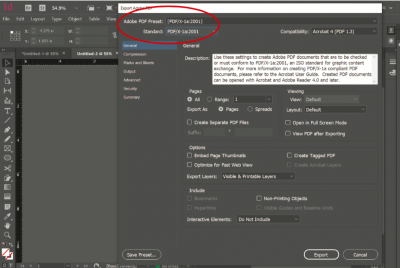
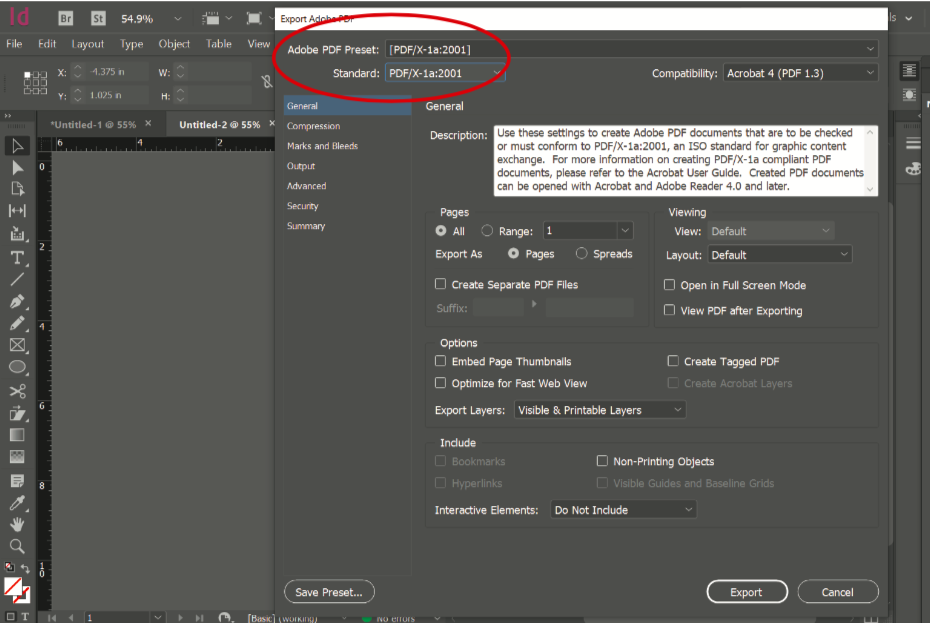
Click ‘Save’ and this brings you to the Adobe ‘Export Adobe PDF’ window
Ensure ‘PDF/X-1a:2001’ is selected in the ‘Adobe PDF Preset’ dropdown menu
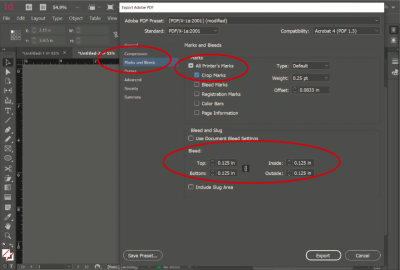
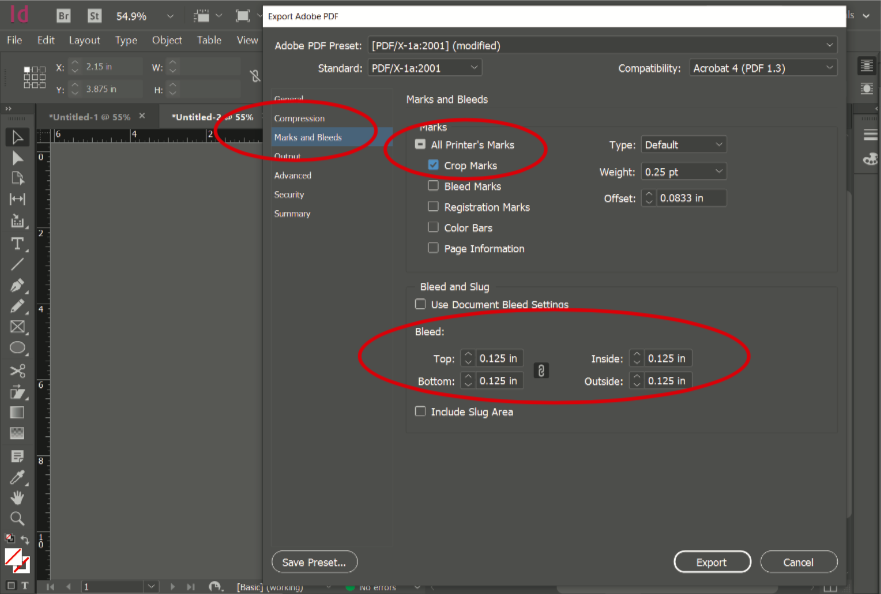
If your document has a bleed, ensure to add bleed and marks to your document in the ‘Marks and Bleeds’ tab. Set your desired bleed.
Finally, click ‘Export’
Microsoft Word
Using the Save As Feature in Microsoft Word
Click ‘File’ and then ‘Save As’
Choose the location in which you want to save the document
Name the file
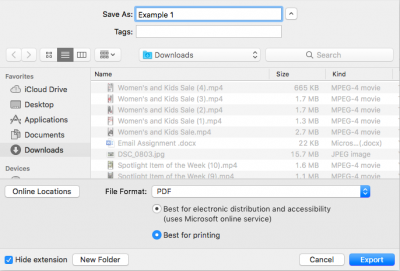
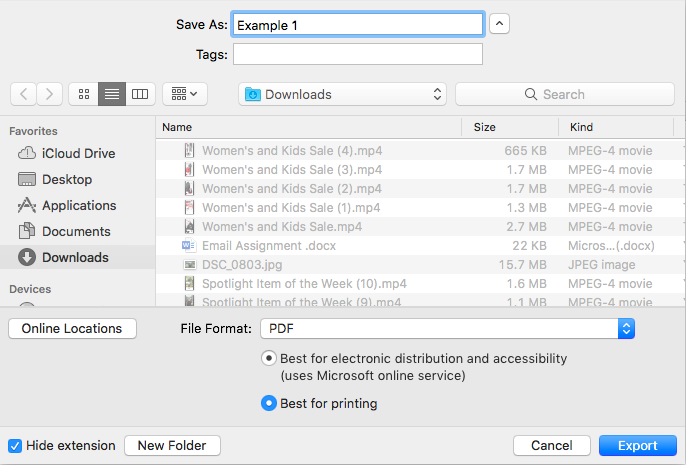
Select ‘PDF’ in the ‘File Format’ dropdown menu
Finally, click ‘Export’
Using the Print Feature in Microsoft Word
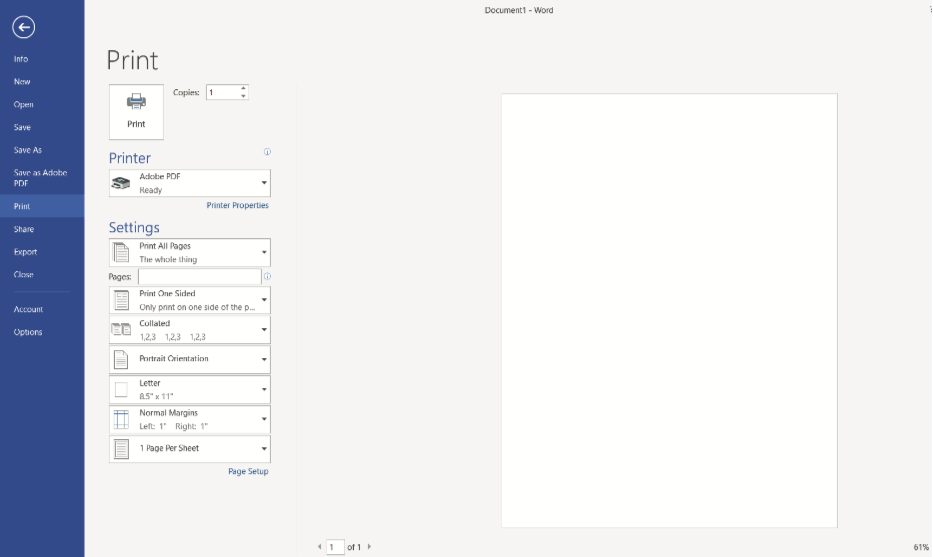
Click ‘File’ and then ‘Print’
Change the ‘Printer’ dropdown menu to ‘Adobe PDF’
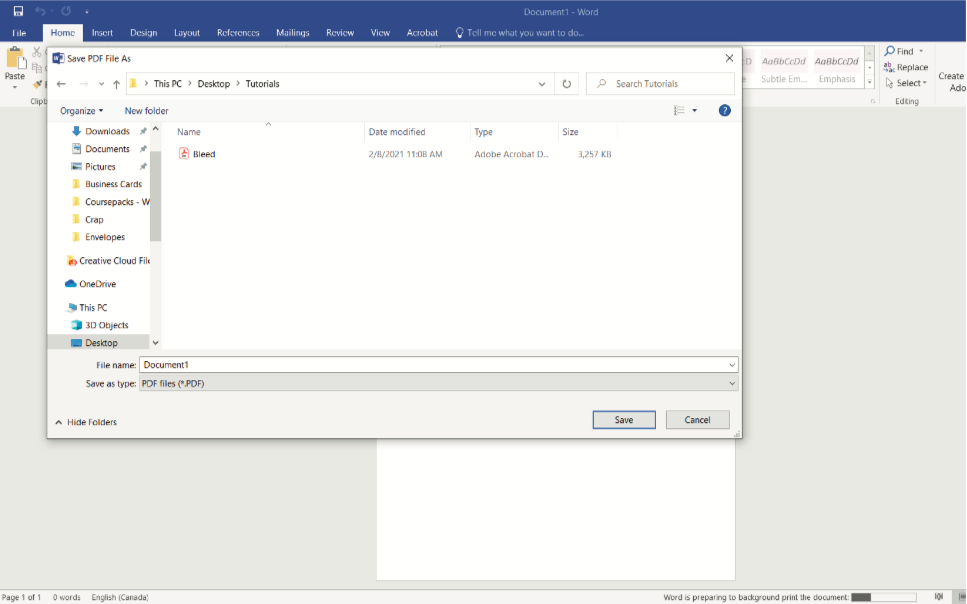
Select ‘Print’ and the ‘Save PDF File As’ window will pop up
Choose the location in which you want to save the document
Name the file
Select ‘PDF files (*.PDF)’ in the ‘Save as type’ dropdown menu