Navigating the Ventus Faculty and Instructors Portal
As a course instructor, you will use Ventus to view Letters of Accommodation (LoAs) for students in your course(s); book tests and exams with the McIntyre Exam Centre (MEC) by submitting a Notice of Examination (NoA); view accommodation arrangements for your PMC students; upload digital copies of your tests or exams directly; and more.
Logging In
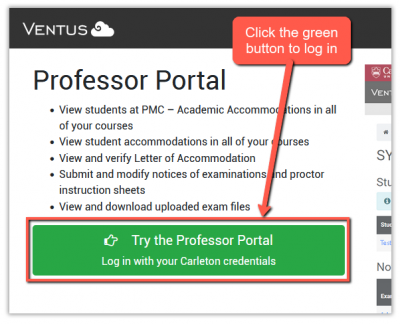
- Go to the Ventus Faculty and Instructors Portal and clock the green “Try the Professor Portal” button (see image below, left).
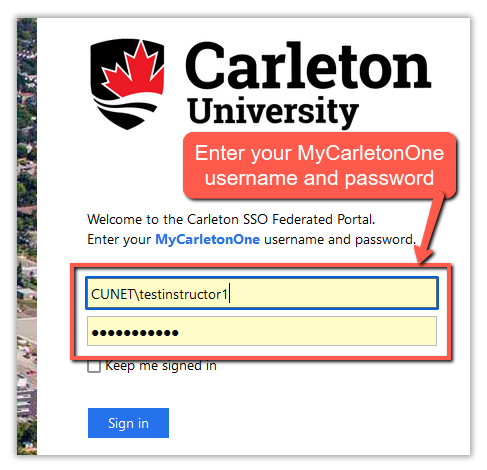
- You will be redirected to the Carleton SSO login portal. Enter your MyCarletonOne login credentials and “Sign In” (image below, right).
Dashboard
The Faculty dashboard provides access to your Class List – a list of all your courses for each semester.
Each course-page within your Class List contains:
- a list of all PMC students enrolled, with links to view and print their Letter of Accommodations,
- a list of all Notices of Examination (NoEs) you have issued where you can track which student(s) requires exam accommodation(s) and whether they have confirmed participation in the test/exam, and
- a breakdown/summary of all teaching and exam accommodations to be provided in that course and for which students.
On each course page, you have the ability to:
- Upload course outlines,
- Create and edit your Notices of Examination (NoEs),
- Upload your exam documents, and
- Create and submit proctor instruction sheets.
Faculty and Instructors Ventus Portal Overview
Class List/Course Pages
When you log into the Ventus Faculty Portal, your default view will be of the Class List for the current semester. Click on the Semester dropdown list of other semesters you have taught or will be teaching; click the Go button to access your courses from the semester you wish to review. Clicking on any course link from this Class List gives you access to that Course page where you can review accommodations details and access other functions (see image below).

Uploading and Viewing Course Outline in Ventus
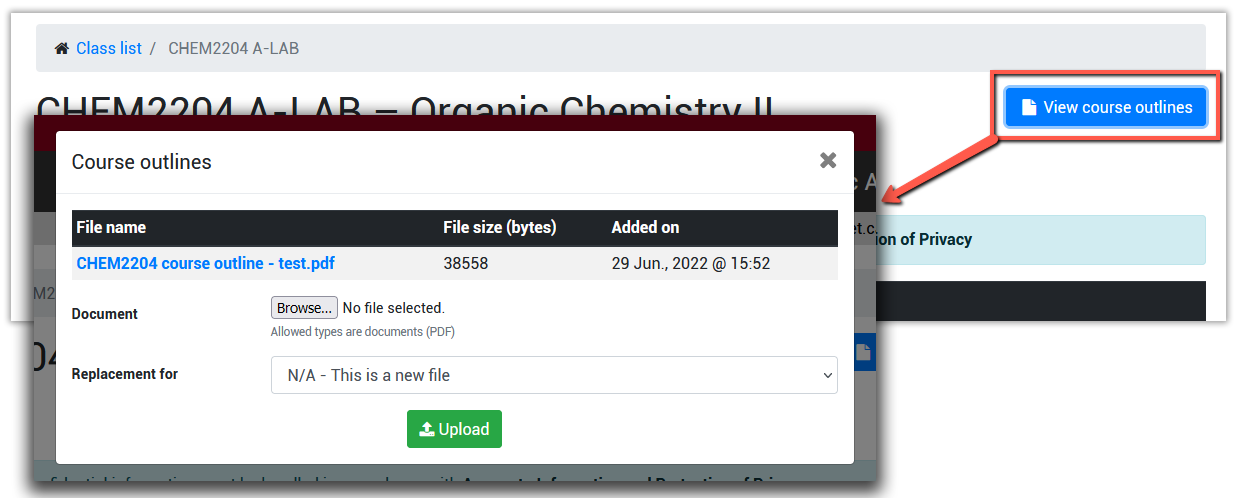
- Locate the “View Course Outlines” button in the top right of the course page.
- This button opens a dialog box where you can upload and view your course outlines. Uploading your course outlines makes them available to PMC Coordinators to help them make decisions about exam accommodations with their students.
Student Lists
A list of all PMC students enrolled in each of your courses is available on each Course Page. This list includes their name (linked to their email address), student number, enrolment status, and a link to view their Letter of Accommodation (LoA). All relevant LoAs will be accessible on the course page for future reference.
Notices of Examination
A Notice of Examination (NoE) in Ventus is essentially an exam booking. When you create an NoE, a notification is sent to your PMC student(s) to confirm their participation in the test or exam and select the test/exam accommodations they require. In the “Notices of examination” section (below the Students list on the course page), you will find a list of all tests and exams which you booked through the McIntyre Exam Centre and for which you have created an NoE.
A step-by-step guide to Submitting a Notice of Examination is available.
Editing a Notice of Examination (NOE)
Email ExamRoom with the details of the change. McIntyre Exam Centre staff will review the change request and implement the changes. Changes are subject to resource availability.
Accommodation Requests
Notification of students with teaching accommodations added to my course(s)
After a student has used the Ventus Student Portal to submit an accommodations request for your course, you will receive an email notification from Ventus the very first (and only the first) time a student with accommodations is added to your course.
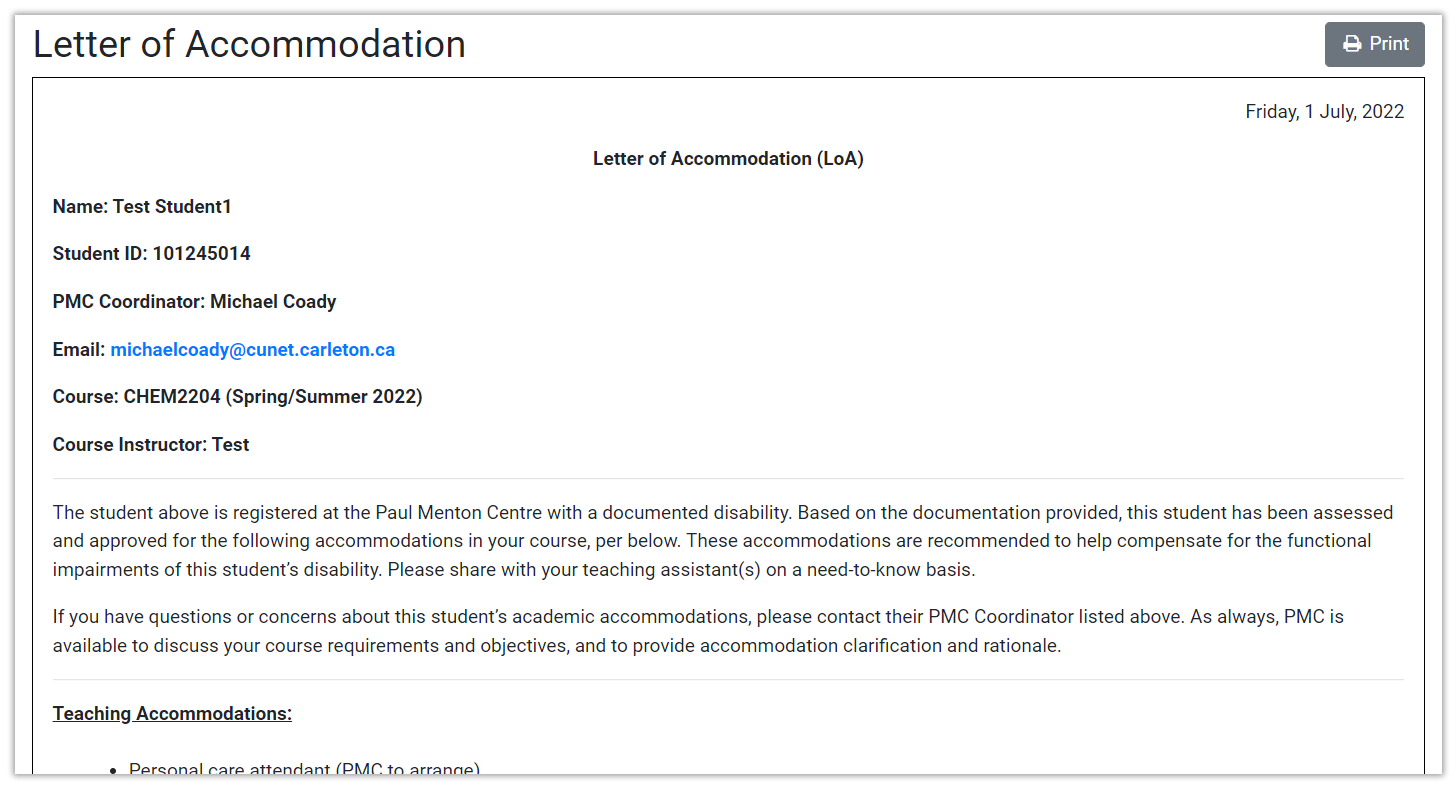
Letters of Accommodation
As mentioned earlier, all student letters of accommodation (LoAs) are accessible in Ventus. Once a student makes an Accommodation Request and it is approved by their PMC Coordinator, a link to their letter of accommodation will appear next to their name in the Students list on your Course page. The LoA will list all the teaching and exam accommodations that the student has been approved for. The LoA page has a print button if you would like to print a hard copy or save it as a pdf for your files.