Submitting a Notice of Examination (NoE)
A Notice of Examination (NoE) in Ventus is essentially an exam booking. When the professor creates an NoE, a notification is sent to all PMC students in the relevant course to confirm their participation in the test or exam and select the test/exam accommodations they require.
Course Instructors can submit a Notice of Examination (NOE) directly via the Ventus Faculty Portal.
In the “Notices of examination” section (below the Students list on the course page), you will find a list of all tests and exams which you booked through the McIntyre Exam Centre and for which you have created an NoE.
Table of Contents
To Submit an NoE
- Login to the Ventus Faculty Portal and navigate to your class-list page.
- Select the course from the list that you wish to submit a NOE for. You should be presented with a page that resembles the one pictured below.
- Select “Add Notice of Examination”
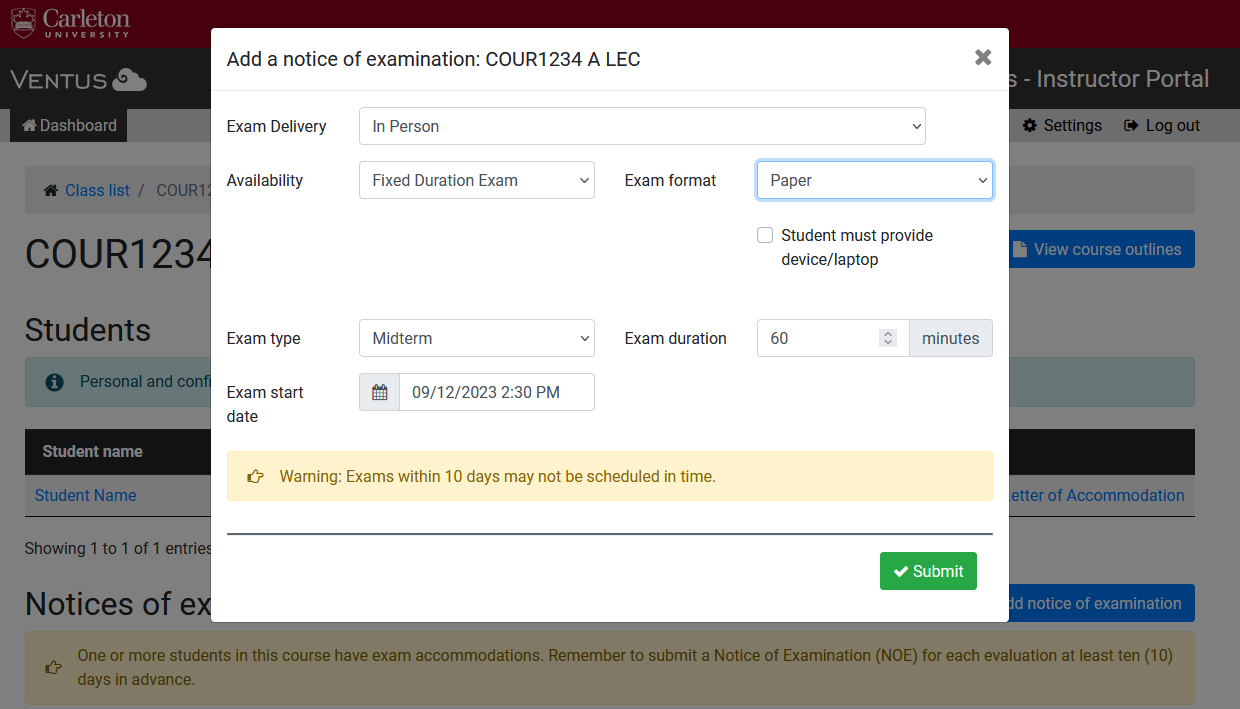
- When prompted add the exam scheduling details into the requisite fields (see image below).
Once an NoE is Submitted
MEC staff will review your request and approve it within 2 business days of submission.
- In the event that MEC is unable to accommodate your request you will receive a follow-up communication from MEC.
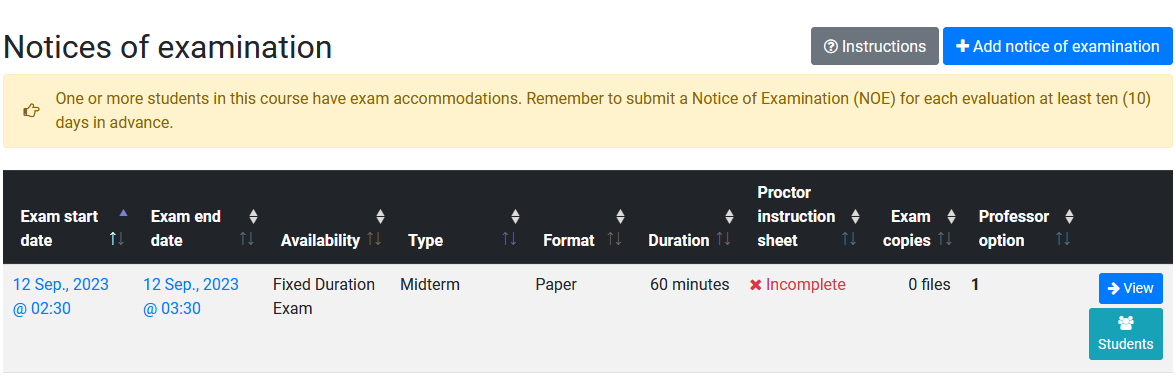
Once an NoE has been approved you can manage all upcoming NoEs via the Notices of Examination table on your course page:
- Follow the “View” button to review details of your exam request and submit additional information to the exam centre about authorized materials and proctoring instructions.
- Pressing the “Students” button will display a list of PMC students who have confirmed participation for this relevant test or exam (see image below)
Editing an NOE
Email ExamRoom with the details of the change. McIntyre Exam Centre staff will review the change request and implement the changes. Changes are subject to resource availability.