Uploading Your Notes
Volunteer notes are uploaded through the Ventus Notetaker Portal (see image below).
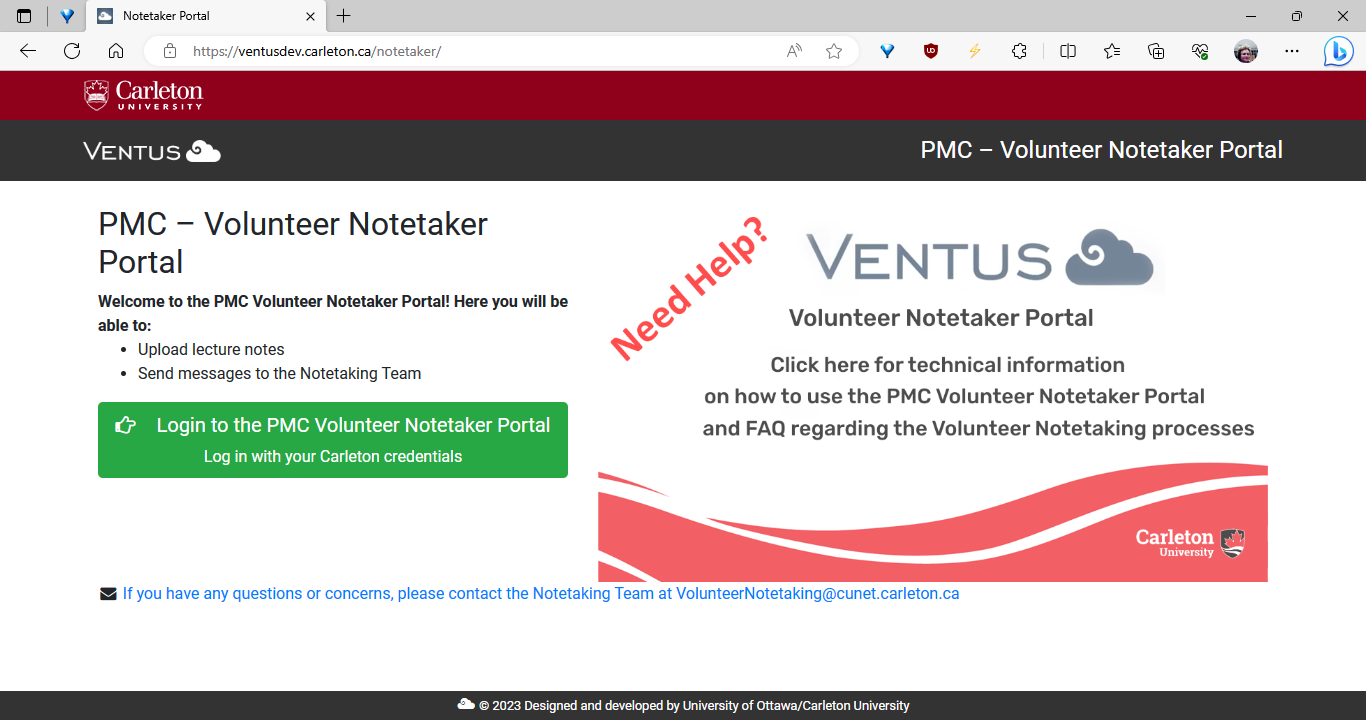
Note that the Notetaker portal is different than the Ventus Student Portal and the Ventus Faculty and Instructors Portal. If you login and are not able to upload your notes, please check that you logged into the correct portal.
To upload volunteer notes…
- Login in to the PMC Volunteer Notetaking Portal using your MyCarletonOne credentials.
- Navigate to the “Courses/Notes” tab where you will see a list of courses in your availability.
- Click “Upload Notes” beside the course you wish to upload notes for.
- Make sure your personal information is correct.
- Select the file(s) you wish to upload and the corresponding lecture dates. If there are comments or instructions for the student receiving your notes, enter them in the “Comments” section. (e.g. ”No class next week” or ”Exam review in this lecture’‘). When done, click on “Submit”.
- You can now edit and delete your uploaded lecture notes using the icons beside uploaded files. You no longer need to email the Volunteer Notetaking Team to request changes to uploaded files.