After you submit a requisition, have you received an email with
- the subject “Your requisition has been returned. Requisition #xxxxxxxx”, and
- in the body of the email it states “‘The following note was attached to this requisition during the return: Item 1, Sequence 1: *ERROR* Transaction date 30-MAY-2016 is not in an open accounting period for chart M.”?
If yes, you likely started a cart and tried to submit it after a billing period is closed. To resubmit the requisition, you will have to change the ‘Accounting Date’. Read on to find out how.
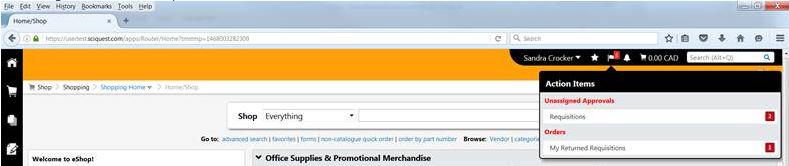
- The quickest way to find the returned requisition is to click on the actions item flag on the dashboard. Once the ‘Action Items’ window opens, click on ‘My Returned Requisitions’
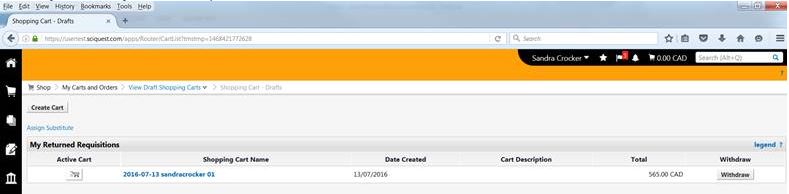
- When the ‘My Returned Requisitions’ window opens, click on the ‘Shopping Cart Name’ of the cart you are interested in.
- On the new screen, scroll down until you see ‘Billing Options’. Click on ‘Accounting Date’. You can change the accounting date here and resubmit the requisition.