Quick Steps – Upload a Custom Background
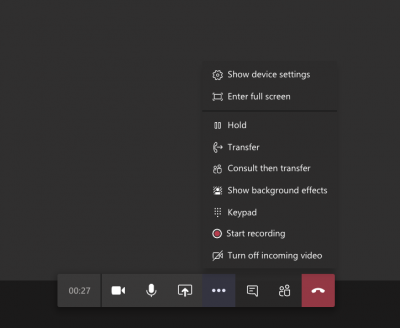
- While in call or on the pre-join screen, click the “More actions” button (ellipsis) to expand menu options.
TIP: Go to the Teams calendar and click “Meet Now” to create a meeting with yourself where you can test and preview backgrounds. - Click “Show background effects”
- Select “Add new” from the panel on the right to upload your image.
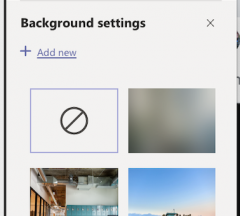
- Locate and select your saved background image.
- The image is now available to use as a custom background!
Sourcing a Teams Background
- Custom Backgrounds gallery for MS Teams (lots of holiday options!)
- Download ready made background from Microsoft (zip)
- Christmas, Hanukkah and winter scenes from ZDnet
- Ugly holiday sweater backgrounds
- Winter and Holiday Teams Backgrounds
- Simpsons background anyone?
- Marvel backgrounds for the superhero in you
- Scenic and room backgrounds
- Hallway from the Shining (It’s holiday ..ish)
- Make your own background! Image needs to be 1920 x 1080 px.

Video Tutorial – How to Change your Background
Was this page helpful?
1201
d1cffffca5
4 people found this useful