Basic Text Editing
Basic Training Module 1: Getting Started
Table of Contents
Most website updates involve editing text. Whether you’re correcting a typo, updating information, or creating new content, the Block Editor provides simple tools for adding, formatting, and organizing text.
In this lesson, you’ll learn how to edit text, apply basic formatting, add links, and manage content blocks.
Editing Text
Editing text in the Block Editor works much like editing content in a word processor.
Adding Text
To add text to a page:
- Open an existing page or create a new one.
- Click in an empty area of the page.
- Start typing to create a Paragraph block automatically.
You can also click the + button and manually select a block type.
Editing Existing Text
To edit content:
- Click within a text block.
- Make your changes directly in the editor.
- Changes are automatically saved to the page draft as you work.
Selecting Text
Click and drag your cursor over text to select it.
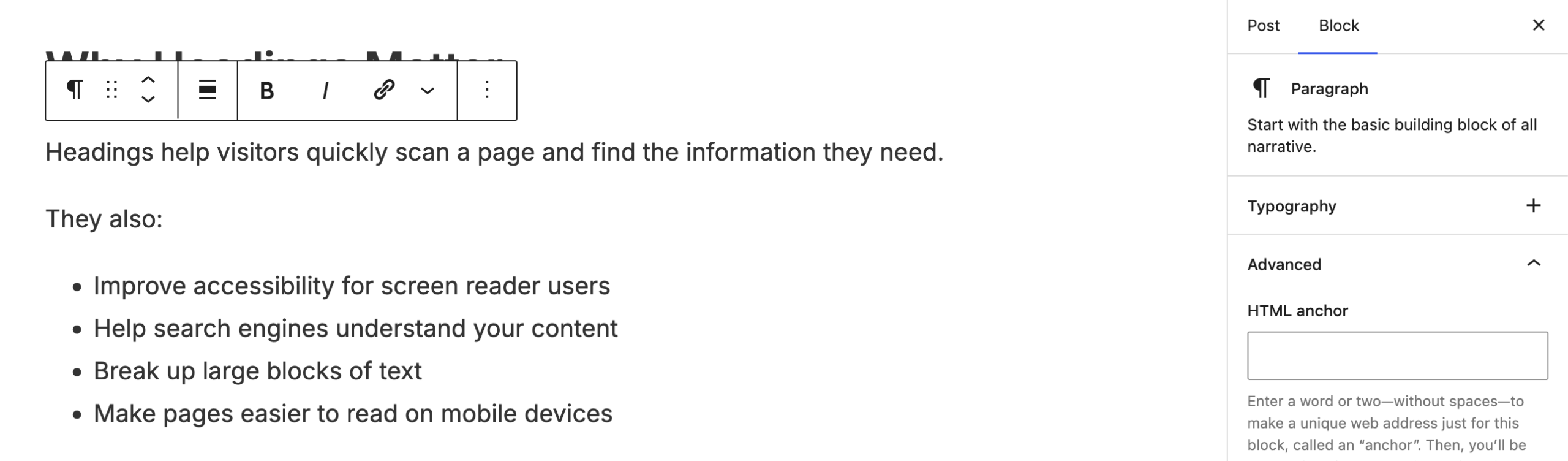
Once selected, formatting options such as bold, italic, and links become available in the block toolbar.
Formatting Text
Formatting helps make content easier to read and understand.
Bold and Italic Text
After selecting text, you can apply formatting such as:
- Bold to emphasize important information
- Italic to add subtle emphasis
Use formatting sparingly to maintain a clean and consistent appearance.
Creating Lists
Lists help organize information and improve readability.
Use:
- Bulleted lists for related items
- Numbered lists for steps or instructions
For example:
- Log in to your site
- Navigate to Pages
- Edit your content
Using Headings
Headings help organize page content into sections.
A well-structured page:
- Is easier to scan
- Improves accessibility
- Helps visitors find information quickly
Heading levels should be used in order whenever possible. Avoid using headings simply because you want larger text.
Adding Links
Links connect your content to additional information and resources.
Internal Links
Internal links direct visitors to another page within your website.
Examples include:
- Contact pages
- Service pages
- Related content
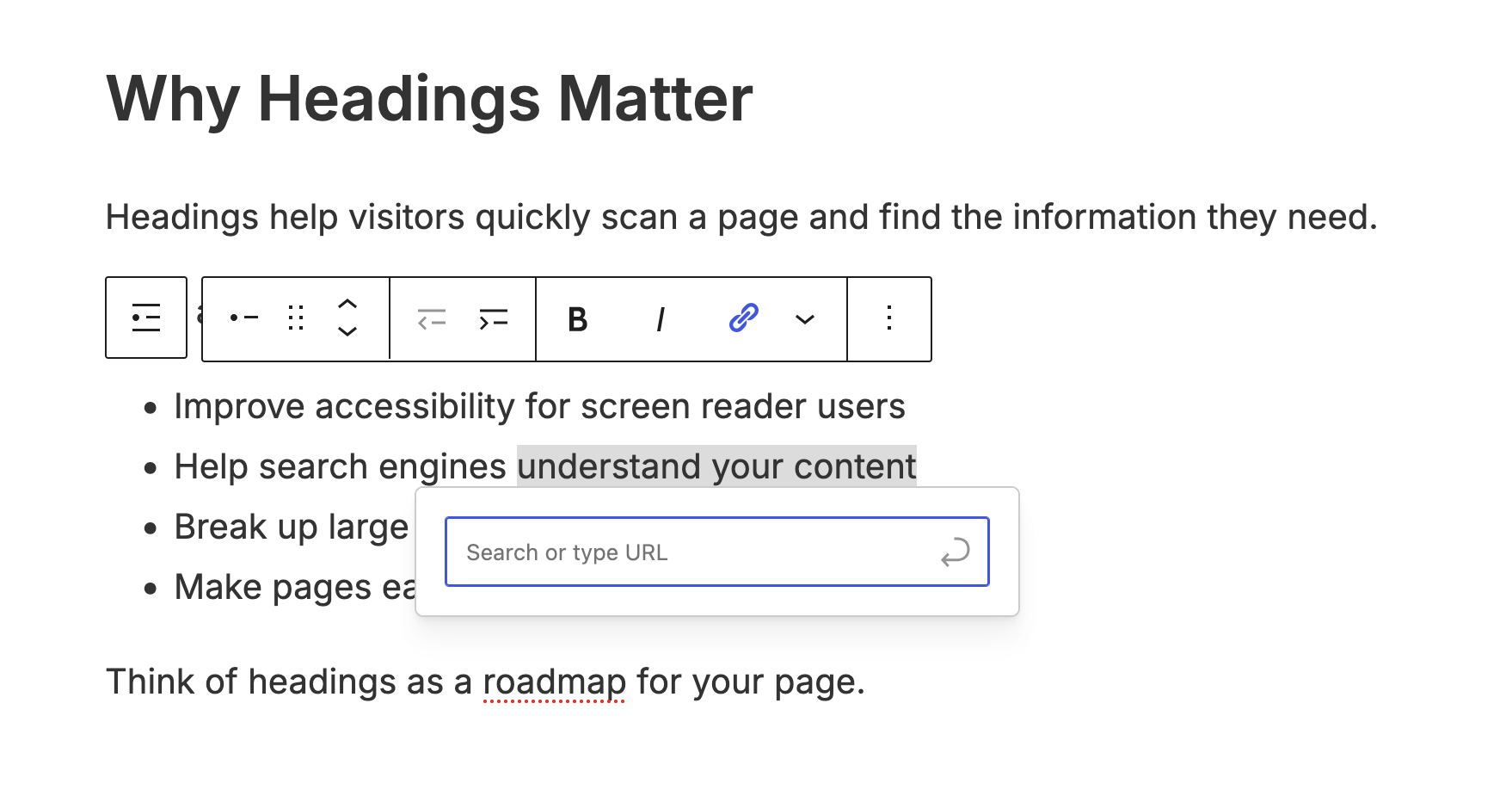
When creating a link, begin typing the page title and WordPress may suggest matching pages from your site.
External Links
External links direct visitors to another website.
Examples include:
- Carleton University services
- Government websites
- External resources
Always verify that external links are current and accurate.
Opening a Link in a New Tab
For external websites, you may choose to open links in a new browser tab. For internal pages on your own site, links should generally open in the same tab unless there is a specific reason not to.
Managing Blocks
Every piece of content in the Block Editor exists as an individual block. Learning to manage blocks will help you build and rearrange page content more efficiently.
Moving Blocks
Blocks can be moved up or down the page using the movement controls in the block toolbar. This makes it easy to reorganize content without copying and pasting.
Duplicating Blocks
If you need similar content more than once, duplicate an existing block and modify the copy. Duplicating blocks can save time and help maintain consistency.
Deleting Blocks
To remove a block:
- Select the block.
- Open the block options menu.
- Choose Delete.
Only the selected block will be removed.
Transforming Blocks
Many blocks can be converted into another block type.
For example:
- Paragraph → Heading
- Paragraph → List
This allows you to change the presentation of content without re-entering text.
Content Best Practices
Good content is clear, consistent, and easy to read.
When editing website content:
Use Headings to Organize Content
- Break long pages into logical sections using headings.
- Visitors often scan pages before reading them in detail.
Use Descriptive Link Text
Link text should describe the destination.
Good:
- View our Accessibility Guidelines
- Read the Event Submission Process
Avoid:
- Click here
- Read more
Avoid Excessive Formatting
- Too much bold text, colour, or emphasis can make content difficult to read.
- Keep formatting simple and use it only when it adds meaning.
-
Welcome to the final video of getting started with cutheme module one. This video is going to introduce you to working with text on our new theme.
We’ll go over the basics of making edits to a page that already exists. Once you have logged into your site, navigate to the page where you’d like to make changes. and then click Edit Page at the top.
Click your cursor inside of a paragraph block, and you’ll see a menu appear above the text.
The first icon indicates what type of block you’re using. It will have the icon of the current block and if you click on that, you can see a list of the other kinds of blocks that you can convert to.
Next, the up and down arrows allow you to move the block up and down throughout your page.
The rest of the menu has a lot of the basic text formatting options that you’re familiar and used to seeing in other word processing platforms.
For example, the next icon allows you to align your text left, center or to the right.
Highlight text and then click the B to bold or the I icon to italicize the Text.
The chain icon allows you to create hyperlinks. Highlight the text that you’d like to use as the anchor. Click on the chain and then you can paste in the URL or start typing the name of a page from your website and it will appear for you to select.
Click the drop-down menu to find other options such as strikethrough.
And at the far right, you’ll notice the three dots. Click on these to view block settings such as copy and duplicate.
Try it Out!
Now that you’ve learned the basics of text editing, practice making some changes.
- Create a new page.
- Add a Heading block and enter a title.
- Add two Paragraph blocks containing sample text.
- Format some text as bold and italic.
- Create a bulleted list.
- Add a hyperlink to a piece of text.
- Move one block to a different position on the page.
- Transform a Paragraph block into a Heading block.