Adding Blocks
Basic Training Module 3: Essential Blocks
Blocks are the building blocks of every page and post in cutheme. Whether you’re adding text, images, videos, buttons, or other content, you’ll use blocks to create and organize your page.
Each block is designed for a specific purpose and includes its own settings and options. By combining blocks, you can create engaging, accessible, and well-structured content.
In this lesson, you’ll learn how to add and remove blocks using the tools available in the Block Editor.
What Are Blocks?
Every piece of content in the Block Editor is contained within a block.
Common examples include:
- Paragraphs
- Headings
- Lists
- Images
- Buttons
- Videos
Think of blocks as individual content elements that can be added, rearranged, customized, and removed as needed.
As you progress through this training, you’ll explore many different block types and learn when to use them.
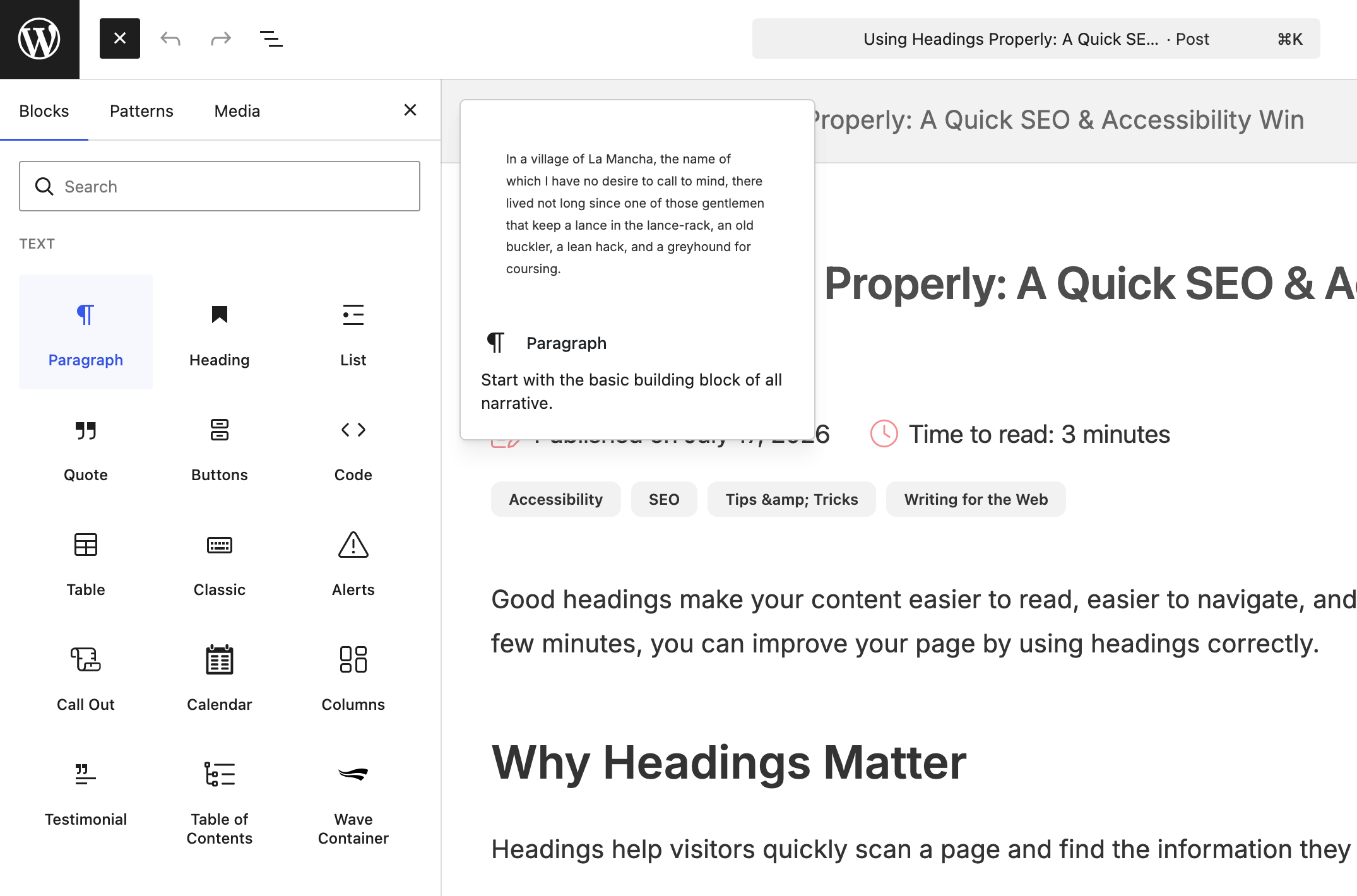
Adding Blocks
There are several ways to add blocks within the Block Editor.
Using the Block Inserter
The Block Inserter is the most common way to add blocks.
To add a block:
- Click the + icon in the top toolbar.
- Search for the block you want to add.
- Select the block from the results.
The block will be inserted into your page.
Tip: You can search by block name or by a keyword related to the type of content you want to add. For example, searching for “image” will display image-related blocks.
Using the Add Block Button
When editing content, you’ll frequently see a + button appear within the page editor.
Clicking this button opens the same block selection menu and allows you to insert a block directly where you are working.
Using a Keyboard Shortcut
Once you’re familiar with block names, keyboard shortcuts can be one of the fastest ways to add content.
- Click in an empty block.
- Type a forward slash (
/). - Begin typing the name of a block.
For example: /heading or /image. Select the block from the list that appears.
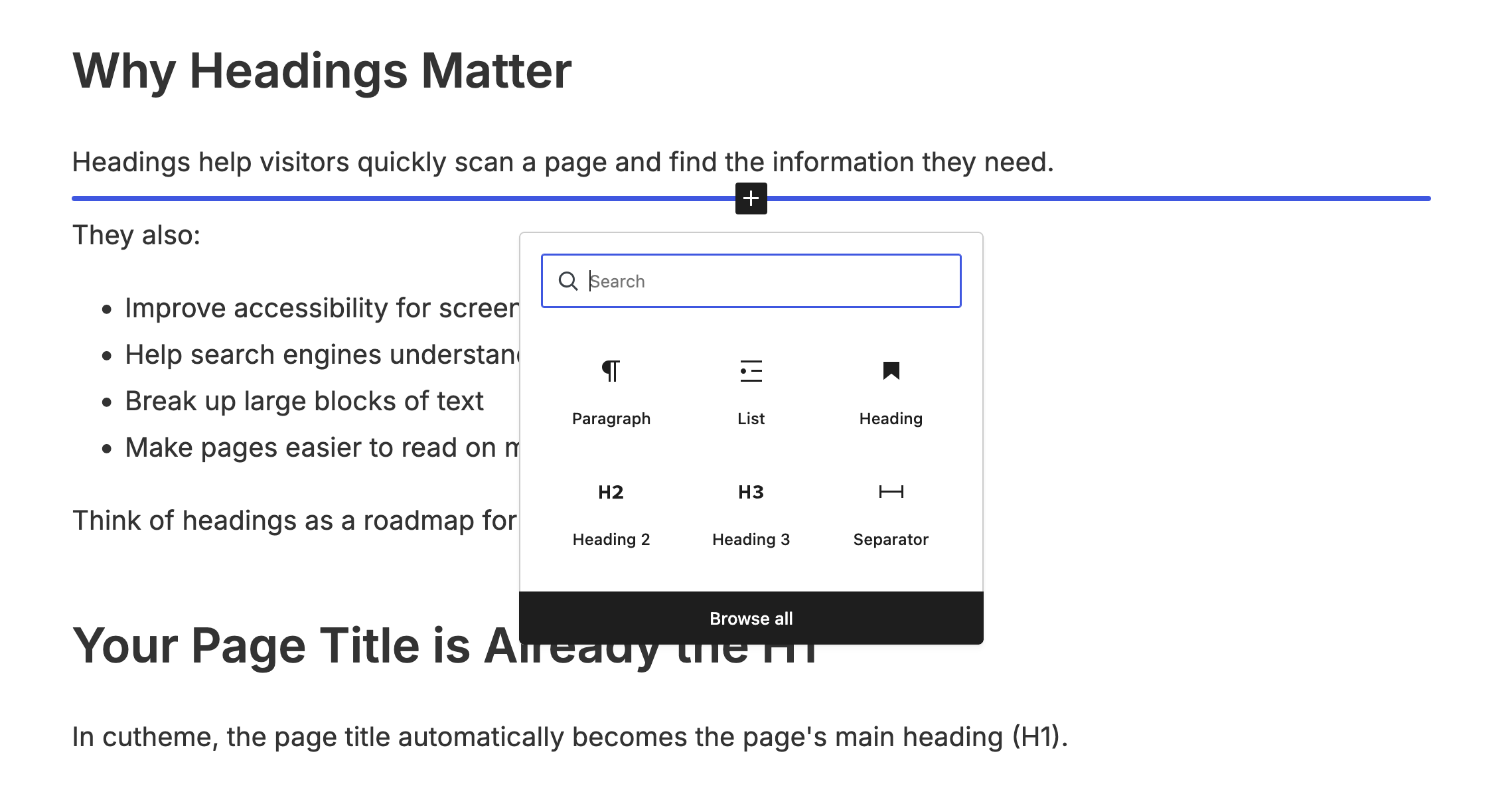
Finding the Right Block
The Block Inserter contains a large number of blocks.
If you’re unsure which block to use:
- Search by keyword
- Browse the available categories
- Experiment with different blocks to see how they behave
Don’t worry about learning every block immediately. This training will introduce the most common blocks used across cutheme websites.
Removing Blocks
Blocks can be removed at any time.
To delete a block:
- Select the block.
- Open the block options menu (⋮).
- Choose Delete.
The block will be removed from the page.
Tip: If you delete a block accidentally, use Undo to restore it.
-
Hello and welcome to our CU theme training on basic building blocks. This video is going to give you an overview of what blocks are, what kind of blocks are available, and how to add them to a page.
Blocks contain the pieces of content you use to build all of your web pages and your posts. From the front end the web page looks like this. But when you go into the back end you can see how each piece of content is an individual block. So when I click on the block, it gets highlighted by that blue border.
To test things out I’m going to practice on a test page that I’ve already created.
There are several different ways to add blocks to a page. First, you can pull up the block menu using the block editor over here at the top left. So just hover over and you’ll see “toggle blog inserter.” Click on that to see a list of all of the blocks.
Another way to add a block to the page is by clicking on this when you’re in the edit area. Click on this plus sign and that will bring up the same menu. When you’re in the block menu, there are tons of options for you to choose from. All these different kinds of blocks including – text blocks, design blocks, embeds, and card and listing
blocks.To search for a specific block you can type the name in up here. So I typed in the image and that brings up all of the different image blocks. To add it to a page, I simply select that particular block and now it’s added to my page right over here.
A third way to add a block is in a content area simply type a slash and then you can either click on one of these blocks or if there’s something in particular you want to add (a paragraph block or a video embed) start typing that in and that will appear. You just click on the name and then you have your video embed block.
The final way to add a block is by hovering over the section between blocks and then you’ll see this block editor add block dealie up here. So you just click on that and again you’ll have all these block options and you just pick one.
Every Block’s going to be a little different. Just take your time to get comfortable using them and experimenting and trying each of them out.
Try it Out
Now that you have learned the basics about adding and removing blocks, it’s time to try it out!
- In a new page or post, add a block using the Block Inserter.
- Add a block by typing in the shortcut manually.
- Remove the blocks you just added.