Image
Basic Training Module 3: Essential Blocks
Images can help make content more engaging, support key messages, and break up large sections of text. The Image block allows you to add images to pages and posts while providing important accessibility and formatting options.
In this lesson, you’ll learn how to add images, provide alternative text, and adjust image settings to ensure your content is accessible and visually effective.
When to Use an Image Block
Use the Image block when you want to:
- Illustrate a concept
- Showcase a person, place, or event
- Support text content with visuals
- Make a page more engaging
Images should support your content, not replace it. Important information should always be available in text form.
Adding an Image
To add an Image block:
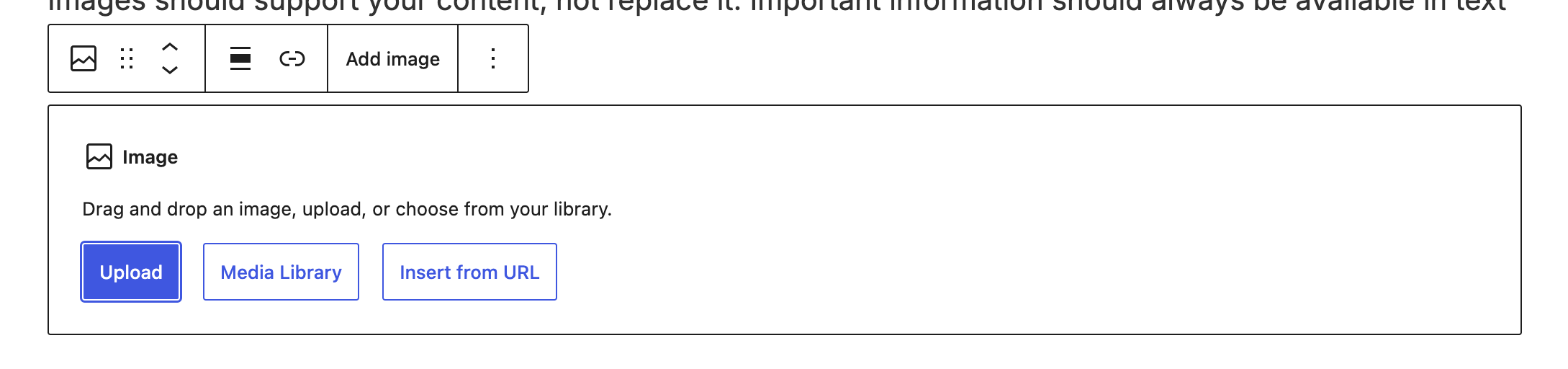
- Click the + button and search for Image.
- Select the Image block.
- Choose one of the following options:
Upload
Upload an image directly from your computer.
Media Library
Select an image that has already been uploaded to your website.
Insert from URL
Insert an image using a direct image URL.
Tip: In most cases, it’s recommended to use the Media Library whenever possible to ensure images are managed within your website.
Alternative Text (Alt Text)
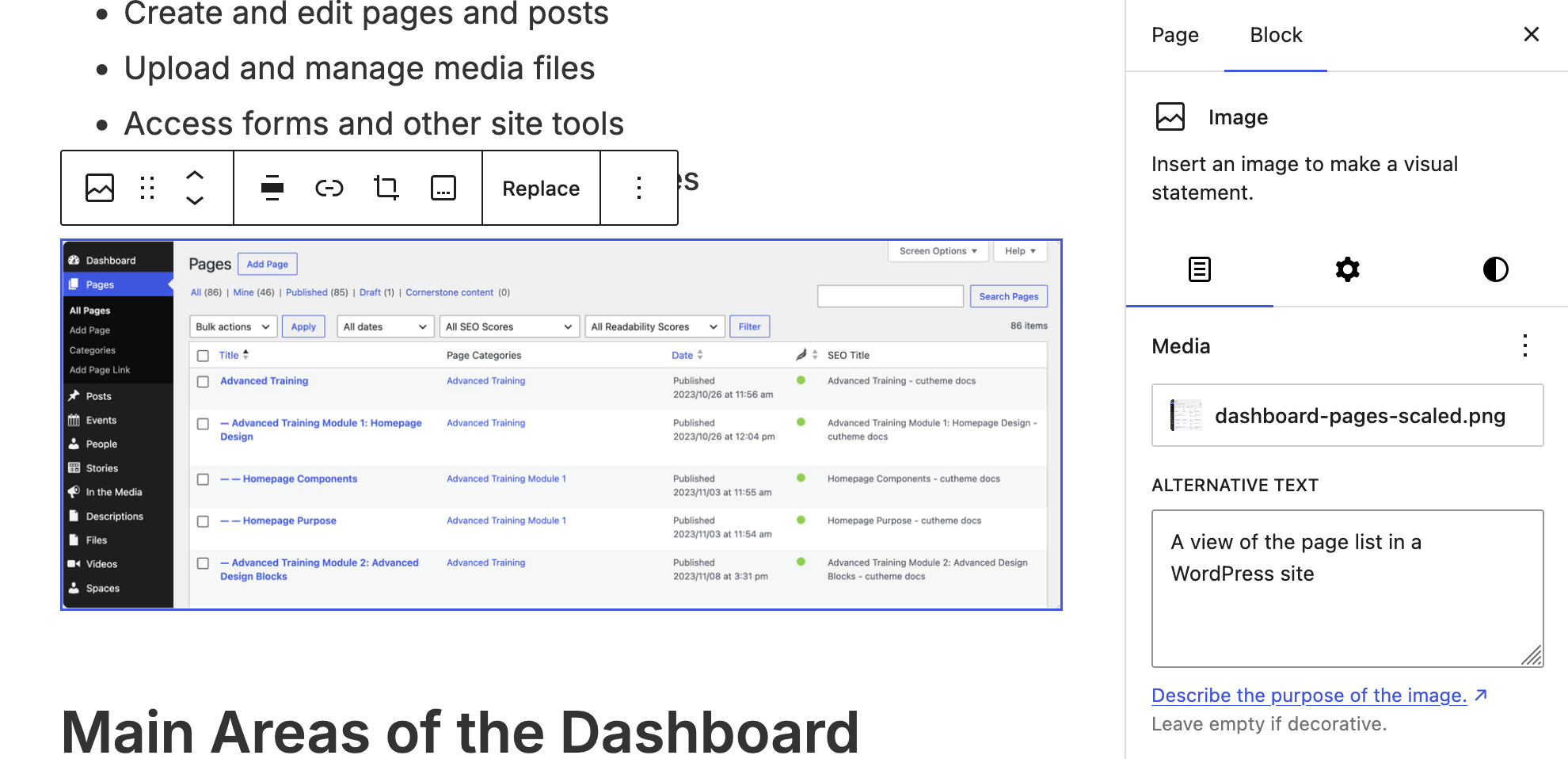
Alternative text, often called alt text, provides a text description of an image.
Alt text is important because:
- It helps visitors using screen readers understand image content.
- It improves accessibility.
- It helps search engines understand images.
Writing Effective Alt Text
Good alt text should describe the purpose or meaning of the image.
Good Example: Student studying in the MacOdrum Library.
Avoid: Image of a student studying in the MacOdrum Library. Screen readers already identify the content as an image.
Decorative Images
If an image is purely decorative and does not add meaningful information, alt text may be left empty.
Captions
Captions provide additional context below an image.
Captions are useful when:
- Identifying people
- Providing photo credits
- Explaining diagrams or charts
- Adding context that may not be obvious from the image alone
To add a caption:
- Select the image.
- Locate the caption field below the image.
- Enter your caption text.
Image Alignment
Images can be aligned within the page layout.
Common alignment options include:
- Left
- Center
- Right
When aligned left or right, surrounding text may wrap around the image.
Choose an alignment that works well with the surrounding content and maintains readability.
Image Settings
Additional image settings are available in the sidebar.
Depending on your site’s configuration, you may see options for:
- Image size
- Alignment
- Linking behaviour
- Expand on click
- Alt text
Not all settings are available for every image or site configuration.
Replacing an Image
If you need to update an image:
- Select the image block.
- Click Replace.
- Choose a new image from the Media Library or upload a replacement.
The image will be updated while preserving the existing block location on the page.
Best Practices
Always Add Alt Text
Most images should include meaningful alt text.
Use High-Quality Images
Choose clear images that support the content on the page.
Add Captions Only When Helpful
Not all images require captions. Use them when additional context would benefit the reader.
Avoid Using Images for Text
Important information should be written as text rather than embedded inside images whenever possible.
Consider Mobile Devices
Before publishing, preview your page to ensure images display correctly on smaller screens.
-
Welcome to getting started with cutheme, module 3.
This video is going to introduce you to using the image block. Let’s start by adding an image block.
The image block allows you to add images to all of your pages and your posts. To do this you have two options. First, you can click upload to upload the images from your computer. And uploading an item this way means it will also add that image to your website’s media library. This means that it can be used across the site by anybody.
Next, you can select an image from the media library. Once you pull up the media library, you’ll have access to all of the images that have already been uploaded to your website. Click on one of those images and then press select. Now have a look over here at the block options on the right. This is where you can add alternative text to describe the image. And you can also choose the size – whether you want to have a thumbnail, medium, or full-size image.
When you click on the image, you’ll also notice that you have a contextual menu up here at the top. Use this contextual image for alignment. You can align your image to the left or the right. You can also add a caption. And if you need to replace the image simply click on the replace button and you can choose something different from your media library.
Try it Out
Practice working with the Image block.
- Add an Image block to a page.
- Upload or select an image from the Media Library.
- Add meaningful alt text.
- Add a caption.
- Experiment with different alignment options.
- Preview the page and review how the image appears on the front end.