List
Basic Training Module 3: Essential Blocks
The List block is used to present information in a clear, organized format. Lists help break up large amounts of text and make content easier to read and scan.
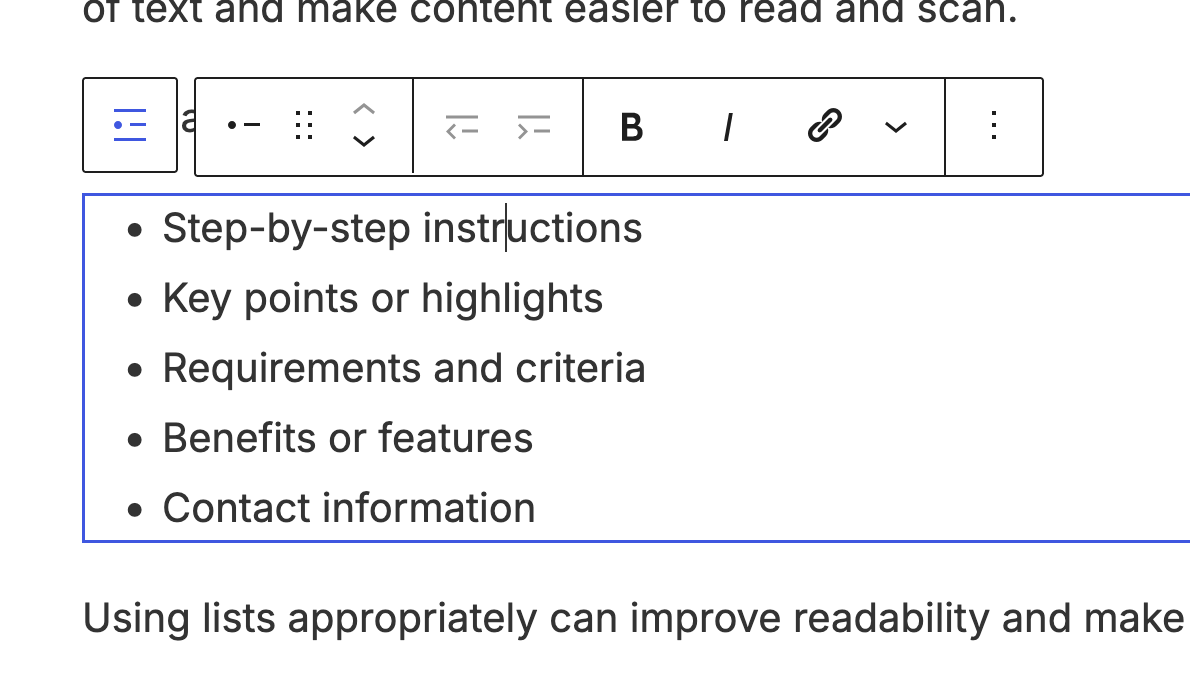
Lists are commonly used for:
- Step-by-step instructions
- Key points or highlights
- Requirements and criteria
- Benefits or features
- Contact information
Using lists appropriately can improve readability and make important information easier for visitors to find.
When to Use a List Block
Use a List block when information can be presented as a collection of related items.
Unordered Lists
Unordered lists use bullets and are best used when the order of items is not important.
Example:
- Program information
- Admission requirements
- Tuition and fees
- Contact information
Ordered Lists
Ordered lists use numbers and are best used when items must be completed in a specific order.
Example:
- Log in to your website.
- Create a new page.
- Add content.
- Publish the page.
Use numbered lists whenever the sequence of steps matters.
Adding a List Block
To add a List block:
- Click the + button and search for List.
- Select the List block.
- Choose whether you want a bulleted list or a numbered list.
- Begin entering your items.
Press Enter to add a new list item.
Nested Lists
Lists can contain sub-items to help organize information further.
For example:
- Undergraduate Programs
- Bachelor of Arts
- Bachelor of Science
- Graduate Programs
- Master’s Programs
- Doctoral Programs
Nested lists can help represent hierarchy and relationships between items.
List Settings
When a List block is selected, additional settings may be available.
Change List Type
Switch between:
- Bulleted lists
- Numbered lists
Starting Number
For numbered lists, you can choose a custom starting value.
Example:
- Step Five
- Step Six
- Step Seven
Reverse Numbering
Numbered lists can also be displayed in reverse order when needed.
Example:
- First Step
- Final Step
- Second Step
Best Practices
Use Lists to Improve Readability
- Lists make content easier to scan than long paragraphs.
- Whenever several related points appear together, consider using a list.
Choose the Right List Type
Use:
- Bulleted lists for related information
- Numbered lists for instructions and processes
Keep List Items Consistent
Try to keep list items similar in length and structure.
Good Example:
- Create a page
- Add content
- Publish your changes
Less Effective Example
- Create a page
- Add content using several different blocks and settings while considering visual design
- Publish
Avoid Overusing Lists
Not every section needs to be a list. Use lists when they make information clearer, not simply to break up content.
-
Welcome to getting started with cutheme, module 3. This video is going to explain how to use the list block.
Let’s go ahead and add a list block.
The function of the list block is to create a bulleted or numbered list. You can switch between bullets and numbers by clicking on these buttons at the top. Unordered lists use bullets whereas ordered lists use numbers.
Pressing enter will automatically add a new item to the list and take you to the next line.
If you highlight an item, you can increase or decrease the indent by clicking on this icon right here.
In the block options menu, you have the option to change the start value if you’re using an ordered list. This is really helpful if you’re splitting up a list using columns and you want to continue the list in the second column.
Lastly, you can reverse the order of the list by clicking on this button.
Try It Out
Practice using the List block.
- Add a List block to a page.
- Create a bulleted list with at least four items.
- Convert the list to a numbered list.
- Add a nested list item.
- Experiment with the starting number option.
- Try reversing the numbering order.