Paragraph
Basic Training Module 3: Essential Blocks
The Paragraph block is the most commonly used block in WordPress and is typically the first block you’ll encounter when creating a page or post. It is used to add and format regular text content.
Most of the written content on your website, including introductions, descriptions, and body copy, will be created using Paragraph blocks.
When to Use a Paragraph Block
Use a Paragraph block when adding:
- Regular body text
- Page introductions
- Descriptions and explanations
- General website content
Paragraph blocks are best suited for longer sections of text and should be combined with headings to organize content into logical sections.
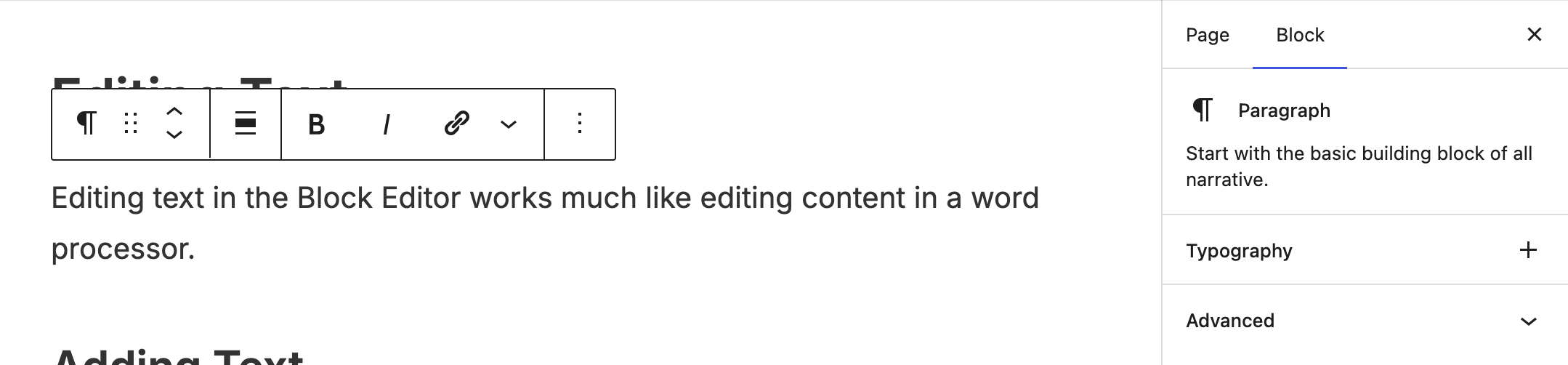
Adding a Paragraph Block
The Paragraph block is the default block in WordPress.
To add a Paragraph block:
- Click within an empty area of the editor and begin typing.
- Alternatively, click the + button and search for Paragraph.
- Enter your content.
Pressing Enter creates a new Paragraph block below the current one.
Formatting Text
When a Paragraph block is selected, formatting options appear in the block toolbar.
Common formatting options include:
Bold
Use bold text to emphasize important information.
Italics
Use italics for titles, emphasis, or special terms.
Hyperlinks
Links allow readers to navigate to other pages or websites.
To add a link:
- Choose whether the link should open in a new tab.
- Highlight the text you want to link.
- Select the link option from the toolbar.
- Enter or search for a URL.
Best Practices
Keep Paragraphs Short
- Short paragraphs are easier to read online than large blocks of text.
- Aim for one idea per paragraph whenever possible.
Use Headings to Organize Content
- Long pages should be broken into sections using Heading blocks.
- Headings improve readability and accessibility.
Avoid Excessive Formatting
- Use bold and italics sparingly.
- Too much formatting can make content difficult to scan and reduce its effectiveness.
Use Meaningful Link Text
Links should clearly describe where they lead.
- Good: View our Accessibility Guidelines
- Avoid: Click here
-
Welcome to getting started with cutheme, module 3. This video is going to introduce you to using the paragraph block.
The paragraph block is the default block that appears when you’re building a page. If you click on the first box that appears you can just start to type in there. If you want to add another paragraph block you can add it by either pressing enter or using the menu up here and then simply selecting paragraph.
You can also use the editing toolbar to bold or italicize text just by highlighting it. Then you click on the bold or you click on the italicize button.
As well, you can create hyperlinks by clicking on this chain icon. You can search for something that you want to link to by typing in here and this will find pages on your website. You can just click on that page, and it’ll link up the text.
To unlink it, highlight it and then click the unlink icon up here. And you can also simply paste in a URL and then click to link that up.
Try it Out
Practice working with the Paragraph block.
- Add a Paragraph block to a page.
- Enter several sentences of text.
- Apply bold formatting to one phrase.
- Apply italic formatting to another phrase.
- Add a hyperlink to a word or phrase.
- Press Enter to create a second Paragraph block.