Text & Image
Basic Training Module 3: Essential Blocks
The Text & Image block combines written content with a supporting image in a single layout. This block is useful when you want to highlight important information while adding visual interest to the page.
Text & Image blocks are commonly used for:
- Feature sections
- Service descriptions
- Program highlights
- Calls to action
- Page banners
By placing text and images together, you can create content that is easier to scan and more engaging for visitors.
When to Use a Text & Image Block
Use a Text & Image block when you want to present content alongside a related image.
Examples include:
- Describing a service or program
- Highlighting a research project
- Promoting an upcoming event
- Creating a page introduction
- Building a page banner
The block can be used with or without an image, making it a flexible option for a variety of content types.
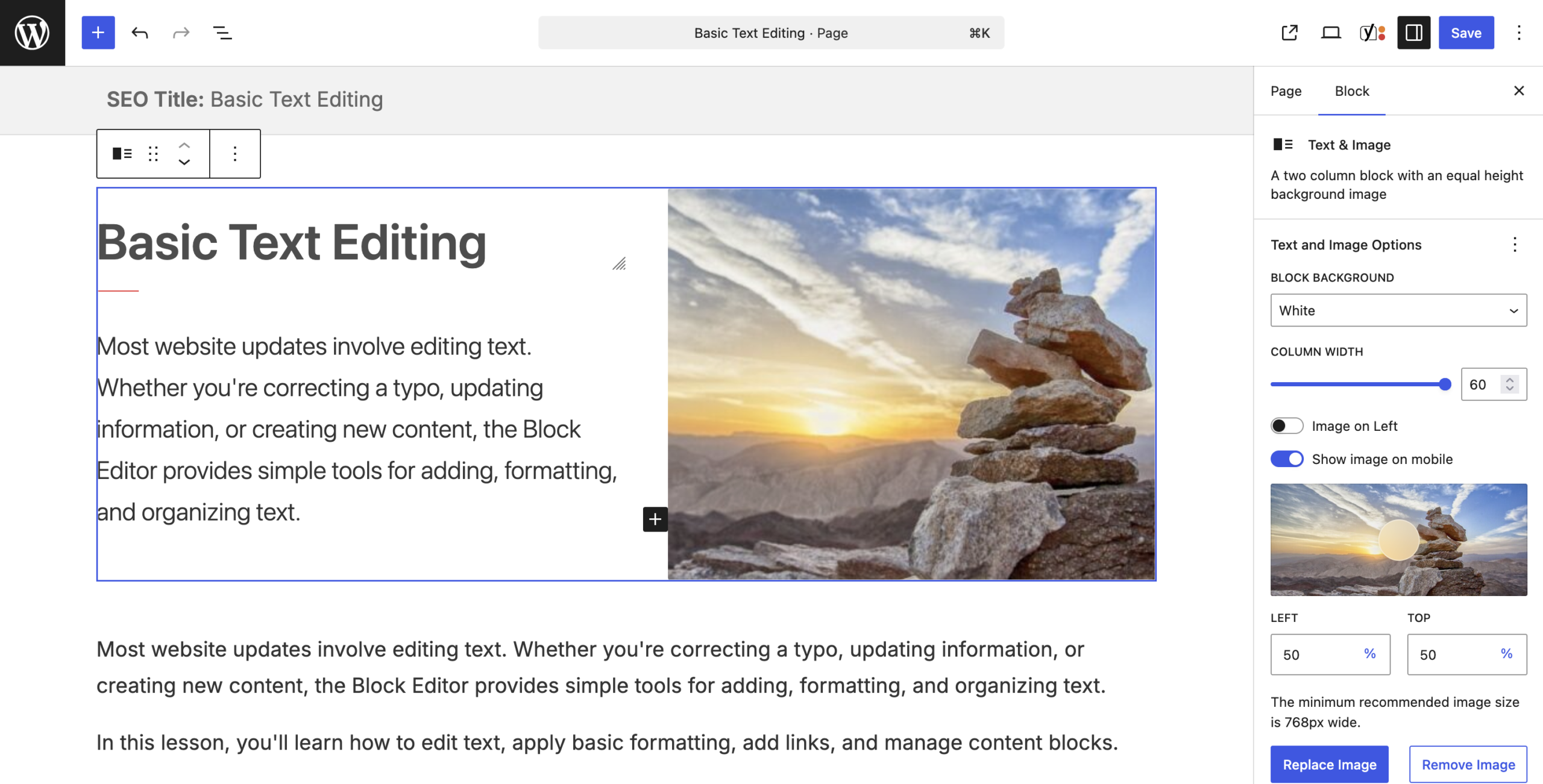
Adding a Text & Image Block
To add a Text & Image block:
- Click the + button and search for Text & Image.
- Select the block.
- Enter a heading and supporting content.
- Add an image if desired.
The content area can include:
- Text
- Buttons
- Links
- Additional formatting options
This allows you to create self-contained content sections that are both informative and visually appealing.
Adding an Image
To add an image:
- Select Choose Image or Select Image.
- Choose an image from the Media Library or upload a new one.
- Save your changes.
As with all images, remember to provide meaningful alt text when appropriate.
Image Position
One of the most useful features of this block is the ability to position the image beside the content.
You can typically choose to display the image:
- On the left
- On the right
Experiment with both layouts to determine which presentation works best for your content.
For longer pages, alternating image positions can help create visual variety and improve readability.
Block Layout Options
Depending on your site’s configuration, additional layout options may be available.
Common settings include:
- Wide Layout
A wider version of the block that allows content to occupy more horizontal space. - Mobile Display
Control whether the image appears on smaller screens. - Image Positioning
Adjust how the image is displayed within the available space. - Replace or Remove Image
Swap an image with a different one or remove it entirely.
Available settings may vary depending on your site’s version and configuration.
Using Text & Image as a Banner
The Text & Image block is frequently used as a page banner or page introduction.
A typical banner may include:
- A page title
- Introductory text
- A call-to-action button
- An optional image
Because the image is optional, the block remains effective even when used as a text-only banner.
Best Practices
- Keep Content Focused
Use a concise heading and supporting text that clearly communicate the purpose of the section. - Choose Relevant Images
Images should support the content rather than distract from it. - Consider Mobile Users
Preview your page to confirm the layout remains effective on smaller screens. - Use Buttons Sparingly
Include a button only when there is a clear action you want visitors to take. - Alternate Layouts on Long Pages
Using a mix of left-aligned and right-aligned images can create visual variety and make pages easier to read.
-
Welcome to getting started with CuTheme Module 3. This video is going to introduce you to the text and image block.
As the name suggests, this block is used to display text – like a title and some content along with an image.
When you create a new page, the block at the top of the page, or the page banner, is a text and image banner by default. You can also add a text and image block anywhere else on your page using the block menu.
The text and image block is made up of three main pieces – the title, the text or the content, and the image which is optional. Here’s one with an image. And you can also add a button like we have right here.
By default, the only option that appears is the title. So let’s go ahead and give this block a title.
To add other content, such as the text buttons and images, click the add content button under the block options. Once you click that, you see that you’ll have an area to add text, up to 250 characters, as well as a button or two.
You can just go ahead and type content right into the block area. And you can also add a button below the text by adding a button block and then giving your button a name as well as a link.
The next part of the block is the image. To add an image, you click this blue select image button over here at the right. And you can either grab something from your image gallery or upload it from your computer.
Let’s grab this cupcake. Some options for the image – you can either have it on the left or the right of the image block, you can drag this around to move the center of the image to position it, and you can use these buttons to replace or remove the images.
Try it Out
Now that you have learned how to work with the Text-Image block, it’s time to try it out!
- Add a Text & Image block to a page.
- Add a heading and some text to the text.
- Add an image.
- Change the image position.
- Preview your results on the front end.