Wide Image
Basic Training Module 3: Essential Blocks
The Wide Image block is designed to create visually impactful sections that combine an image with text and optional buttons. It is commonly used for page banners, feature sections, promotional content, and calls to action.
Because the block spans a larger area of the page, it is ideal for highlighting important content and creating strong visual interest.
When to Use a Wide Image Block
Use a Wide Image block when you want to:
- Create a page banner or hero section
- Highlight an important program, service, or initiative
- Draw attention to a call to action
- Feature key content with supporting imagery
- Break up long pages with visually distinct sections
The block combines a large background image with content layered on top, making it especially effective for introductory content and featured sections.
Adding a Wide Image Block
To add a Wide Image block:
- Click the + button and search for Wide Image.
- Select the block.
- Enter a title or heading.
- Add supporting content below the title.
Content may include:
- Paragraphs
- Buttons
- Links
- Additional supporting text
The block can be as simple or as detailed as your content requires.
Adding an Image
To add a background image:
- Open the block settings.
- Select Choose Image or Select Image.
- Upload a new image or choose one from the Media Library.
Choose an image that supports the content and remains clear when displayed at larger sizes.
Display Options
The Wide Image block provides several options for customizing the appearance of the background image.
Image Opacity
- Adjust the opacity or shading of the image.
- This can improve text readability by making overlaid content easier to see.
Image Position
- Control which part of the image remains visible within the block.
- Depending on the image, adjusting the position can help keep important content in view.
Replace or Remove Image
- Update the image without recreating the block.
- This is useful when refreshing content or updating imagery while maintaining the same layout.
Wide Width Option
Depending on where the block is placed, you may see a Wide Width option. When enabled, the block expands beyond the standard content width and occupies more horizontal space. This option is often used to create visually prominent feature sections and banners.
Tip: Use wide layouts selectively. Too many full-width sections can reduce their visual impact.
Creating Effective Banner Sections
One of the most common uses for the Wide Image block is creating page banners.
A typical banner may include:
- A clear title
- A short description
- One or more action buttons
- A supporting image
Keep banner content concise and focused on a single message.
Best Practices
Prioritize Readability
Ensure that text remains easy to read against the background image.
If necessary, adjust the image opacity to increase contrast.
Keep Content Concise
Wide Image blocks work best when they contain a clear message rather than large amounts of text.
Choose High-Quality Images
Use images that are visually engaging and relevant to the content.
Use Buttons Purposefully
Include buttons only when there is a clear next step for visitors.
Preview on Multiple Devices
Always preview the block before publishing to ensure the layout works well on desktop and mobile devices.
-
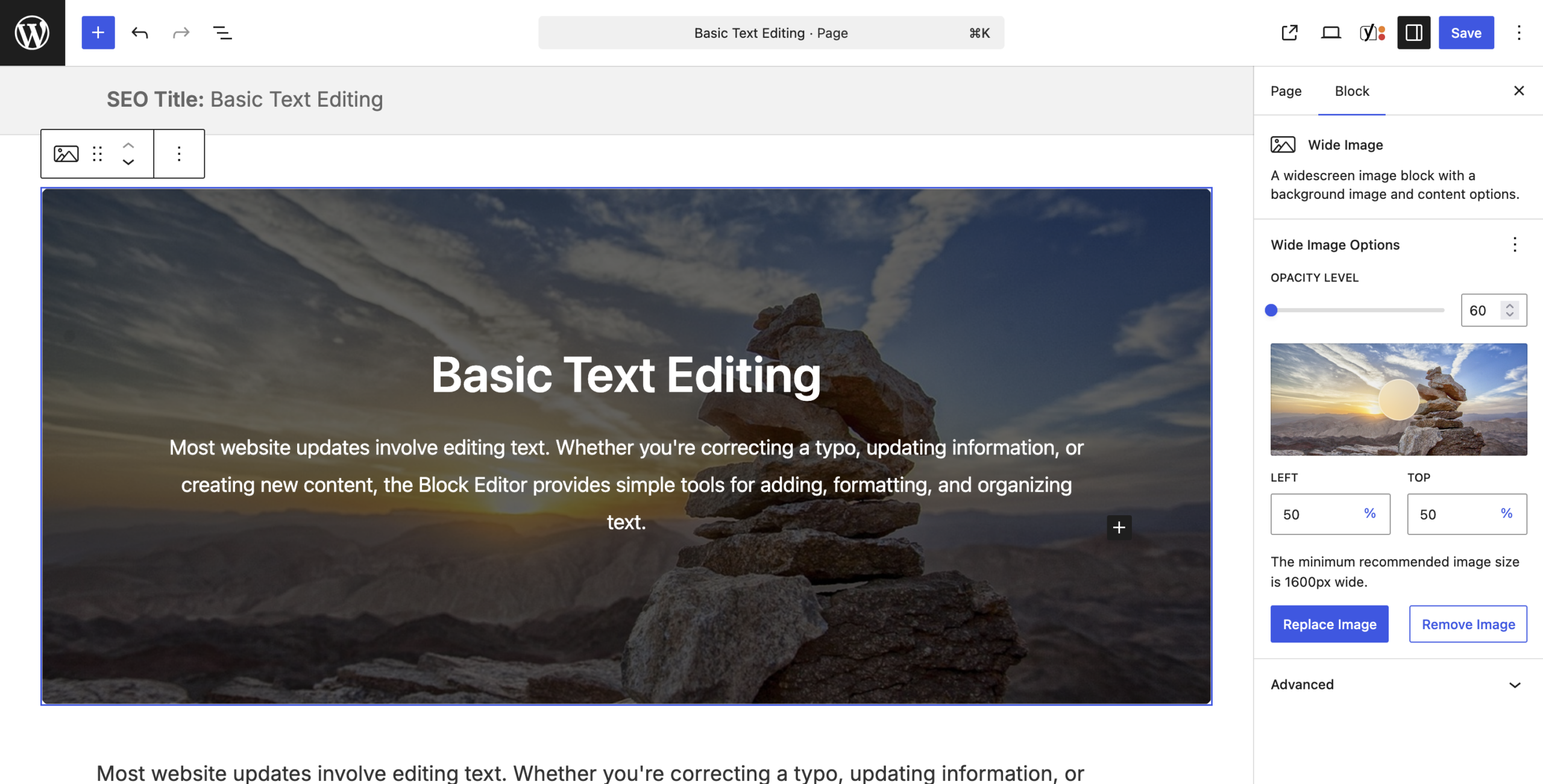
Wide image blocks can be used for large, high-quality images that you want to spread across the entire screen. They are great for banners at the top of the page, like we have on the homepage for our documentation site. However, you can also add a wide image anywhere on your posts or pages.
When you create a new page, the block at the very top, or the page banner, is a text and image block by default. To convert it to a wide image block, click on the icon in the contextual menu and select “Wide Image.”
The wide image block consists of a title, a background, and content, such as a paragraph block or a set of buttons. Let’s start by adding a title. To add content, click on the plus sign, then click “Paragraph” to add a subtitle or description. You can also add a button—just make sure to add a link for all of your buttons under block options.
To add a background image to your wide banner block, select “Image” under block options. Please note that the image must be a minimum size of 1,600 by 700 pixels. Under block options, you can also darken the image by adjusting the opacity slider. Additionally, you can change the relative position of the image by dragging the circle.
Use the “Replace Image” and “Remove Image” options to switch or remove your image. Now that we’ve completed these steps, we’ve successfully added a wide image block to a page.
Try it Out
Practice working with the Wide Image block.
- Add a Wide Image block to a page.
- Add a title and a short description.
- Upload a background image.
- Adjust the image opacity and position settings.
- Add one or two buttons.
- Preview the page and review the layout on both desktop and mobile devices.