Sharefile Large Uploads
Citrix provides software for Windows called the Sharefile Data Migration Tool. Information about the tool can be found on this page: https://support.citrix.com/article/CTX215005/sharefile-data-migration-tool
The Sharefile Data Migration Tool helps Primary users upload a large amount of data to Sharefile. These instructions explain how to use this tool in Carleton’s Sharefile environment:
- Download and install the Sharefile Data Migration Tool from here: https://dl.sharefile.com/sfmt/
2. Launch the Data Migration Tool – an application icon should be on your desktop
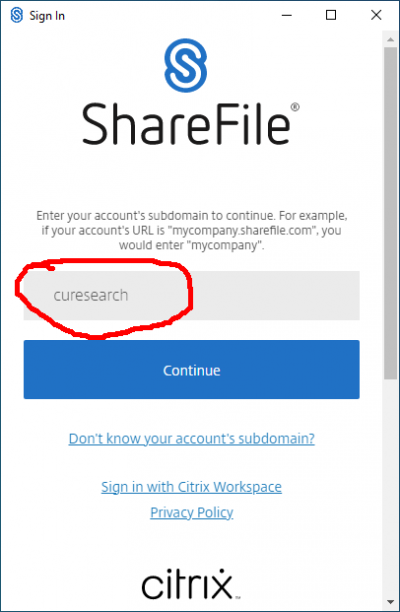
3. When you first launch the application, you will need to sign in
a. First, enter curesearch for the subdomain:
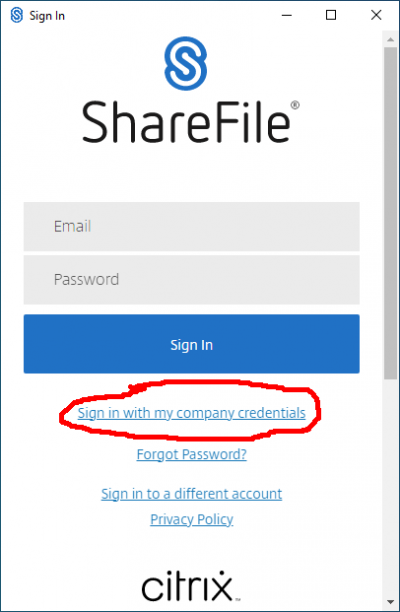
b. Second, Click “Sign in with my company credentials” to complete the login using your MyCarletonOne account:
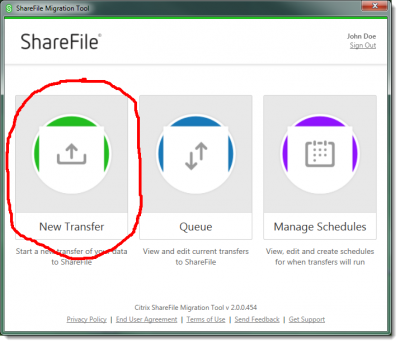
4. Click on New Transfer
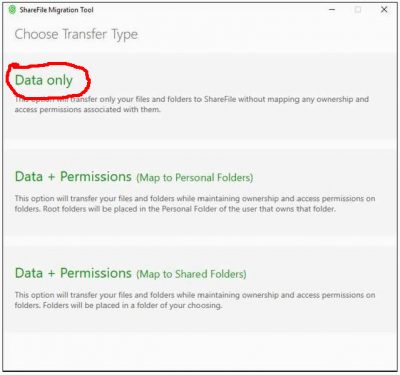
5. Select Data Only
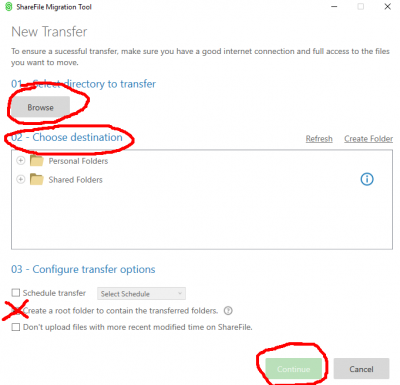
6. Complete the following four tasks on the New Transfer configuration page:
a. Press ‘Browse’ to select a folder on your computer that contains the files to upload
b. Choose a destination folder in the Sharefile cloud where you want to put the files
c. Uncheck the “Create a root folder to contain the transferred files”
d. Press Continue
7. Review your transfer and then press Transfer Files to begin the transfer
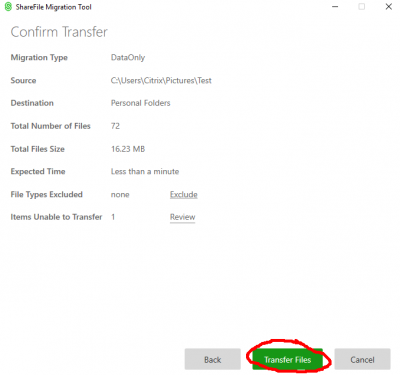
8. The tool will show progress during file transfer. Any files that had problems uploaded will be listed for your review. If the transfer is interrupted, you may start a new transfer of the same folders, and it will resume uploading.