Connecting to RCDC Storage (Mac)
Why use RCDC Storage?
Your Virtual Machine (VM) has its own hard drive where your files and programs will be saved. However RCDC provides a network storage option as well. This research storage drive provides a variety of benefits
- You can connect directory to your research storage from both your on-campus computer and from your VM
- You can connect from off-campus using the Carleton VPN
- Your research storage is larger than the local VM hard drive
- Your research storage is backed up, while the local VM hard drive is not
Connection Instructions
- In the Finder menu, click “Go” and then click “Connect to Server…” (or press ⌘K).\
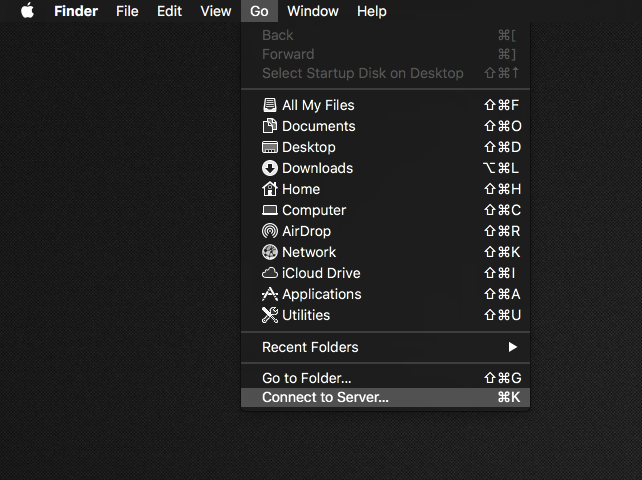
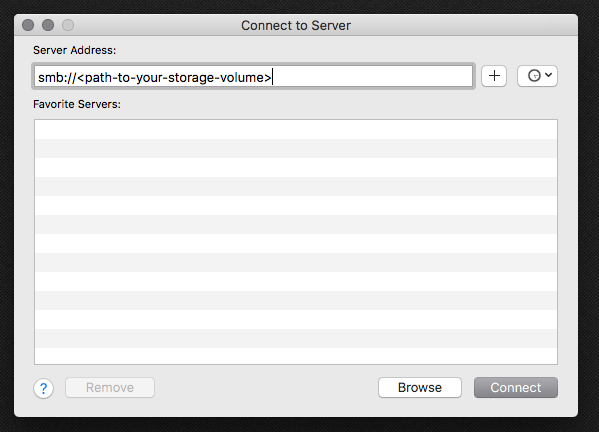
2. In the resulting window, add the supplied path to your storage volume in the “Server Address” box and click “Connect”.
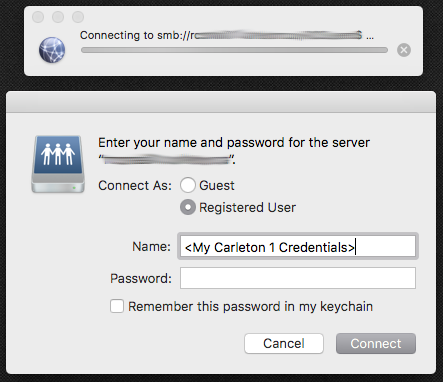
3. Ensure you are connecting to the storage server as a “Registered User” by clicking the appropriate radio button. In the “Name”/”Password” fields, put in your My Carleton One credentials and click “Connect”.
4. Once connected, a Finder window for your storage volume should open. If it doesn’t (or if you are still connected and you simply closed the window), click “Go” in the Finder menu and then click “Network” (or press Shift-⌘K). A Finder window will open containing your storage volume.
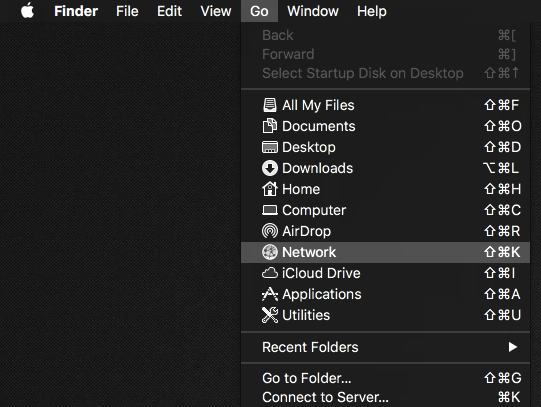
From here you can copy files to the RCDC storage server that you would like to access on the RCDC as well as copying files generated using the RCDC to your personal computer.