How to Replace a Media File in cuTheme (Without Breaking Anything)
Uploaded a PDF last year and just spotted a typo? Need to update someone’s bio photo?
In the old version of our theme (cms), you could delete the file and upload a new one with the same name. That doesn’t work anymore.
Deleting and re-uploading on cuTheme creates a new URL, which can break links on your site.
Instead, use Smart Media Replacement. It lets you update the file while keeping the original URL exactly the same.
Why This Is So Helpful
Replacing media using this method allows you to:
- Replace media files while keeping the original URL
- Preserve all existing links (internal and external)
In other words, you can update the file without breaking your site!
It works for PDFs, images, Word documents – basically any file type uploaded to the media library.
How to Replace a Media File (Step-by-Step)
1. In the dashboard, go to Media → Library
2. Click the icon at the top left to view your library in list mode
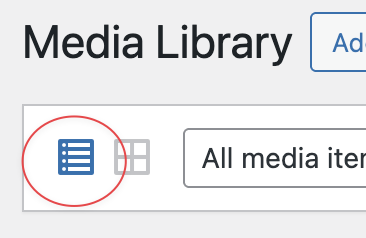
3. Find the file you want to replace.
4. Hover over the file name and click Replace.
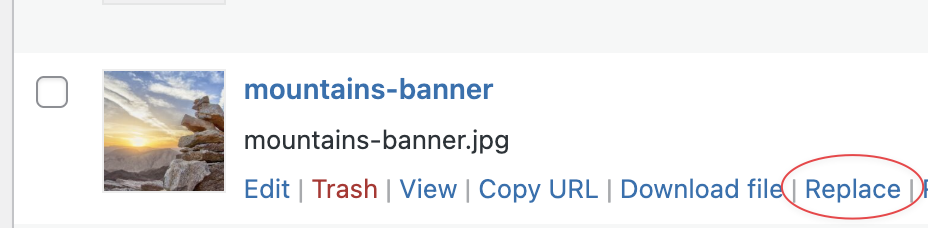
5. Select your new file (with a matching filename)
Important Requirements
Before replacing a file, make sure:
- The filename is exactly the same
If the original is “document1.pdf,” the new file must also be “document1.pdf.” - The file type is the same
You can’t replace a PDF with a Word document, or a PNG with a JPG. - Image dimensions match (images only)
The width and height must be identical to avoid layout issues.
That’s it! No broken links. No re-embedding. No hunting through pages.
Questions?
- If you have questions about replacing your files, please get in touch — we’re happy to help.
- This feature uses the Smart Media Replacement plugin. For more information, visit the WordPress plugin page.