In the Media
Module 1.7 – Advanced: Advanced Content: In the Media
Use In the Media posts to easily highlight and link to stories from external media sources. For example, see how the Carleton newsroom highlights “Carleton in the News.”

Table of Contents
Step-by-Step
Add and Edit an In the Media Post
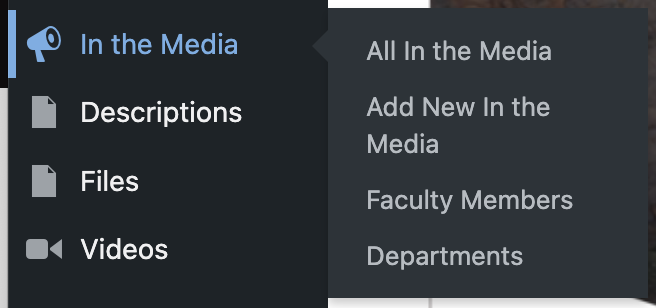
1. From the dashboard, go to the left side of the screen, hover over In the Media, and click on Add New In the Media.
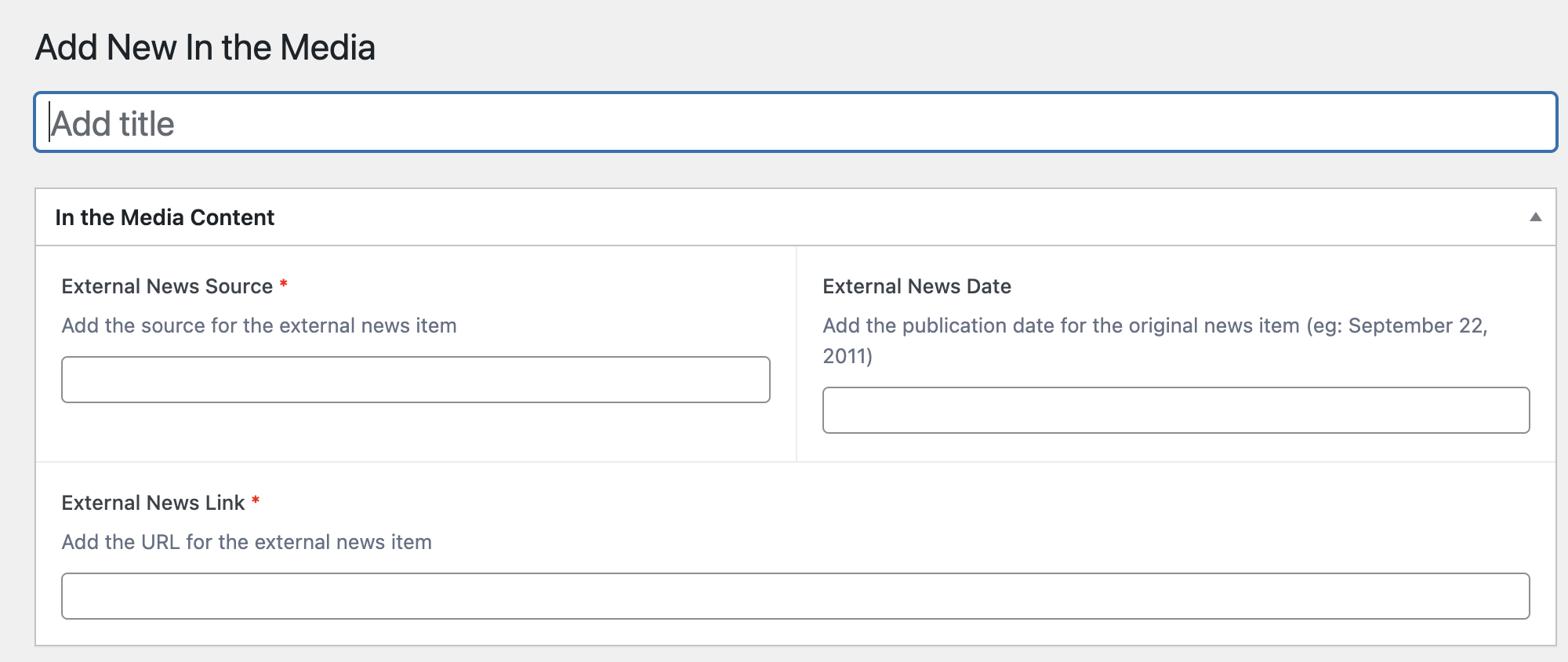
2. Add a title, the name of the external news source, the news date, and a link to the story.
Categorize In the Media
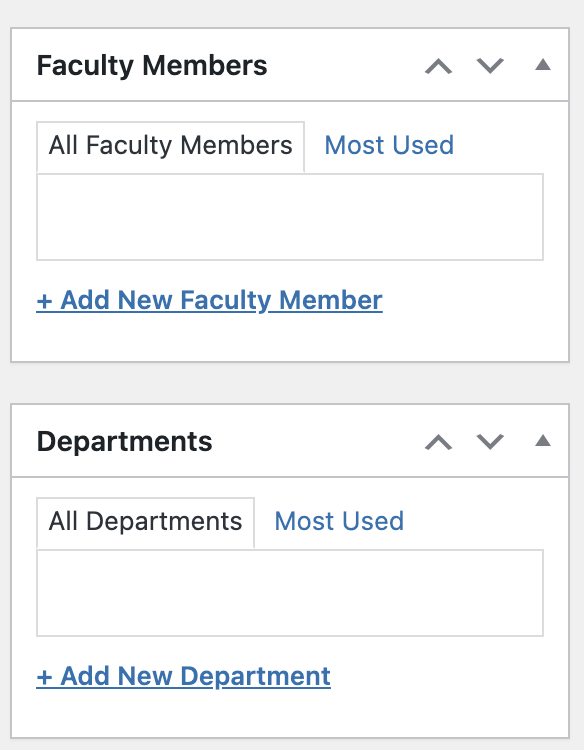
3. Categorize your post by clicking Add New Faculty Member or Add New Department at the right.
Add Featured Image / Bio Pic
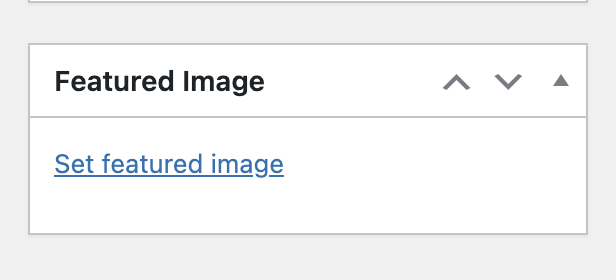
4. Under featured image at the right, click Set featured image to upload a bio pic.
Note: Recommended size for featured image is 600 x 400 pixels.
Save
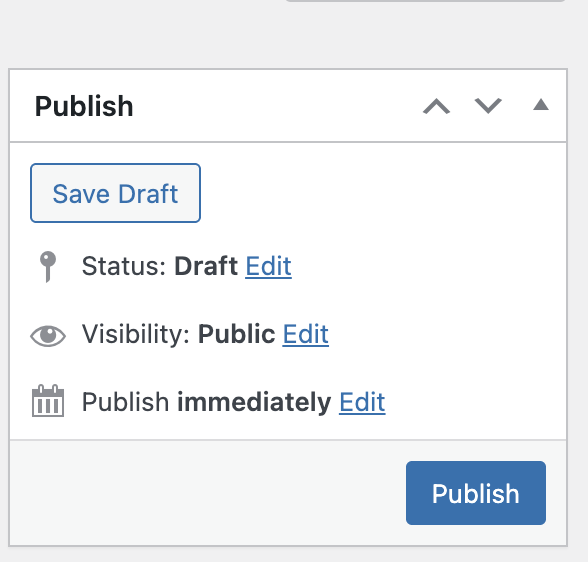
4. Click Save Draft or Publish at the top right
Add an “In the Media” Listing to a Page
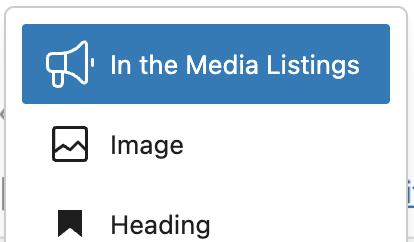
5. Click the blue + sign at top left to add an In the Media Listings bloc.
Try it Out
Now that you have learned how to save a draft, publish, and preview your content, it’s time to try it out!
- Add a new In the Media post.
- Add a title, date, source name, and URL.
- Add a featured image.
- Add faculty and/or a department.
- Save!