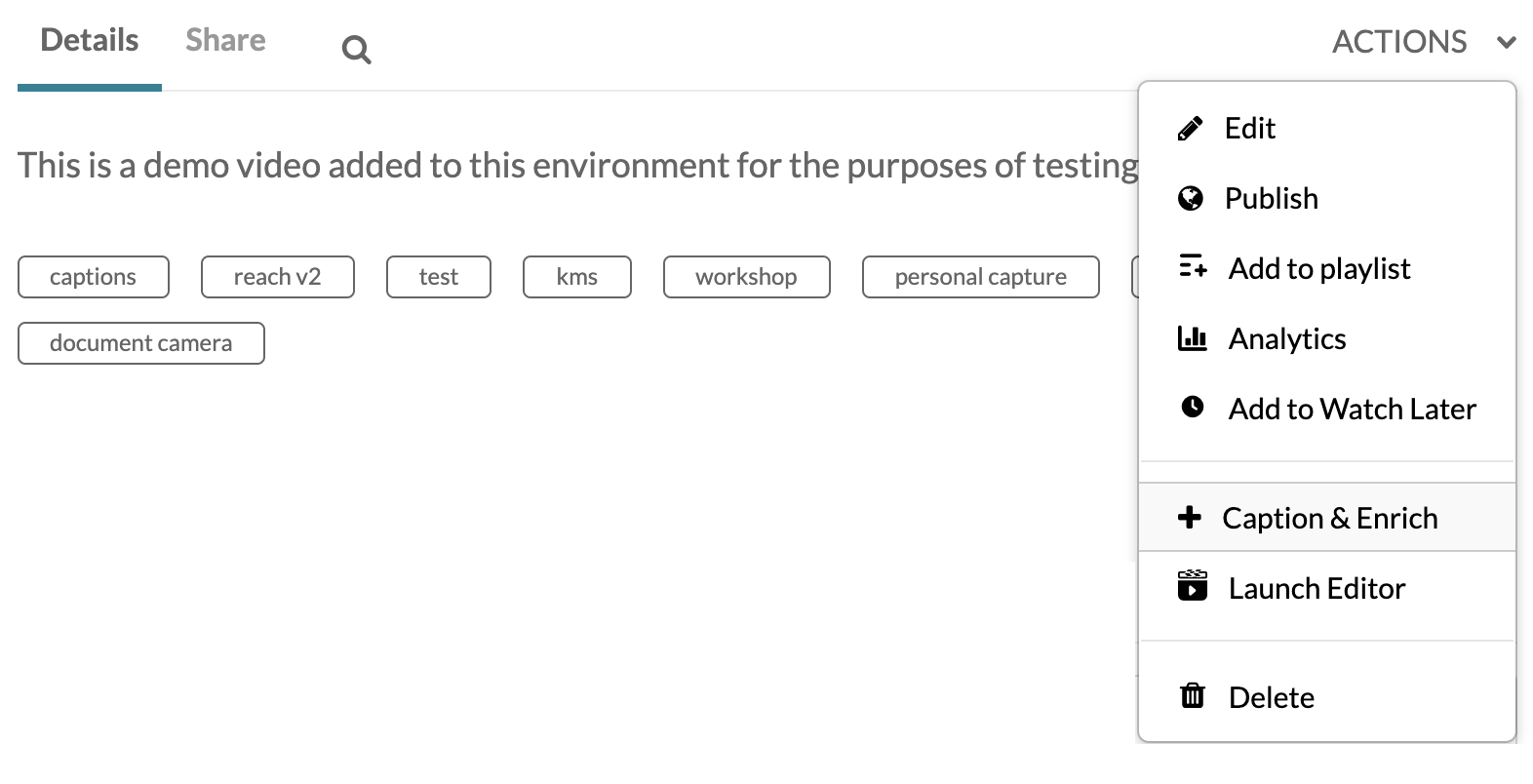
Kaltura automatically creates machine transcriptions for your video items. Machine transcription converts your audio to text, but these transcriptions need to be edited in order for them to be considered “Closed Captions”. You can access and edit the captions by choosing the + Caption & Enrich option in the video’s actions menu. Please note that all machine transcriptions have a turnaround time of approximately 5x media length.
Editing Captions
- Login to MediaSpace at mediaspace.carleton.ca (using your Carleton MC1 username and password).
- Click on your username on the top-right side of the page.
- In the drop-down menu, select My Media.
- On your My Media page, click on the item you want to edit.
- On the item’s page, choose the + Caption & Enrich option from the Actions menu.
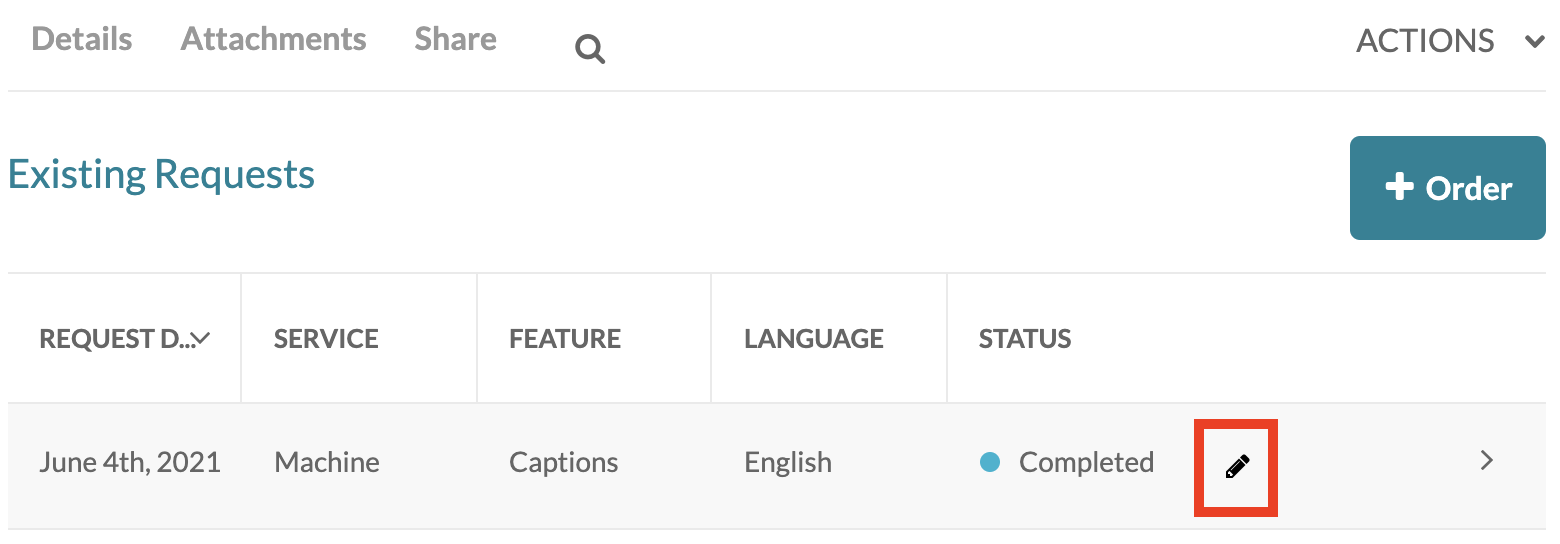
- When the captions table appears, click the Edit icon (i.e., the little pencil) in the right-most column to edit the desired captions.
- A new window will open. This is the Closed Captions Editor.
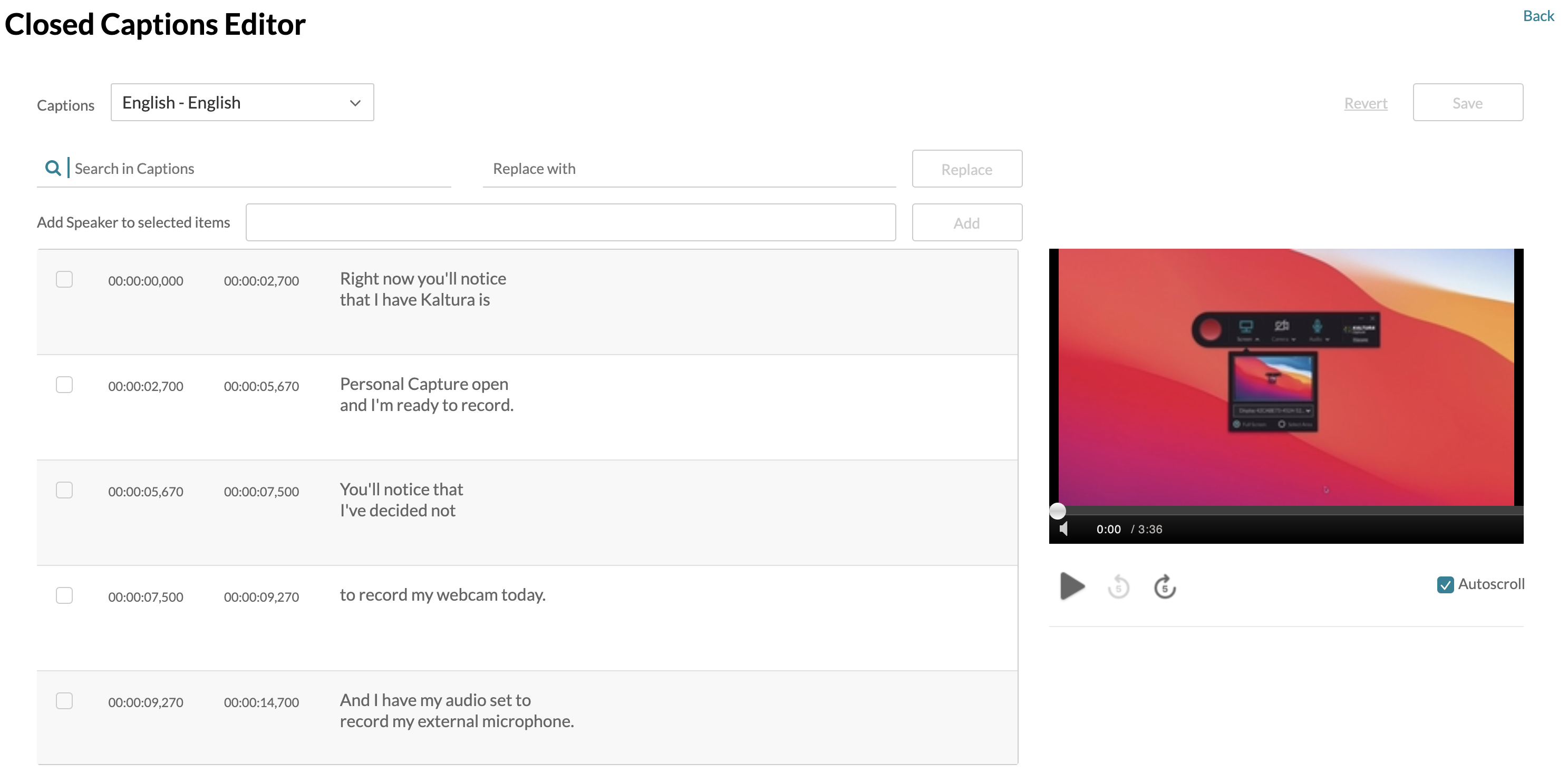 Click into the text you wish to edit in the middle of the screen.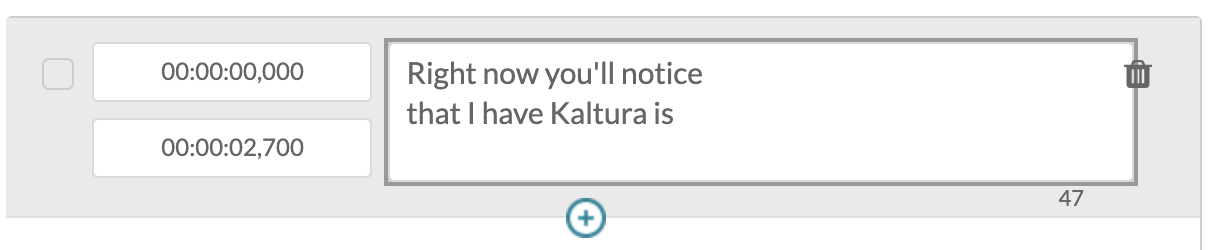
- Type to change the text or click on the “+” symbol, below the text box, to add another caption.
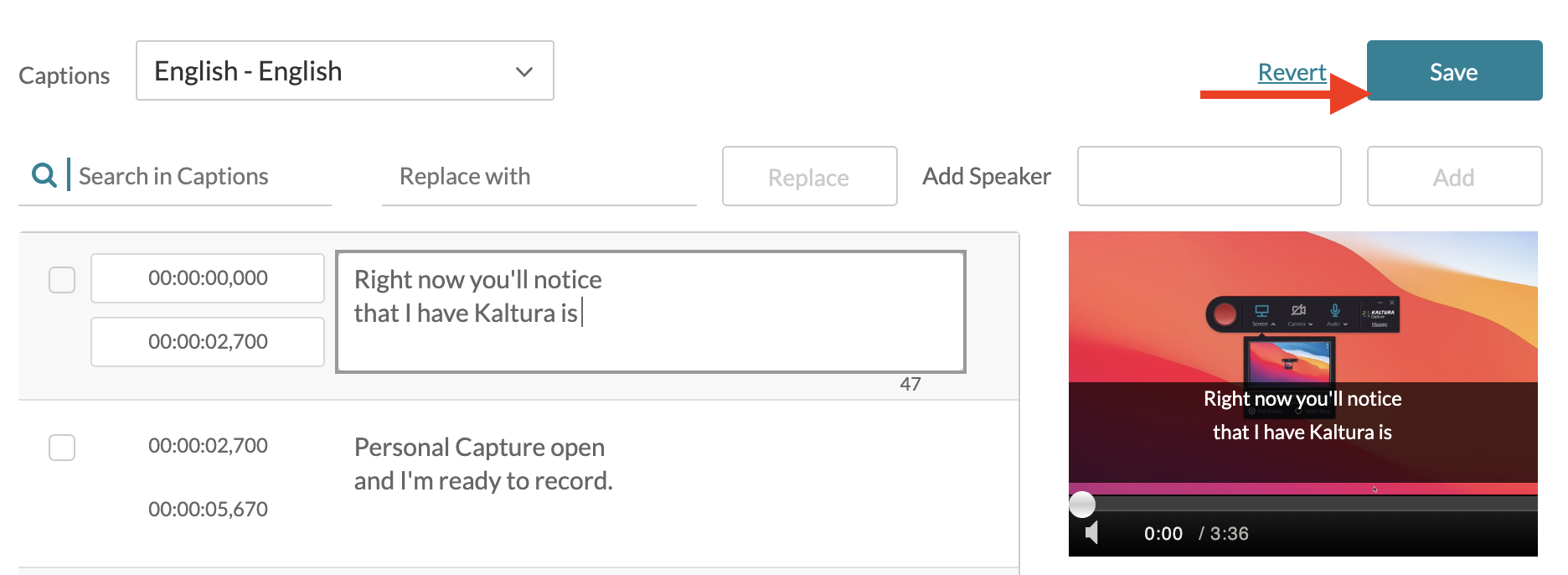
- When you have made changes, you’ll notice a new button will appear in the top right-hand corner. Click that Save button after you’ve made changes.
Please watch this video for more instructions:
Downloading Transcripts
- Login to MediaSpace at mediaspace.carleton.ca (using your Carleton MC1 username and password).
- Click on your username on the top-right side of the page.
- In the drop-down menu, select My Media.
- On your My Media page, click on the item you want to download the transcripts for.
- Click on the Attachments tab
- Clicking on the Transcript _en.txt downward arrow icon. This will download a text file. See attachment. Unfortunately, the file name is not the Media item file name and needs to be manually renamed to match the media Filename.

Suppress Captions
- Login to MediaSpace at mediaspace.carleton.ca (using your Carleton MC1 username and password).
- Click on your username on the top-right side of the page.
- In the drop-down menu, select My Media.
- On your My Media page, click on the item you want to suppress the captions for.
- In the Actions menu click Edit
- Navigate to the Captions tab
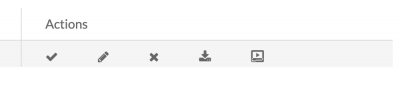
- Click the last icon in the actions area
 to disable the captions from showing.