Prospect – Change Email and reset password
BDC 2
Learn how to efficiently manage prospect profiles using BDC 2. This guide covers key steps from filtering tasks to resetting passwords and confirming email notifications.
Go to mysuccess.carleton.ca
1. Click “11”
Navigate to the main dashboard and locate the section labeled with the number ’11’ to begin your task.
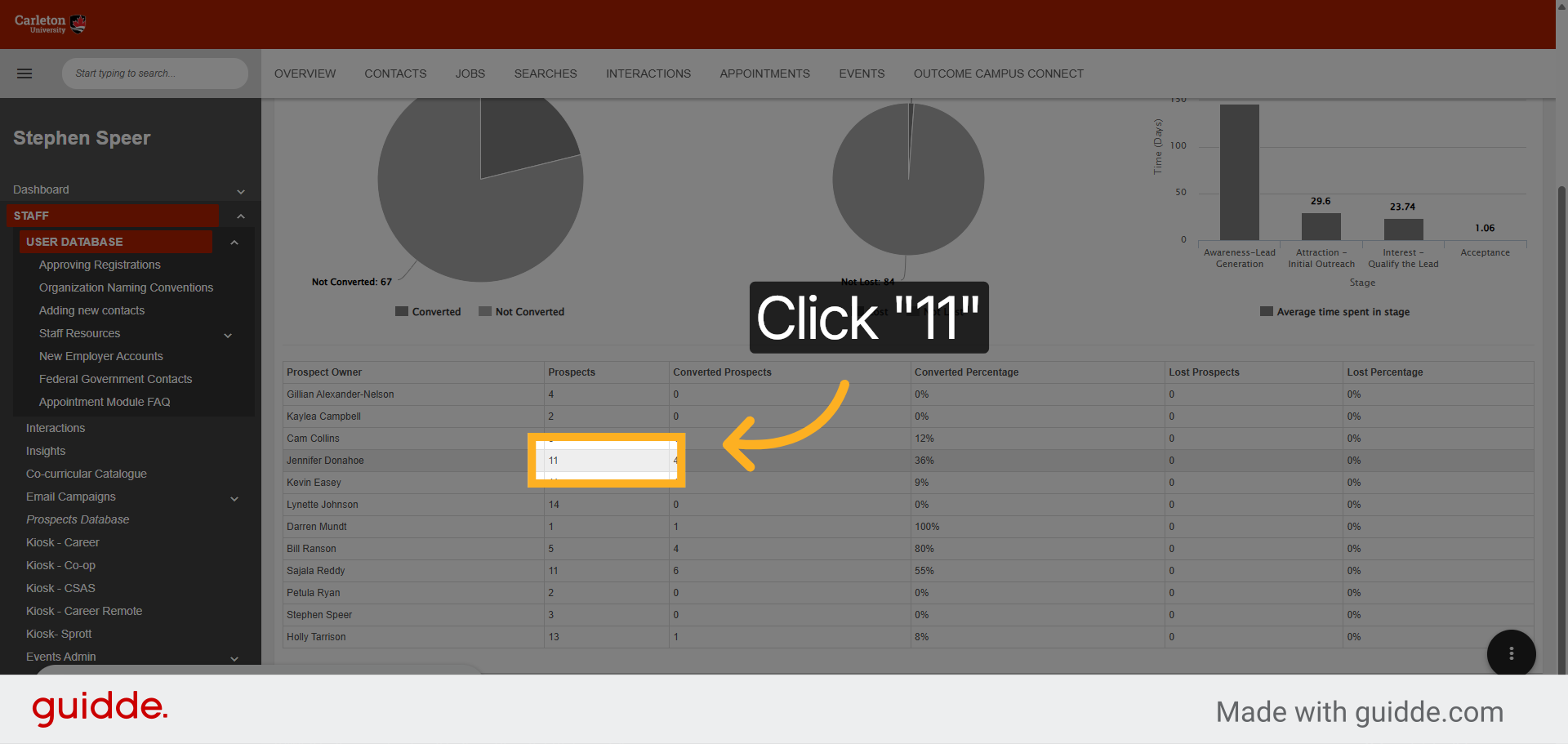
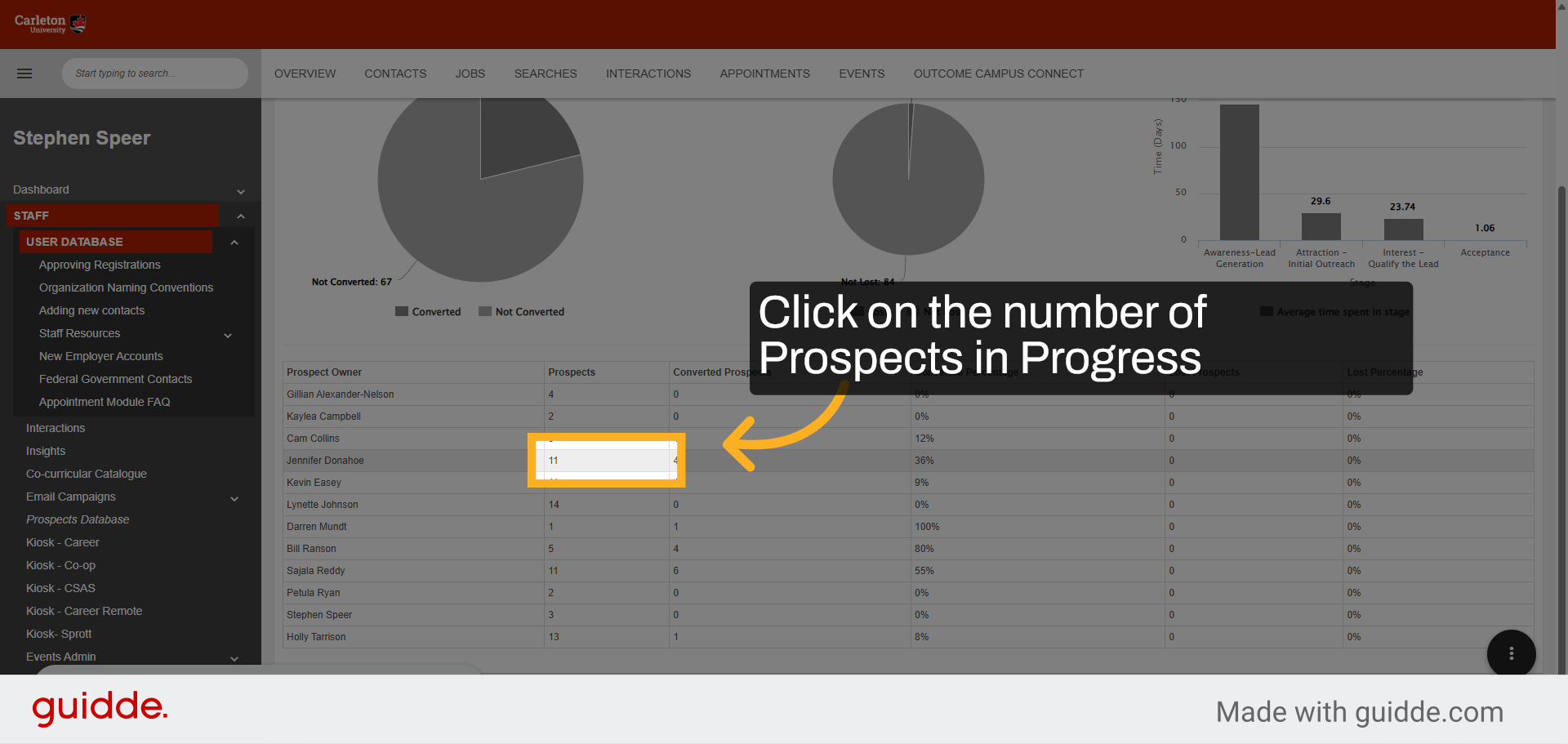
2. Click “11”
Select the same ’11’ section again to confirm your focus area within the dashboard.
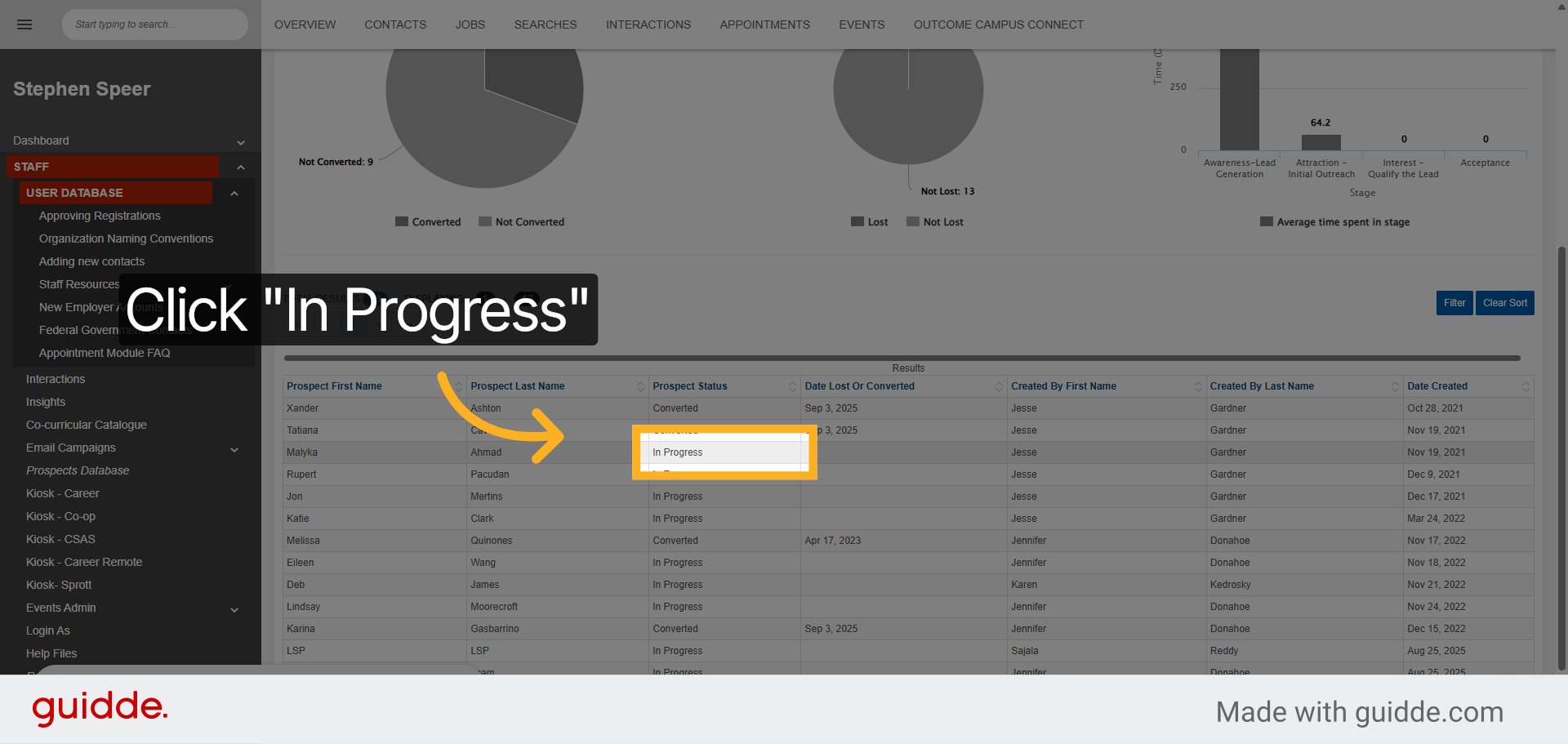
3. Click “In Progress”
Filter your view by choosing the ‘In Progress’ status to see ongoing items.
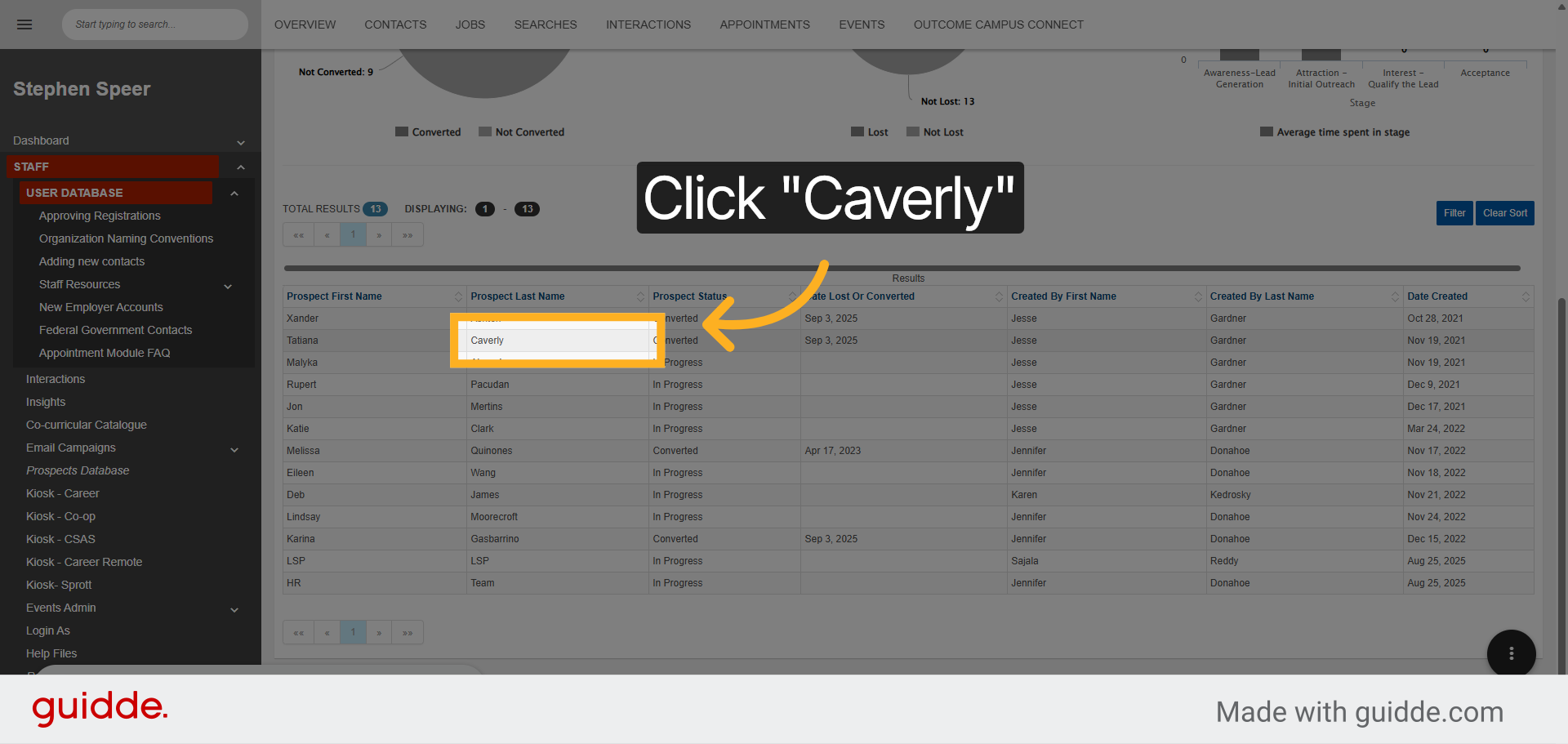
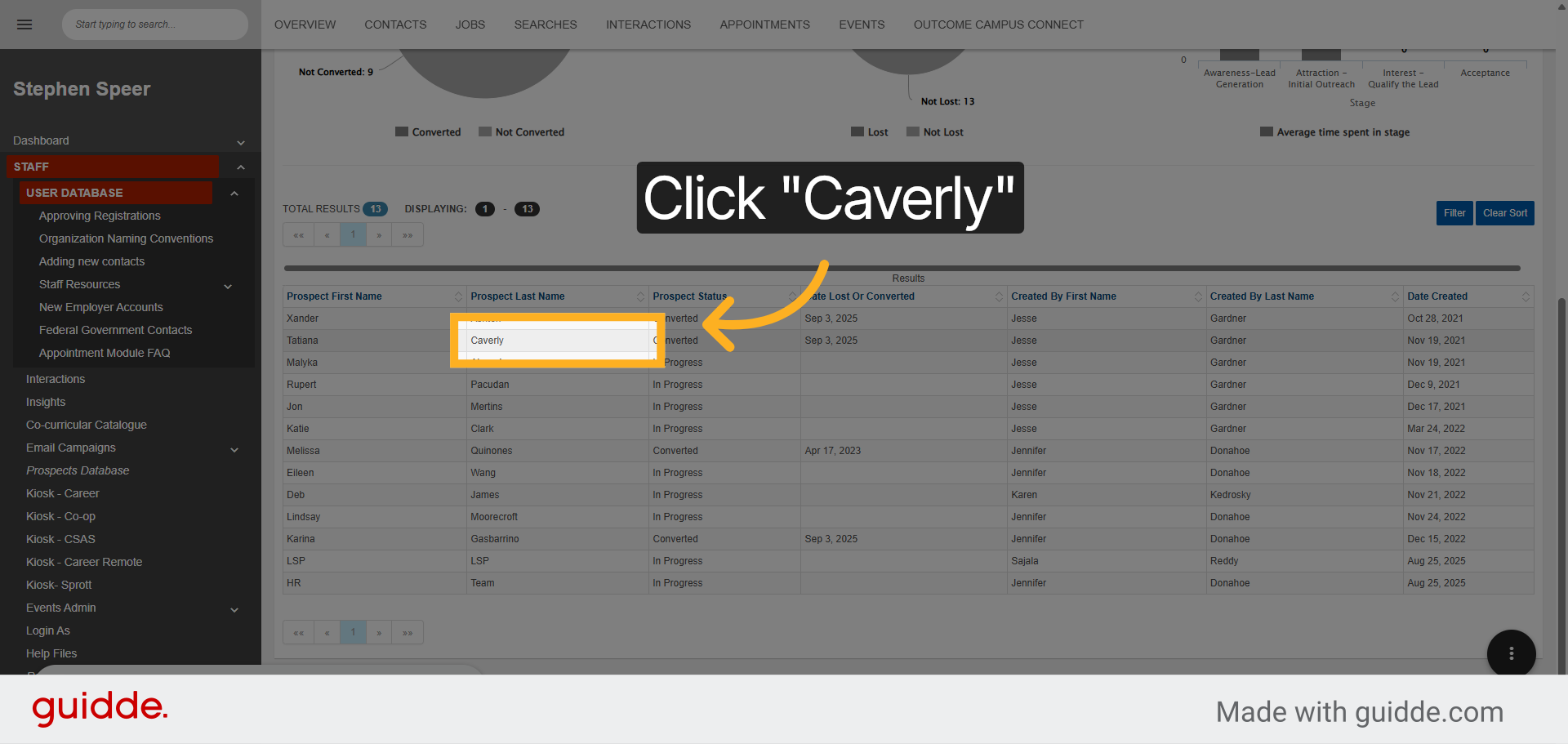
4. Click “Caverly”
Identify and select the prospect named ‘Caverly’ to access detailed information.
5. Click “Caverly”
Click on ‘Caverly’ once more to enter the prospect’s profile page.
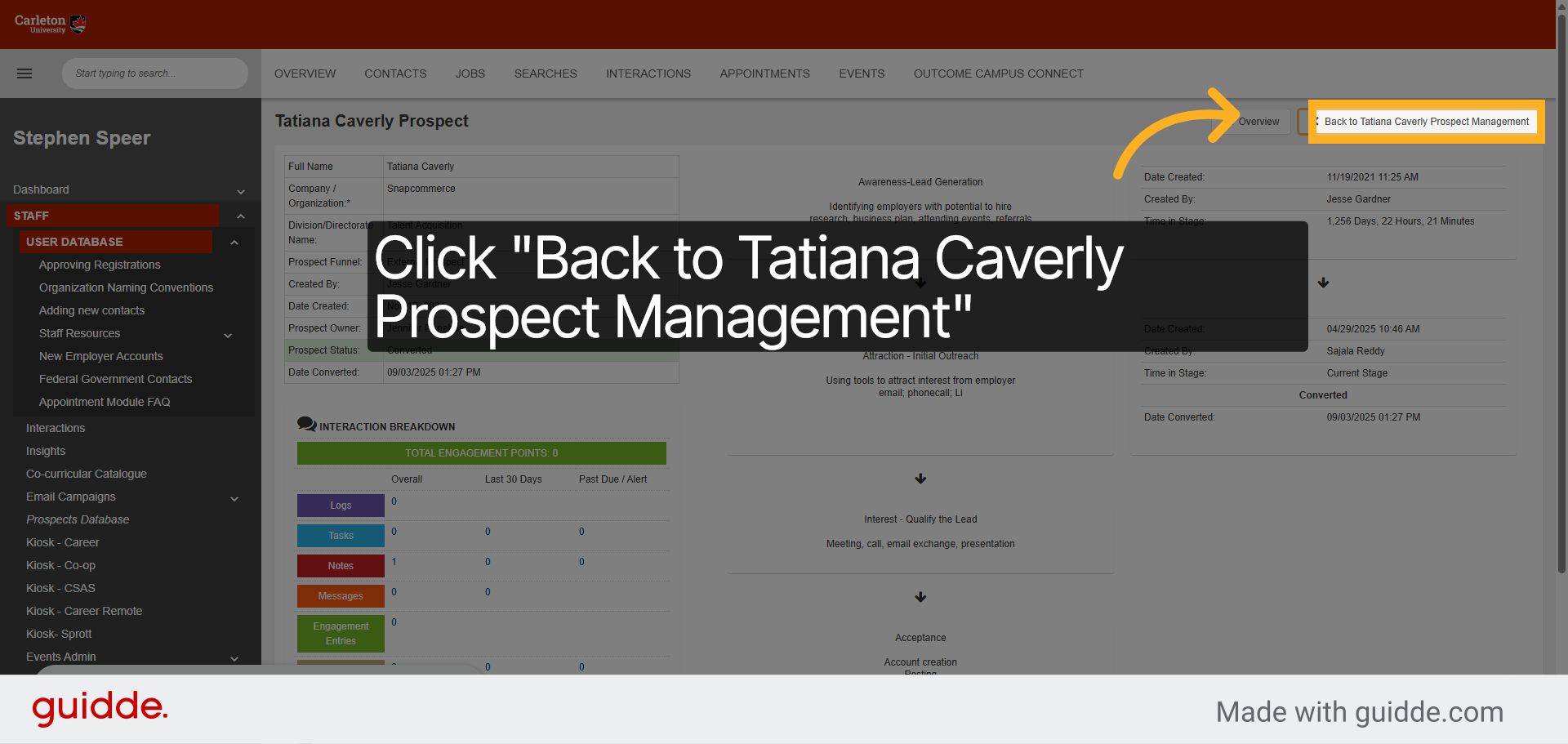
6. Click “Back to Tatiana Caverly Prospect Management”
Return to the main prospect management page for Tatiana Caverly to review overall details.
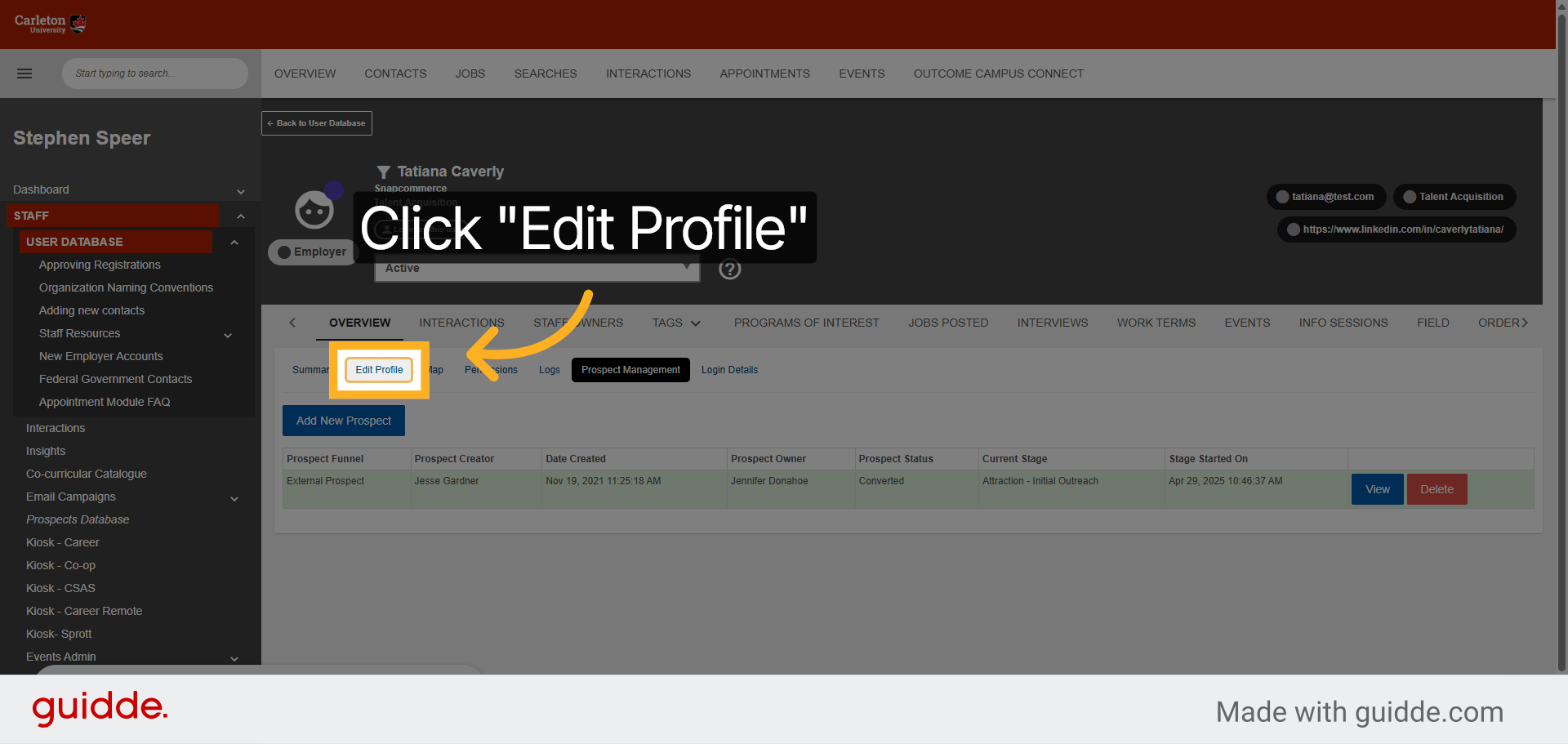
7. Click “Edit Profile”
Initiate profile modifications by selecting the ‘Edit Profile’ option.
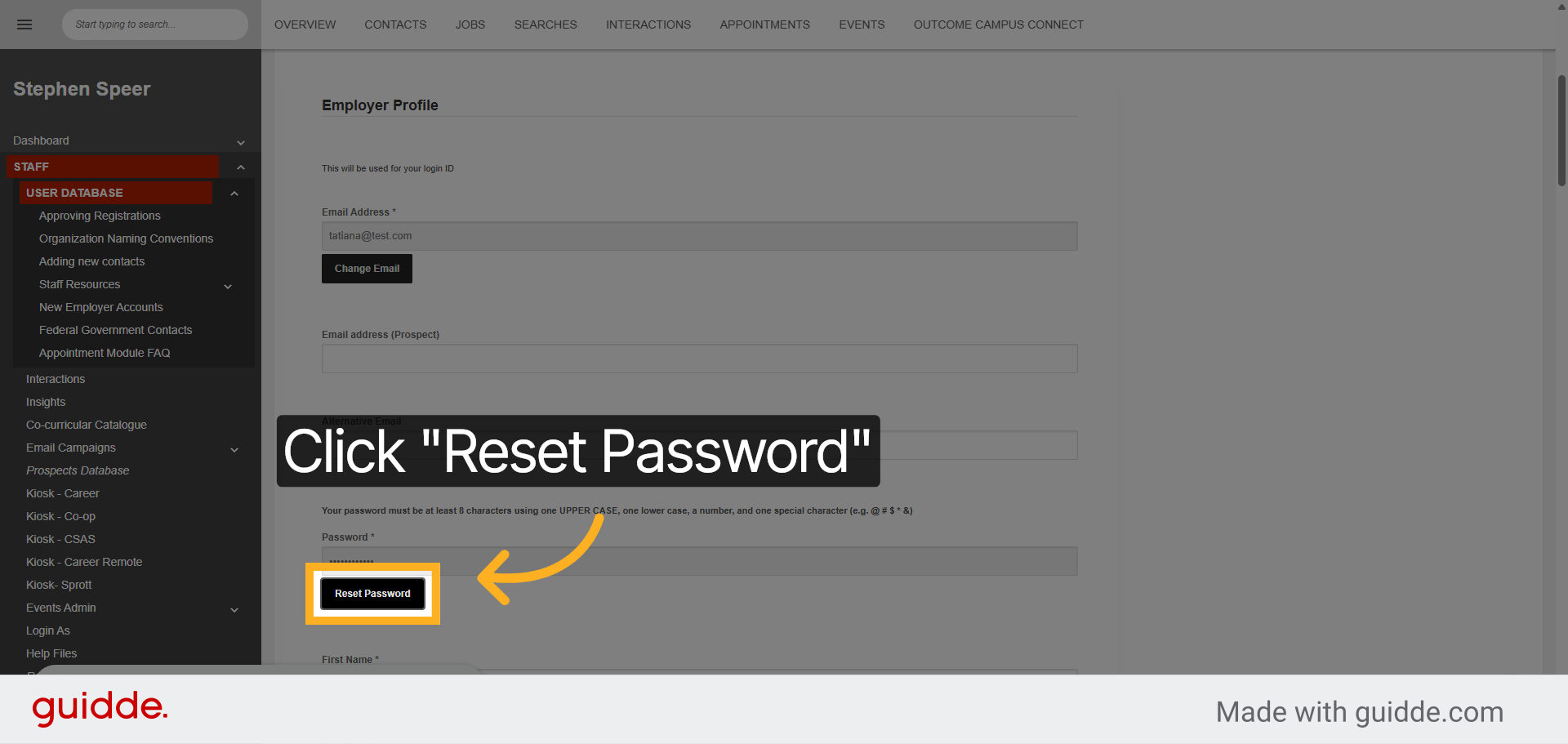
8. Click “Reset Password”
Choose ‘Reset Password’ to start the process of updating the user’s login credentials.
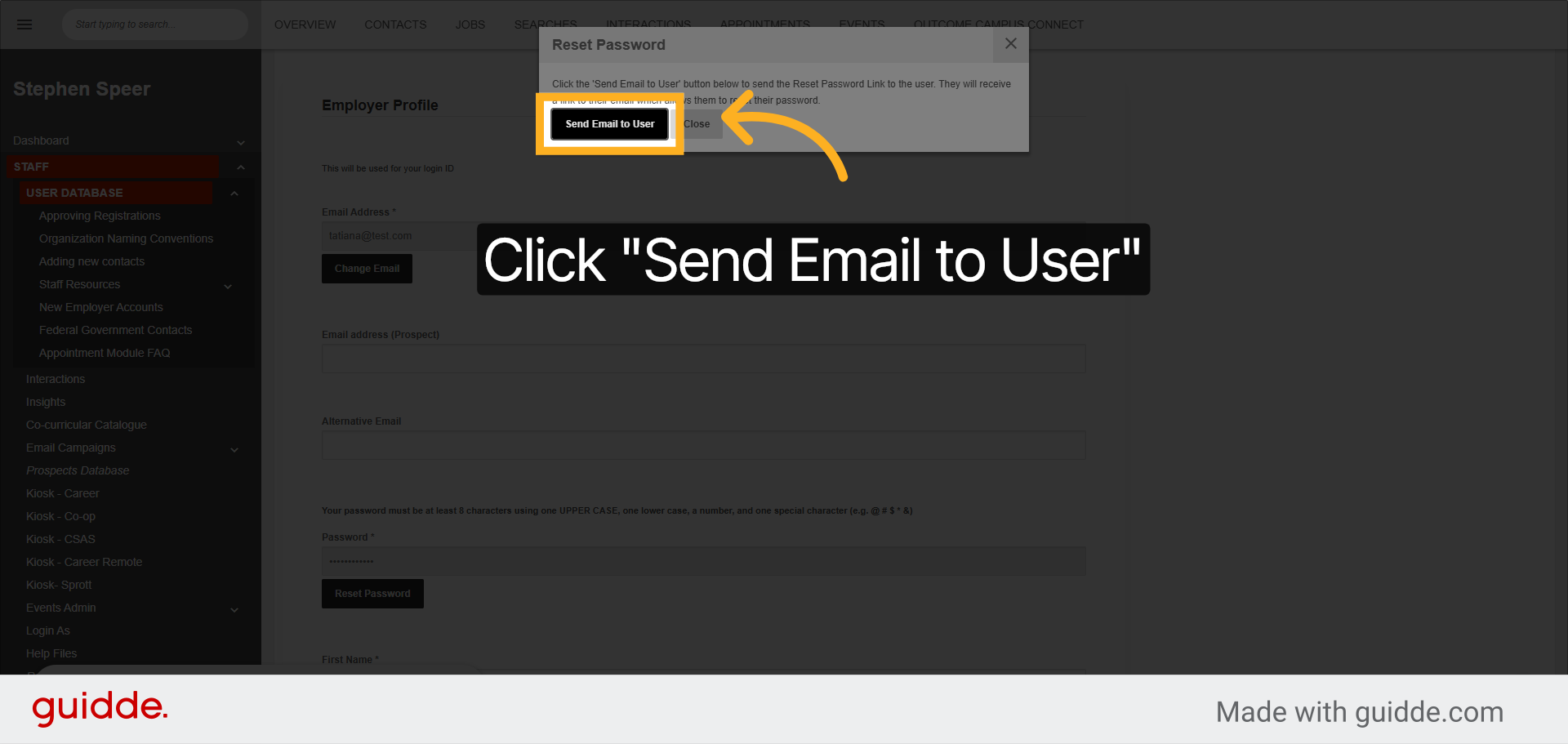
9. Click “Send Email to User”
Send a password reset email to the user by clicking ‘Send Email to User’ to notify them of the change.
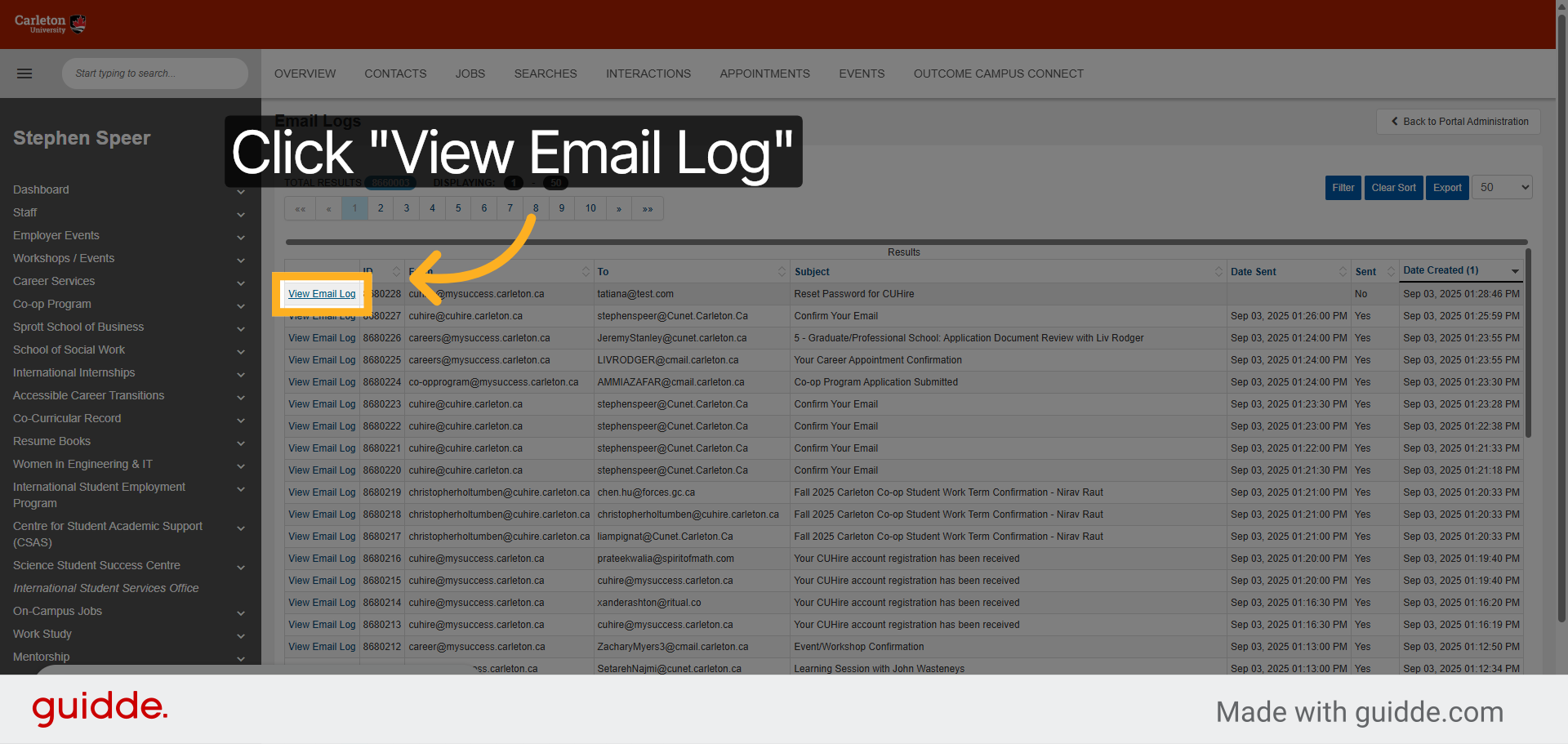
10. Click “View Email Log”
Review the communication history by accessing the ‘View Email Log’ to confirm the email was sent successfully.
This guide walked you through managing a prospect’s profile in BDC 2, including filtering tasks, editing profile details, resetting passwords, and verifying email communications to ensure smooth user management.