OneDrive
File storage and syncing allowing safe storage of all your important files, and those shared with you across devices, all in one service. Collaborate on the same document with coworkers or classmates, restore past versions if needed, and access files in the cloud.
Table of Contents
Accessing OneDrive
You can see all your files, and any shared with you, online at a Carleton-specific website: cmailcarletonca-my.sharepoint.com
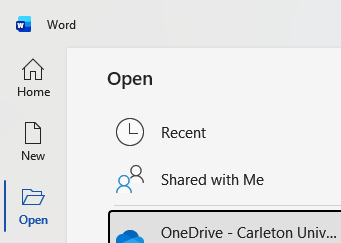
Files from OneDrive can also be accessed directly in their specific Microsoft 365 application, such as Word, Excel, or PowerPoint. Navigate to the Open menu and select OneDrive:
Carleton Resources
If you would like to sync your OneDrive to your computer, you can launch the OneDrive app from the Windows 11 start menu and sign in with your CUNET account.
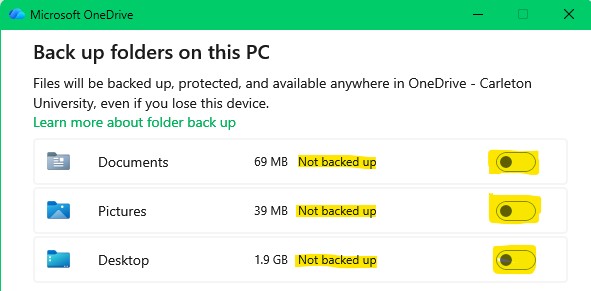
Make sure not to sync your local folders such as Documents, Pictures, or Desktop when prompted by the OneDrive app. This will save space on OneDrive.
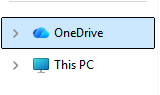
OneDrive will be available in File Explorer on the Navigation pane:
Microsoft Resources
Under development
Microsoft Training
Under development