Teams
Collaboration and chat software with seamless file sharing from anywhere. Scale your communications from one-on-one chats, to whole departments. Teams integrates with Outlook for completely virtual or hybrid videoconferencing meetings.
Table of Contents
Accessing Teams
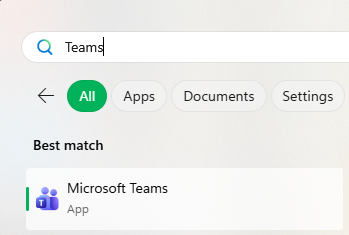
Teams is installed by default on all CUNET Windows 11 computers, and can be launched from the Start menu.
For mobile access to Teams the Android or Apple app may be installed.
A web version is also available at teams.cloud.microsoft for quick use if the Teams app is not installed.
Finally, the Teams app may be installed on non-CUNET Windows, MacOS, or Linux devices using the official Microsoft installer.
Carleton Resources
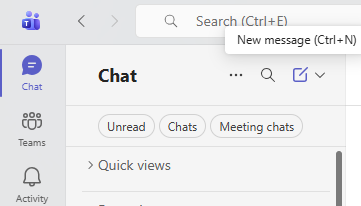
Chat one-to-one or in a group by clicking the New Message button at the top of the chats list.
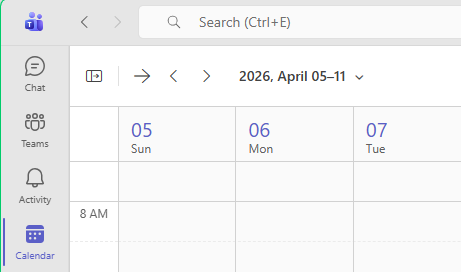
Access your calendar to see upcoming meetings or join one in person by clicking on the Calendar app.
Further content under development
Upcoming Changes
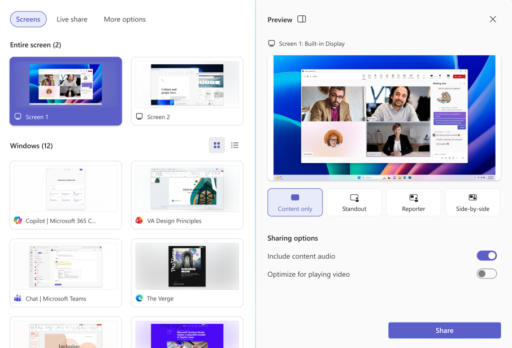
Starting September 2026 Microsoft will update Teams with changes to meeting controls and share panel.
Meeting Controls
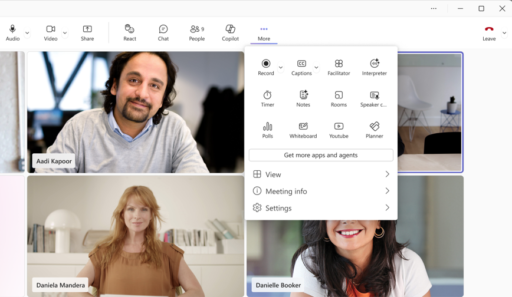
The announced changes include:
- Meeting controls will be center‑aligned, with microphone, camera, and share grouped together
- The Leave button will be separated to reduce accidental exits
- Less‑used actions will move into a reorganized More menu
- Users can personalize meeting controls by pinning, unpinning, and rearranging controls using drag and drop
Share Panel
The announced changes include:
- Live previews of screens and windows
- A tabbed layout
- A two-step share confirmation to reduce accidental sharing
Microsoft Resources
Chat with others
Collaborate on files
Join a meeting
Schedule a meeting
Present content in a meeting
Participate in a channel
Microsoft Training
Under development