Submit an Assignment within-cuPortfolio
- On the Dashboard page, click on the title of your portfolio or page under ‘My Portfolios’ or click the ‘Create’ button and then click on the title of the portfolio or page.
- Scroll to the bottom of the page to the section: “Submit this collection for assessment to”.
- Using the dropdown menu, select the course that you would like to submit your portfolio to.

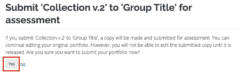
- Read the submission agreement statement. If you are ready for a copy of your portfolio to be submitted and locked, click Yes.
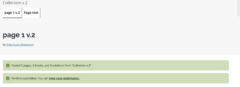
A message will appear indicating the portfolio was successfully submitted. Depending on your notification settings you may also get an email notification. You will not be able to edit the submitted portfolio copy but you can still edit the original portfolio. No changes made to the original portfolio will be reflected in your submission for review.
Video: How to Submit Your Portfolio within cuPortfolio
Was this page helpful?
1169
66d9403b9f
2 people found this useful