Spaces
Module 1.8 – Advanced: Advanced Content: Spaces
The Spaces post type allows you to create listings for physical spaces (such as classrooms, labs, or meeting rooms) on your website.
Each space can include key details like location, equipment, accessibility features, and space type. Once created, you can pull and display spaces on a page using listing or card blocks, and allow users to filter and browse them.
This is a great way to organize and showcase spaces in a clear, searchable format.
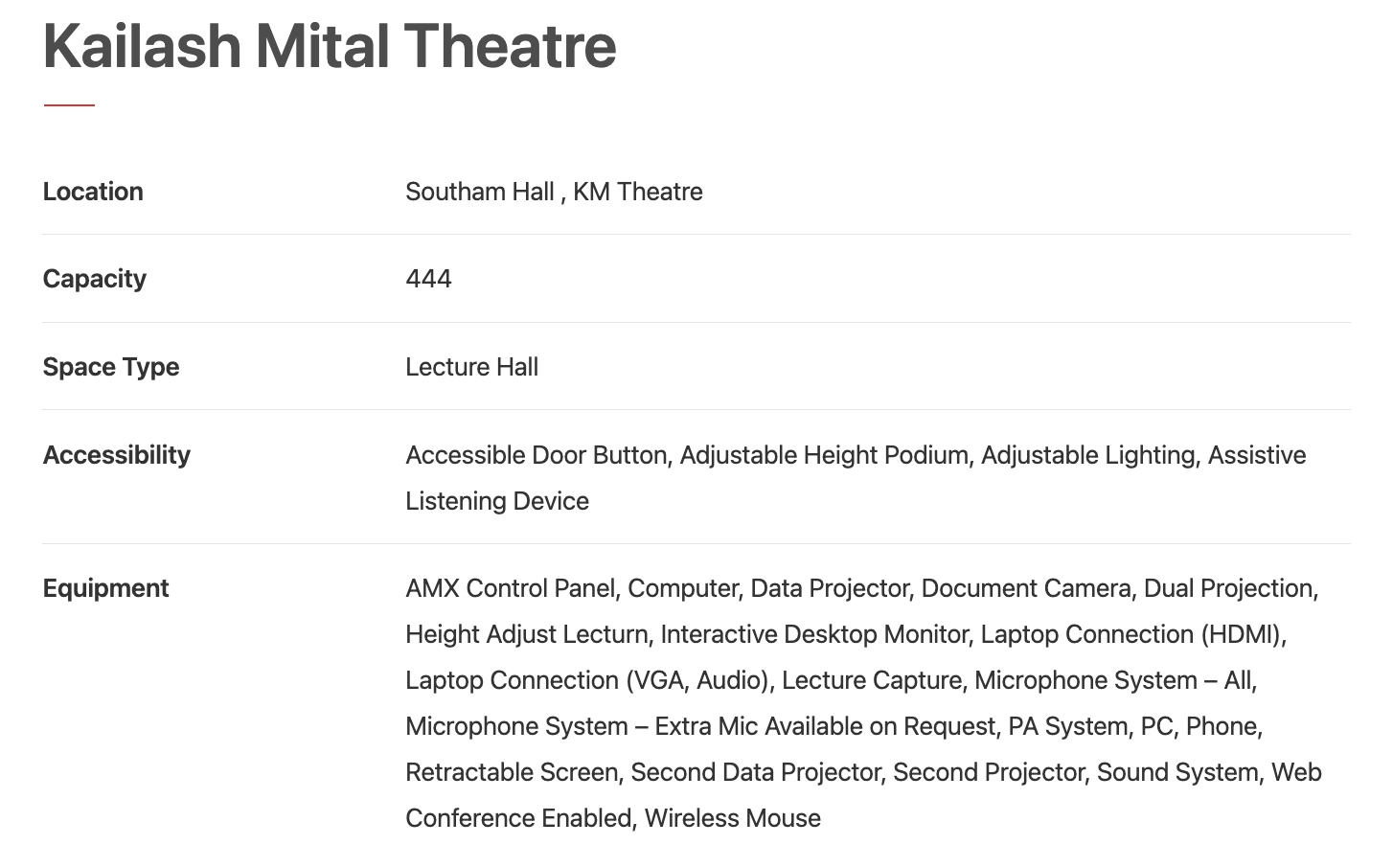
Table of Contents
Step-by-Step
Add a Spaces Post
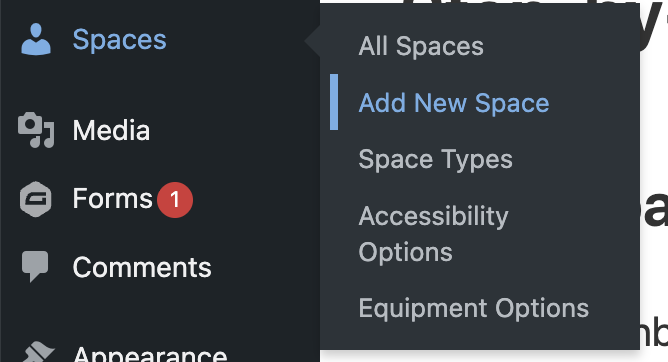
From the dashboard, go to the left side of the screen, hover over Spaces, and click Add New.
Edit the Banner
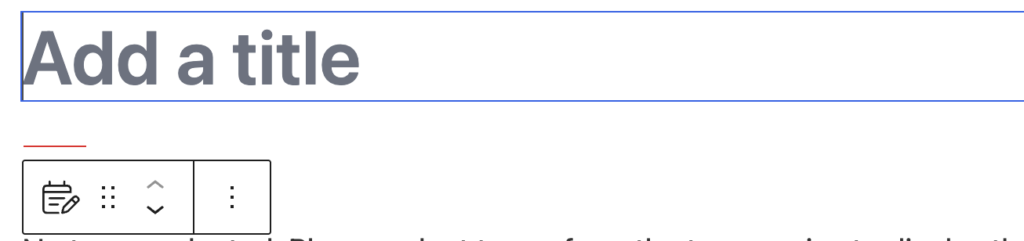
Click in the banner area to add a title and description (optional) for your space.
Example: Richcraft Hall 2200
Add Space Details
In the content area or fields provided, enter relevant information about the space. This may include:
- Description of the space
- Building name
- Room number
- Capacity
- Online Orientation

Categorize
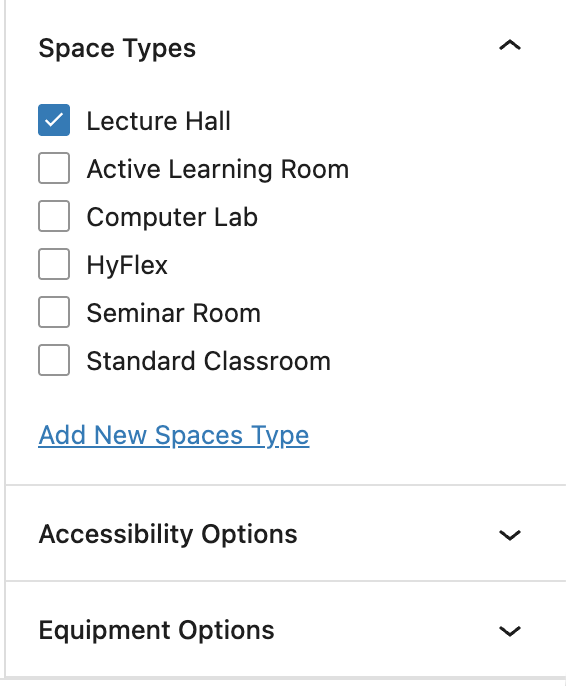
Use categories or taxonomies to organize your spaces. Depending on your site setup, you may be able to categorize by:
- Space Type (e.g., Classroom, Lab, Lecture Hall)
- Equipment (e.g., Projector, Computer Stations)
- Accessibility Features (e.g., Wheelchair access, Hearing loop)
Categorizing your spaces allows you to filter and display specific groups on your pages.
Add a Thumbnail
Set a featured image (thumbnail) for your space:
- Click Set featured image
- Upload or select an image from your media library (600 x 400 pixels)
- Choose an image that visually represents the space
This thumbnail will appear when spaces are displayed in card layouts.
Display Spaces on a Page
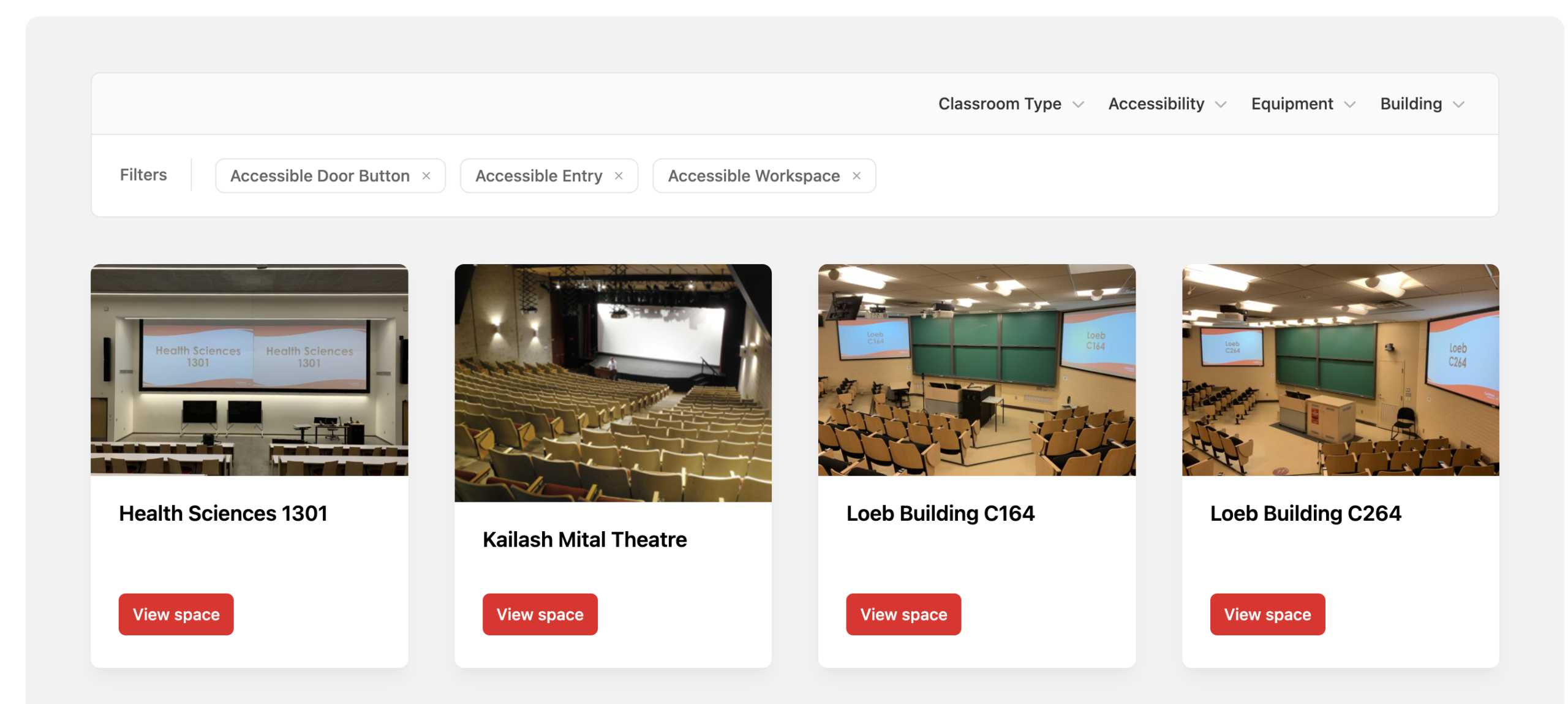
- Spaces can be displayed on a page using card blocks:
- Add a Space card block to a page
- Choose how many to display
- You can hide images and excerpts
- You can also add a filter:
- Select “Show content filter”
- Users can filter by building, equipment, accessibility and space type.
- Create dynamic, searchable space directories!
Try it Out
Now that you know how to create a Spaces post, try it out:
- Add a new space post
- Give it a title and description
- Add location and feature details
- Assign categories (e.g., equipment, accessibility)
- Add a featured image
- Display your space on a page using a listing block