2factor
- I have delegated access to my Carleton Email…
-
If you have delegated access to your Carleton Exchange email, for example to your administrative assistant, your use of 2-factor authentication will have no impact on your delegate’s access to your email from their computer running Outlook.
However your delegate will NOT be able to access your Carleton email, protected with 2-factor authentication, from their phone or mobile device.
- I only want 2-factor authentication for my email; not for Skype, OneDrive…
-
O365 2-factor is enabled for all your Office 365 services: Exchange email, OneDrive for Business, Skype for Business, and MS Teams…
You cannot cherry-pick a subset of O365 services for 2-factor authentication.
- I’ve lost my phone
-
Contact the ITS Service Desk to request that 2-factor authentication be disabled for your Office 365 services.
As a workaround, when signing into the Exchange web interface, you can select the alternate phone number you configured at aka.ms/MFASetup: exchange.carleton.ca (staff/faculty) | students.carleton.ca (students)
- How often will I be prompted for my 2-factor?
-
Generally no more than once every 24 hours.
However when you are prompted, you can elect to not be prompted for an extended period by checking the checkbox.
- What if I choose NOT to use Outlook? App Passwords!
-
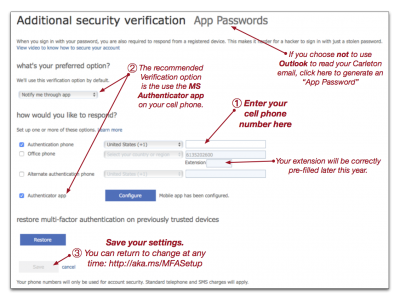
Click to view: MFA Setup webpage
Outlook 2016 (PC/Mac) as well as Outlook for iOS and Android understand how to authenticate with O365 2-factor.
Other email programs may not, such as as Mac Mail.app, or the built-in mail apps that come with some Android devices. This may change over time.
→Note: the built-in mail in iOS (iPhone, iPad) now works with O365 2-factor (tested with iOS 11.3.1)←
If you choose not to use Outlook, and your desired email program does NOT work with O365 2-factor authentication, you must create an “App Password.”
- Got to aka.ms/MFASetup
- Click on “App Passwords”
- Click on “Create”
- Enter a name – e.g. “Mac Mail” if you’re just using it with Mac Mail
- Copy the generated “App Password”
- When you configure your app, use the “App Password” instead of your MC1 password. This prevents the O365 2-factor prompt that your desired email program may not understand what to do with.
Microsoft Reference on App Passwords: