What if I choose NOT to use Outlook? App Passwords!
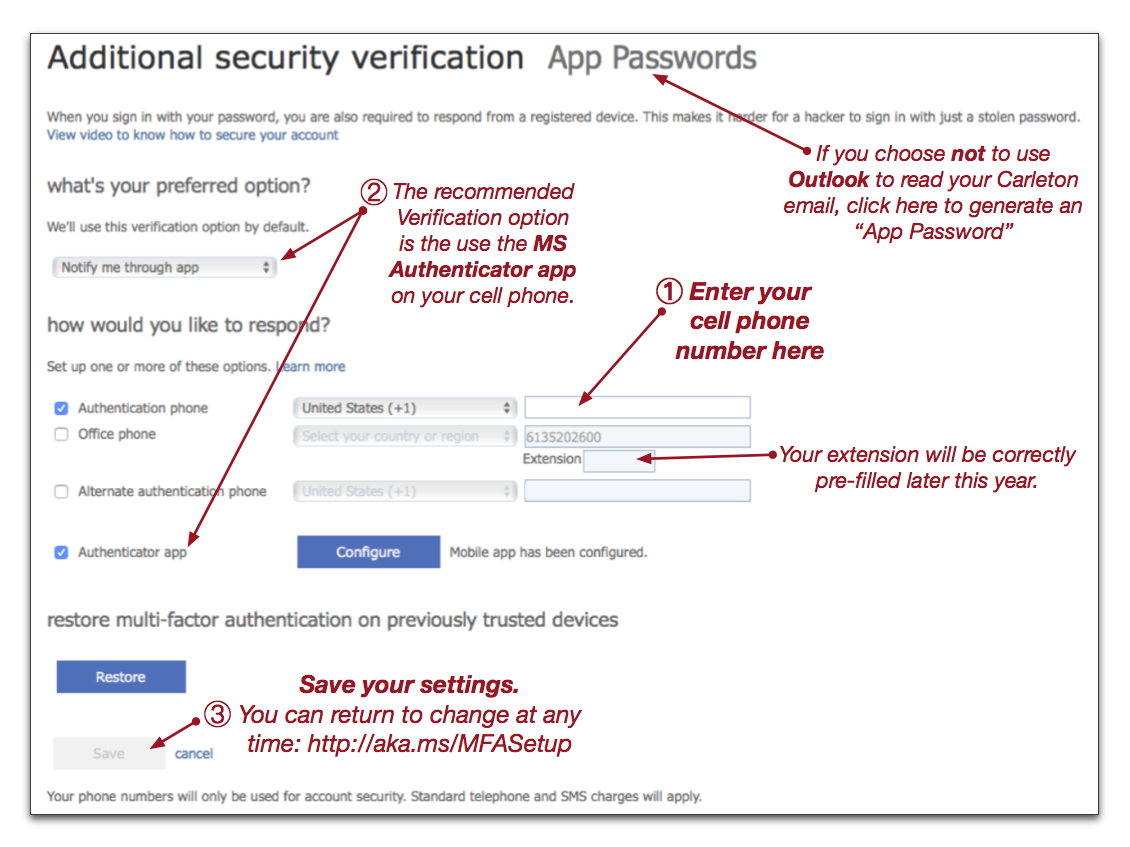
Click to view: MFA Setup webpage
Outlook 2016 (PC/Mac) as well as Outlook for iOS and Android understand how to authenticate with O365 2-factor.
Other email programs may not, such as as Mac Mail.app, or the built-in mail apps that come with some Android devices. This may change over time.
→Note: the built-in mail in iOS (iPhone, iPad) now works with O365 2-factor (tested with iOS 11.3.1)←
If you choose not to use Outlook, and your desired email program does NOT work with O365 2-factor authentication, you must create an “App Password.”
- Got to aka.ms/MFASetup
- Click on “App Passwords”
- Click on “Create”
- Enter a name – e.g. “Mac Mail” if you’re just using it with Mac Mail
- Copy the generated “App Password”
- When you configure your app, use the “App Password” instead of your MC1 password. This prevents the O365 2-factor prompt that your desired email program may not understand what to do with.
Microsoft Reference on App Passwords: