To set up a video assignment in D2L Brightspace, instructors will need configure their assignment settings to allow for Kaltura video file submissions. You have the option to create a new assignment for video submissions, or you can edit the settings for an existing assignment to enable video submissions. Once you have configured your assignment settings to allow for video submissions, students will be able to submit Kaltura media files that have been uploaded to MediaSpace.
→Students can refer to the Student Video Submissions page for instructions on how to submit a video in Brightspace.
Set Up a Video Assignment in Brightspace (Enable Kaltura Video Submissions)
- Log in to Brightspace with your MyCarletonOne credentials.
- On your Brightspace homepage, locate your course in one of the following ways:
- Click on your course under My Courses.
- Click the Course selector grid
 , then search for your course name or select your course from the drop-down menu.
- Click Tools in the course navbar.

- Click Assignments from the dropdown menu.
- Then, click the New Assignment button.
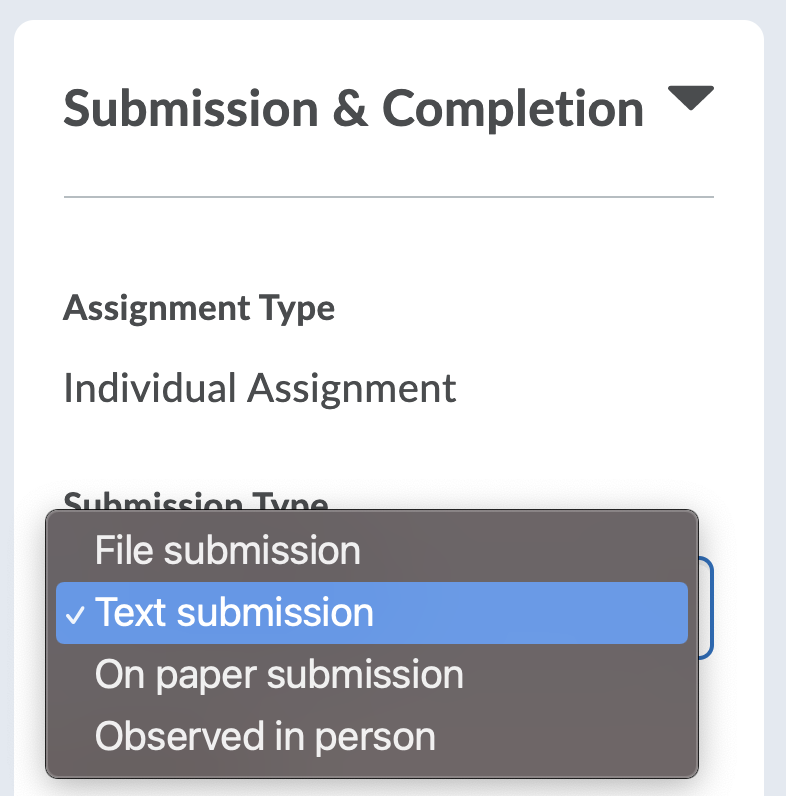
- Follow steps 1-14 on the Creating Assignments page. Under Submission & Completion on the right side of the page, set the Submission Type to Text submission.
- Click Save and Close.
Edit Assignment Settings to Allow for Kaltura Video Submissions
If you would like to change your assignment to accept Kaltura Video Submissions, please follow these instructions:
- Log in to Brightspace with your MyCarletonOne credentials.
- On your Brightspace homepage, locate your course in one of the following ways:
- Click on your course under My Courses.
- Click the Course selector grid , then search for your course name or select your course from the drop-down menu.
- Click Tools in the course navbar.
- Click Assignments from the dropdown menu.
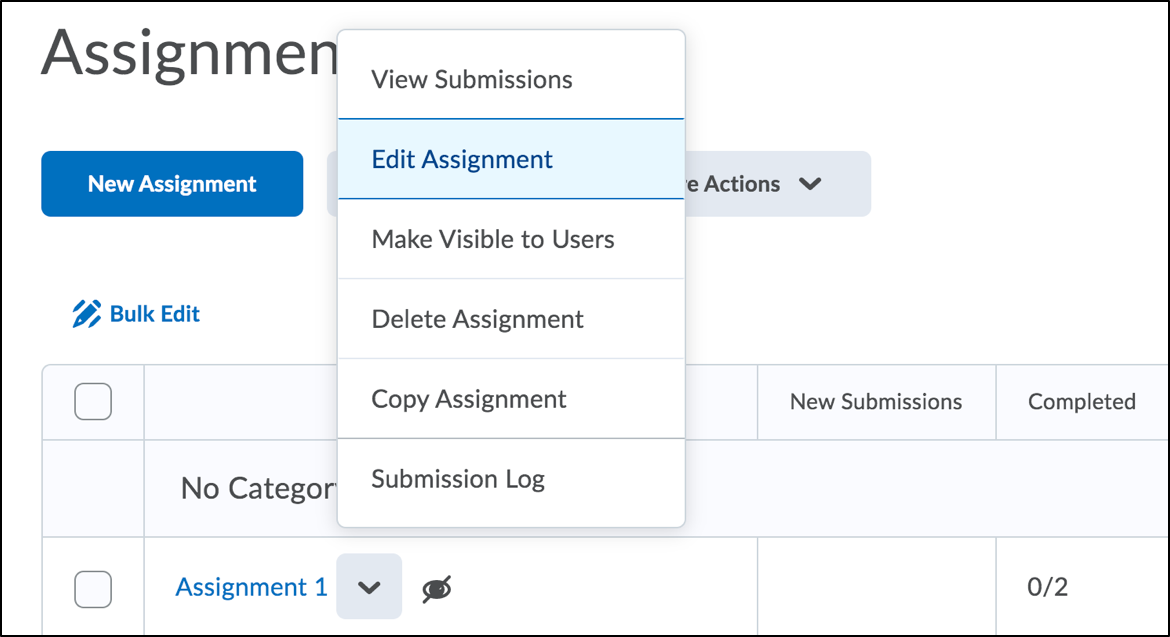
- Click the arrow next to the assignment you wish to edit and select Edit Assignment from the drop-down menu.
- Click Submission & Completion to expand the settings options.
- Under Submission Type, select Text submission.
- Click Save and Close.