Thunderbird software
We recommend that you use Mozilla Thunderbird to read your email.
The free email software Mozilla Thunderbird is recommended for use on your own computer. This is a full-featured, easy to use email client. It does require some setup, describe below.
Use this link to download Thunderbird.
Once Thunderbird has been downloaded and installed to your computer, perform the following steps to configure it for your Math email account:
- The first screen asks for your name, email address and password
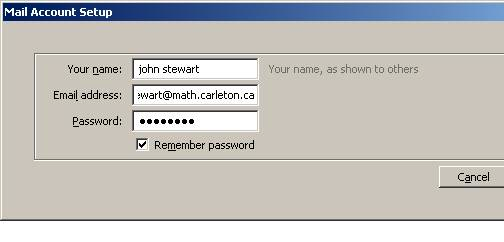
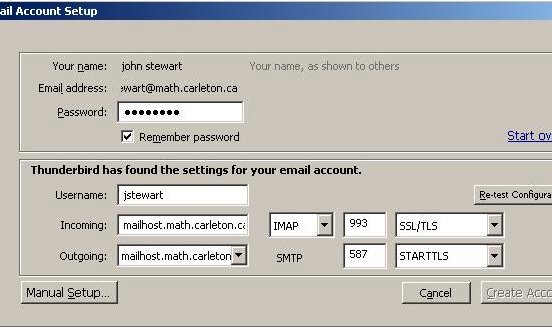
- click on continue to go to the next screen. Thunderbird tries to be clever at this point and figure out the settings. Once the screen settles down, click on the edit button and change the settings to match what is below. You can try “Re-test Configuration” to test it. Once it is correct, click on “Manual Setup”.
Webmail
Webmail is available on the Math website. This is ideal for when you are travelling, or if you using a computer that does not have Thunderbird.
To access webmail, it is recommended you use encryption to keep your password safe. To use encryption, make sure the link address for webmail starts with https: https://math.carleton.ca/webmail
Using this encrypted link will warn about a certificate – this is normal and the certificate can be accepted.
General Email Software Configuration
If you have a different email application than Thunderbird, then you will need to know the appropriate mail server settings to connect.
Incoming Mail Server Settings
| Server Name | mailhost.math.carleton.ca |
| Protocol | IMAP |
| Secure Connection | use SSL protocol (encrypted connection) |
| Port | 993 |
Outgoing Mail Server Settings
| Server Name (SMTP) | mailhost.math.carleton.ca |
| Secure Connection | use TLS protocol |
| Port | 587 |
Email Auto-Reply Message
You are now able to setup your own autoreply message. This is useful if you are away and unable to answer your email.
Warning: This webmail feature is only intended for users who do not maintain their own .forward file. If you do not know what this means, then don’t worry, you don’t have a .forward file and can continue with these instructions!
To setup an out-of-office autoreply message:
- Log into webmail: https://math.carleton.ca/webmail
- Click on ‘Options’ at the top of the webmail screen
- Click ‘Autoresponder / Mail Forwarding’
- Check ‘Enable auto-reply to sender’
- Fill in a subject. You can use the special name ‘$SUBJECT’ to reference the original email’s subject.
- Fill the message body
- Click Submit
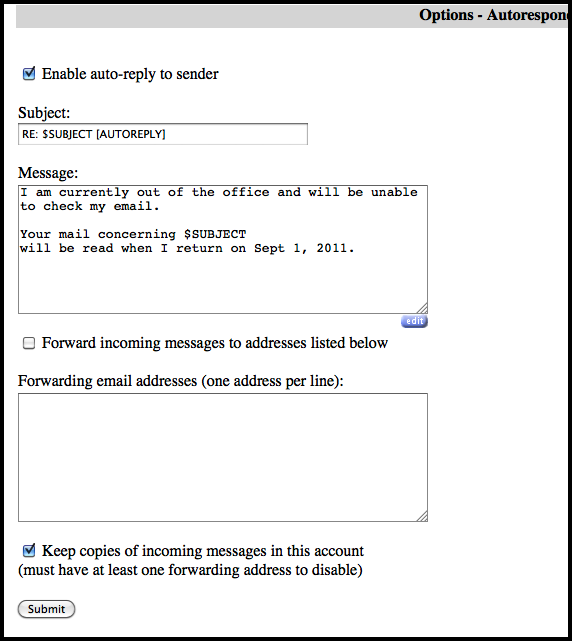
You can test the autoresponse by sending an email to yourself. You should receive the response back.
Note that a particular sender will only receive at most one automatic response a week.