Connecting to OpenStack Instances (SSH With PuTTY)
NOTE: This example uses putty, but the settings are the same for any tool using SSH, SCP, etc. We recomend you download putty from the Windows App store.
-
Login Credentials: Most of our OpenStack images share the same default credentials:
username: student
password: studentIMPORTANT: New images since (2022/2023) force a password change on the first login.
First Login Scenarios:- TurboVNC WARNING: TurboVNC does NOT support first login password changes, so your first login must use another login tool below
- vscode WARNING: vscode does NOT support first login password changes, so your first login must use another login tool below
- ssh terminal (putty, etc) first login: When you login, you will be redirect to a change password prompt. You will then have to enter the current password (student) again, and then enter your new password twice. When you change your password, it will then log you out and you have to login again with that new password
- x2go first login: When you login, you will be redirect to a change password prompt. You will then have to enter the current password (student) again, and then enter your new password twice. When you change your password, it will then prompt you to click reconnect, at which point you can login again using the new password
- openstack web console first login: When you login, you will be redirect to a change password prompt. You will then have to enter the current password (student) again, and then enter your new password twice. In this case, you stay connected. The next time you login, you will need the new password
WARNING: If you are using an older image (pre-2022) that does not enforce an ssh key or a password change, then we strongly encourage you to immediately change your password or setup an ssh key!
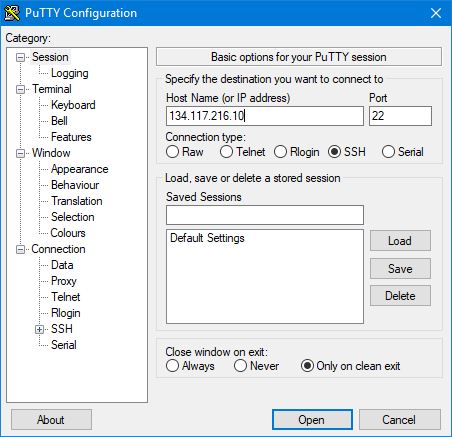
Use the following settings to make a terminal connection – Some of your settings will be different
- host: 134.117.216.10 – Replace this with your own instance’s floating IP address
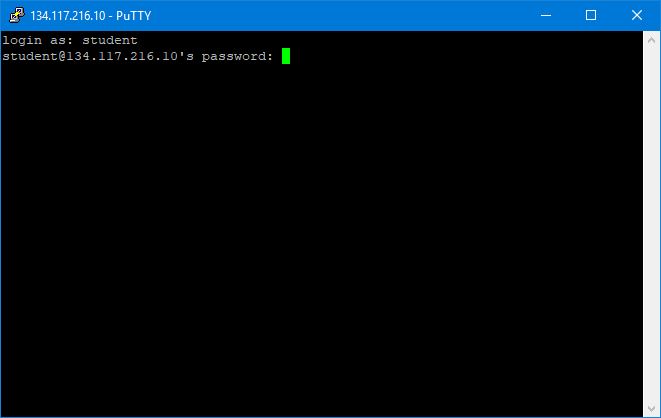
- username: student – default for most of our OpenStack images
- password: The password you set on the first login to your instance
Enter settings into putty:
Enter username / password:
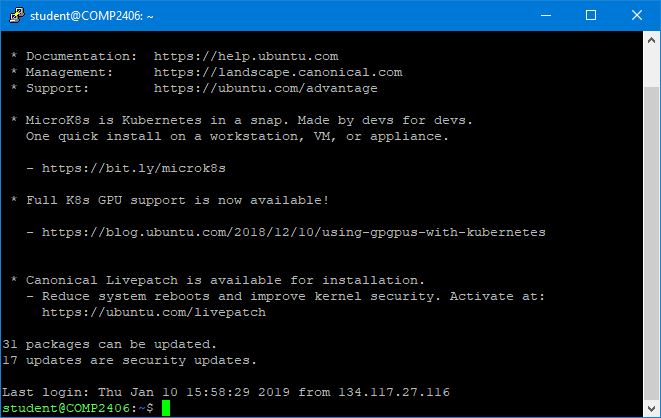
You should see a similar prompt when you successfully connect: