Install VirtualBox
Video and written instructions for installing VirtualBox:
Video Guide to Installing VirtualBox and Running a Virtual Machine
Please complete BOTH of these steps to install VirtualBox:
- Download and install
the latestVirtualBox for your host from virtualbox.org- NOTE: Due to stability problems with recent versions of VirtualBox, it is recommended that you install VirtualBox version 7.2.4 from this link: https://www.virtualbox.org/wiki/Download_Old_Builds_7_2
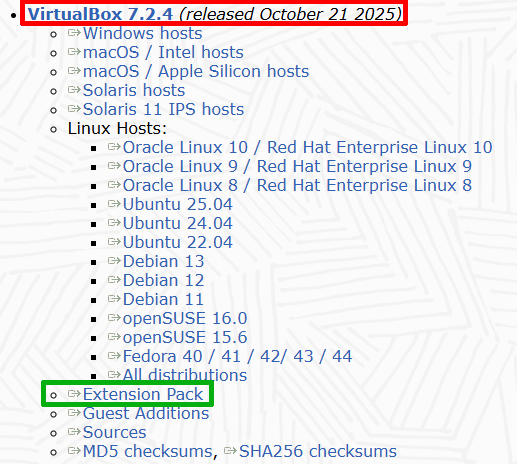
- Find the 7.2.4 version on that page (see RED box in the image below)
Ensure you also download the extension pack for that version (see GREEN box in the image below)
- Install the VirtualBox Extension Pack:
- Download the VirtualBox Extension Pack at: virtualbox.org
As indicated in the point above, ensure you install the extension pack for the version of VirtualBox you are using. If you followed the recommendation of version 7.2.4, then you will also download the extension pack at the above link (see GREEN box in the image below) - In VirtualBox, open the Menu Item Preferences…
- Click the Extensions tab
- Click the small Add New Package button/icon
- Browse to the Extension Pack you just downloaded and follow the instructions to install it
- IMPORTANT: ALL of the SCS Virtual Machines require the Extension Pack, which provides critical tools and drivers for the Virtual Machines.
- Download the VirtualBox Extension Pack at: virtualbox.org