Prepare an Openstack Instance Support Request

Openstack technical support is provided by the SCS Technical Staff. In order to provide effective support, please include the following items in your email so that we have as much information as possible.
WARNING: To be provided technical support, you must first:
- Have thoroughly reviewed the technical support articles found on our Openstack Technical Support page.
- Followed these instructions for getting in-person support, which includes first engaging with your TAs and Lab Coordinators, who are trained to help with many issues.
Openstack Support Request Email
When you email the SCS Technical Staff to request Openstack technical support, you must include the following items in your email:
- Course Code for your course, including the section number
eg:1) COMP1405A-W22 - Openstack Project Name for your course
eg:2) COMP1405-W22 - Confirmation that you can Login to Carleton’s VPN as per these VPN connection instructions
eg:3) YES - I can login to VPN - Openstack Instance Name for the instance that you are experiencing problems
eg:4) readthedocs-03 - Openstack Floating IP Address for the instance that you are experiencing problems
eg:5) 134.117.26.78 - Description of the Problem including:
- General explanation of the problem – an overview of what you are trying to do and what is not working
- Exact steps to reproducing the problem so we can attempt to reproduce it as well
- List any error messages or error codes
- Provide screen captures or photos of any errors or other problems, where possible
- Names of the people (TAs, Lab Coordinators, and/or Instructors) that you worked with so far on this technical issue
eg:TA 1: John Doe; TA 2: Jane Doe; Lab Coordinator: Jon Smith
-

Your instructor will normally tell you the openstack project name, but you can also find it when logged into openstack.
The project name is found in the top-left corner of the openstack dashboard to the right of the Openstack logo and name. (see the attached image below, showing the Project Name in the GREEN Box)
NOTE: Always ensure you are in the correct Openstack Project for your course, as you may have membership in several different projects.
-
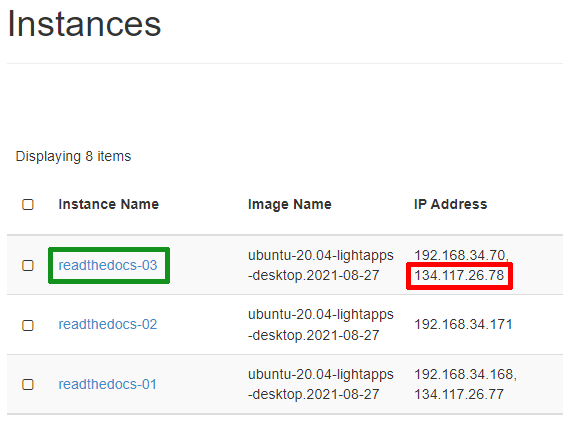
In the openstack project, view the instances by navigating to Project -> Compute -> Instances menu.
The Instance Name is found in the corresponding column (GREEN Box), while the Floating IP Address is found in the IP Address column (RED Box).
NOTE: The floating IP address is always the one that starts with134.117.xxx.xxx