Checking Carleton Emails and Aliases

Updated on April 7, 2022
What Emails Exist at Carleton?
Current MyCarletonOne accounts/emails
@carleton.ca aliases
Historical Aliases or Accounts
Confirm which emails you have
Step 1: Confirm the Primary Aliases
Step 2: Test all Emails and Aliases
Step 3: Ask IT Support about your emails/aliases
Modify Your Emails/Aliases
Forward cmail to cunet
My @carleton.ca email bounced because it was identified as Spam
There are a variety of email systems depending on if you are a faculty or instructor, a staff member, a student or a guest (or a combination of some or all of these categories). This article is meant to help you check to see which of the common Carleton emails you have, and whether you are getting that email! Click here for ITS information about Carleton Accounts & Passwords.
What Emails Exist at Carleton?
There are a variety of current and historical emails and aliases:
Current MyCarletonOne accounts/emails
MyCarletonOne addresses provide not only email, but also access to Carleton online resources, brightspace, computer labs, VPN, Wireless, etc.
firstnamelastname@cunet.carleton.ca
This is the primary MyCarletonOne account for employees account (faculty, instructors, staff, researchers, and some guests)firstnamelastname@cmail.carleton.ca
This is the primary MyCarletonOne account for students
IMPORTANT: Many employees will ALSO have a cmail account, which is the major cause of confusion!
@carleton.ca aliases
Most employees also have a simpler Carleton email alias. This alias normally just redirects email to the MyCarletonOne email account listed above.
firstname.lastname@carleton.ca
Notice the dot (.) separating the firstname and lastname. This email is meant to be more user friendly than the longer email account address.
Historical Aliases or Accounts
This is a list of the most common email account or alias that may still exist for users that have been at the University since before the MyCarletonOne system was setup:
flastname@connect.carleton.ca
This connect account usually featured a username created from the firstname initial and the lastname followed by@connect.carleton.ca. Sometimes the username also included numbers to make in the case of people with similar names. Also, the usernames were limited to a max of 8 characters.firstname_lastname@carleton.ca
Notice the underscore (_) separating the firstname and lastname. This email was meant to be more user friendly than the longer email account address.
Confirm which emails you have
In this section we’ll look at some ways to figure out which emails or aliases you may have and if you are actually getting emails sent to those various accounts and aliases.
An employee in particular could have any number of these accounts and aliases. Sometimes they may have been created automatically, and sometimes they may have been created upon request. Also, some of these may have had their forwarding/redirection modified long ago, so checking to see where they go now is important!
Step 1: Confirm the Primary Aliases
The most important step is to determine which MyCarletonOne accounts/emails you have. The quickest way to do this is via Carleton Central.
-
- Login to Carleton Central
- Click on the Personal Information section (tab)
- Click on MyCarletonOne Account information and Carleton Email address
- You will see a list showing your MyCarletonOne username, email and aliases. This may include just a cunet address or cmail address or both (as is the case in the image below)
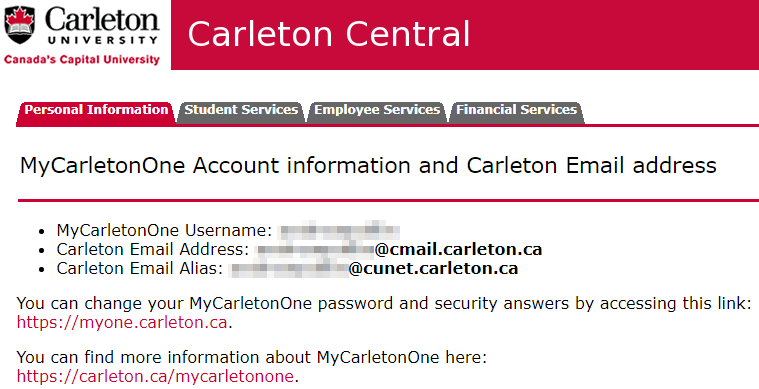
Step 2: Test all Emails and Aliases
One of the best ways to see which emails and aliases are active, and which are actually getting to you is to simply email them!
-
Send the following test emails
Sending to each of these will test all the typical emails and aliases. You may need to adjust the usernames based on what you know (or believe) your usernames to be.- to:
firstnamelastname@cunet.carleton.ca
subject:Testing to firstnamelastname@cunet.carleton.ca - to:
firstnamelastname@cmail.carleton.ca
subject:Testing to firstnamelastname@cmail.carleton.ca - to:
firstname.lastname@carleton.ca
subject:Testing to firstname.lastname@carleton.ca - to:
flastname@connect.carleton.ca
subject:Testing to flastname@connect.carleton.ca - to:
firstname_lastname@carleton.ca
subject:Testing to firstname_lastname@carleton.ca
Check to see which of these emails get through and where. For instance, if you think you forward all of your email to your cunet account, or to you SCS email account, then check there to see which of these emails get through. However, in some cases these emails may go to another account. This is what we are looking for! In some cases it may take a while for an error message to come back. But if the email is valid, it will usually get through quickly.
Email Delivery Scenarios:
- If you get an error email back:
Read the returned error message as this will give clues about what is going on. For instance, if it says “User Unknown”, then it is likely that email or alias does NOT exist - If your email is delivered to one of your inboxes:
Great! This means you know the email/alias exists, and you know where it is going - No error email, but also no delivery:
This is the worst case scenario. It is possible you need to wait longer for an error to come back. However, if you do not get an error in a couple hours, it is quite possible that this email did go to some inbox… just not one that you normally monitor. In this case, you probably should go to Step 3: Ask IT Support about your emails/aliases
- to:
Step 3: Ask IT Support about your emails/aliases
If you are unsure, you can contact IT support to ask for assistance. They will be able to lookup which emails and aliases are associated with your Carleton accounts. In most cases you will need to contact ITS, but if the email or alias is an @scs.carleton.ca one, then you can contact the SCS support staff.
Modify Your Emails/Aliases
Once you have an idea of which emails and aliases exist and where they go, you may want to forward them to your main MyCarletonOne email (cunet or cmail). The most common scenario is employees needing to forward their cmail account to their cunet account, and that is discussed below.
In the cases of other aliases or historical emails and aliases, you will most likely need to contact ITS support
Forward cmail to cunet
The most common (and dangerous) cause of confusion is if employees, particularly faculty and instructors, have cmail accounts that are not being monitored. When students lookup their instructors email in their own cmail via office.microsoft.com, the email directory will often show only the instructors cmail address. If that is not being monitored or forwarded to cunet, then the student must be careful to type in their instructors actual preferred email (usually, firstnamelastname@cunet.carleton.ca or firstname.lastname@carleton.ca).
To avoid this confusion, it is recommended employees (instructors especially) either monitor their cmail, or forward it to their cunet!
-
Setup cmail forwarding:
These steps will show how to setup forwarding on a cmail account to another email address. (We highly recommend forwarding to your cunet address)- Login to outlook.office.com
username:firstnamelastname@cmail.carleton.ca
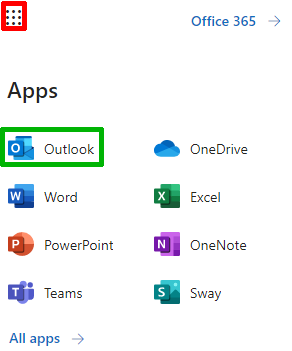
NOTE: You must include the @cmail.carleton.ca so that office.com knows to direct you to the Carleton login - Once you are logged in, make sure you are in the Outlook App. If not, click the bento box icon (indicated in RED) in the top-left corner and select the Outlook App icon (indicated in GREEN)
- Click on the Outlook Settings button in the top right of the Outlook App:
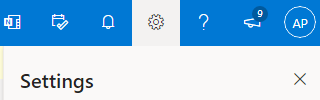
- Then in the bottom of the Setting Menu, you will see a link to View all Outlook settings. Click that to get into more detailed settings.
- In the settings window that pops up, go to Mail -> Forwarding and modify the settings as follows:
- Select Enable forwarding
- Enter an email in the Forward my email to: text field. Again, we highly recommend you use your cunet account.
- If desired, select Keep a copy of forwarded messages which, as the name suggests, will keep a copy of all emails in your cmail account, as well as forwarding to your other email
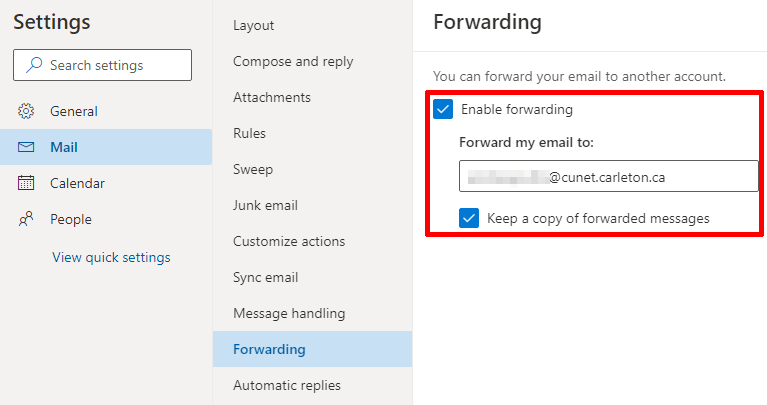
- Login to outlook.office.com
My @carleton.ca email bounced because it was identified as Spam
ITS does email filtering on incoming messages to @carleton.ca addresses. Sometimes the email filtering can incorrectly identify your email as spam! If this affects you you can try the following:
- Check all your email forwarding addresses! If you have any email forwarding set up @carleton.ca then change that to firstnamelastname@cunet.carleton.ca
- If someone tried to reach you @carleton.ca ask them to send you email firstnamelastname@cunet.carleton.ca
- If you set up any email aliases change @carleton.ca to firstnamelastname@cunet.carleton.ca