Passwordless SSH With Key Pairs
Table of Contents
SSH allows you to securely connect to remote computers and virtual machines. With SSH, you can use a computer remotely through the terminal, transfer files between the server and client, and even run graphical programs using X11 forwarding. By default, you will connect to SSH servers using the username and password associated with your account on the server; however, you can also set up something called an SSH Key Pair, which allows you to connect easily and securely.
What is an SSH Key Pair?
As the name suggests, a key pair consists of two keys: the public key and the private key. While you can connect to SSH servers using your account username and password, you can also connect using a username and an authorized key pair associated with that username.
Your public key acts like a personalized padlock that resides on servers. It is an encrypted file that you can publicly distribute to different servers. When you associate a public key to your account, you are saying that anyone who can unlock the public key can also unlock my account without the need for my account password.
Your private key is the key that unlocks your public key and is kept on the client. As the name suggests, this is a file that should be private to you and only you. While many private keys do not have file extensions, you may see private keys with the .pem file extension when using cloud services.
To protect your private key, you always add a passphrase – a password to protect your private key. If you are using a key for automated purposes on a secured network, then you may need to create a key that does NOT have a passphrase. But this is only in specific circumstances. Any key used for remote access from public networks should always have a passphrase.
Why use Key Pairs?
Key pairs offer a number of conveniences when you use remote services:
- Provides a way of authenticating that is less vulnerable to password guessing and brute force attacks
- Distribute your public key to get system access without ever setting up passwords
- Have a different key pair for each device and simply delete the public key from the server to revoke the old devices’ access
- Create a key pair (without a passphrase) for scripts or tools like MPI, Hadoop, etc. so that they can authenticate with other devices without a password prompt
You can find a detailed example of setting up ssh key login for scripts in this article:
Using SSH Keys to Support Multi-node Compute Tools & Scripts
Remember that your public key is truly public; as long as you protect your private key file, you may distribute your public key however you would like. Nobody can do anything malicious with your public key file, so you can use them to create a shared identity across multiple services. The same public key will work across the different services as long as you use the same private key.
Comparing Password vs Key Pair Authentication
Below we show comparisons between the password and key pair authentication mechanisms.
NOTE: These are grossly over-simplified diagrams of how the various technologies work. It is meant to just provide an general idea of the steps involved and what is happening.
-
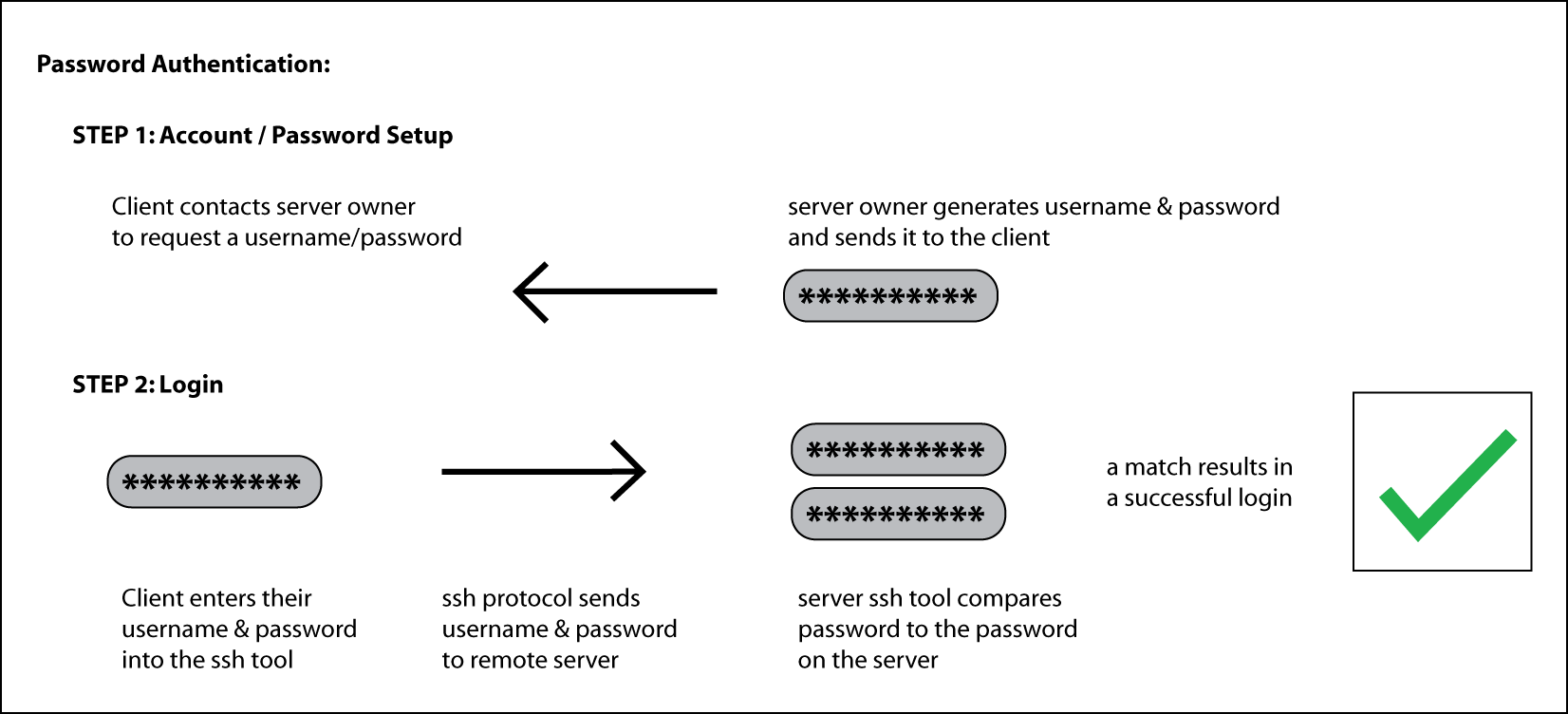
Advantages of Password Authentication
- Simple and intuitive to understand
Disadvantages of Password Authentication
- Sharing of the initial account password has to be done via some other medium, such as email, which can be vulnerable
- Passwords are often short, making them vulnerable to brute force attacks
- Even longer passwords can be vulnerable to password guessing
- Running tools or scripts that require remote authentication may require the password to be stored somewhere in plain text
- If a server with your account and password on it is compromised, then any other server using that password could also be at risk. You would have to change the password on all the affected systems
-
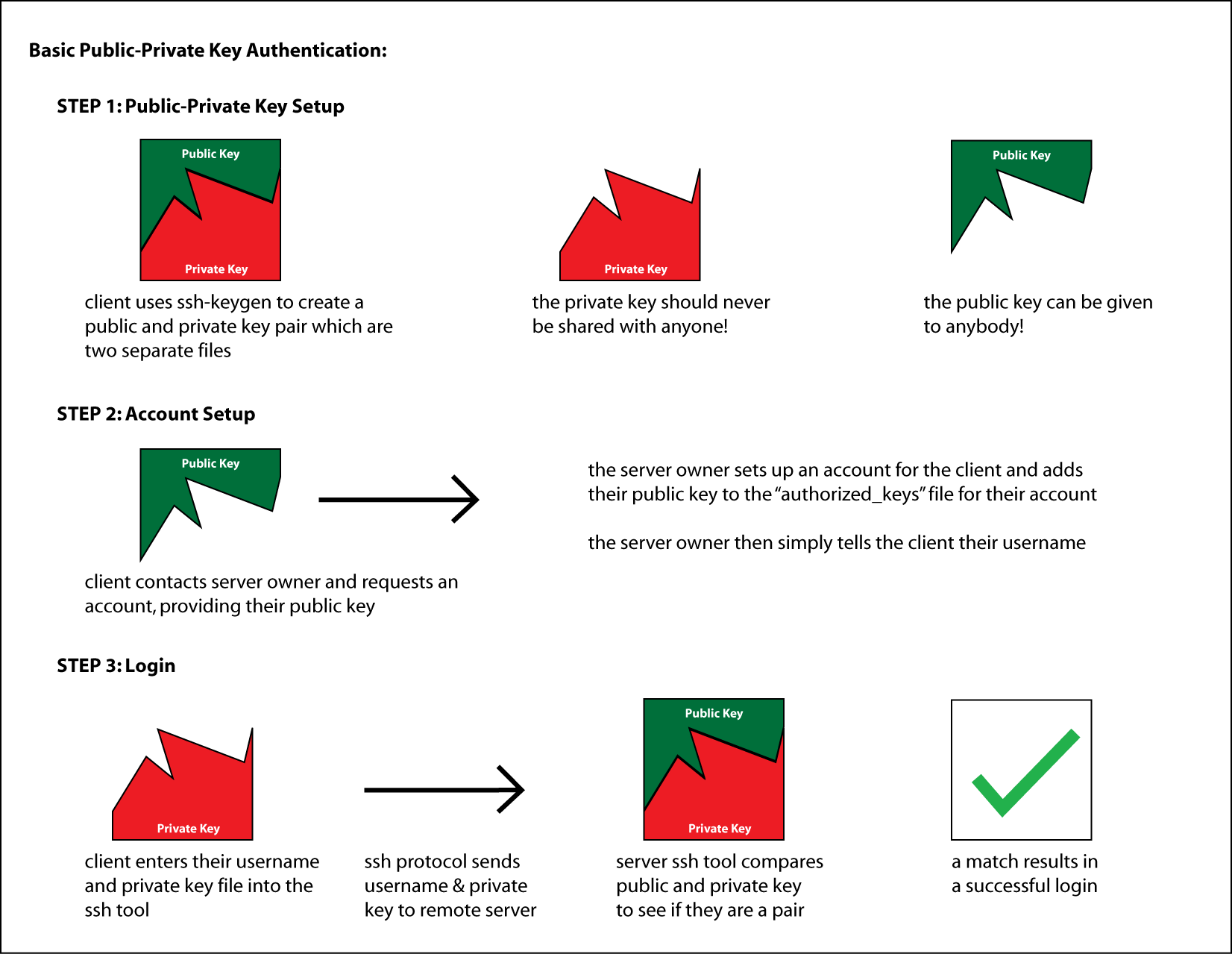
Advantages of Basic Public-Private Key Authentication
- Sharing of an initial account password is not needed, just send your public key
- Strong public-private keys are virtually impossible to crack
- Can be used to run tools or scripts that require remote authentication
- If a server with your public key on it is compromised, there is no risk of someone using that to guess your private key
Disadvantages of Basic Public-Private Key Authentication
- If someone gets your private key, they can use it to access ANY system that uses your public key. You would need to remove your public key from all of those affected systems
-
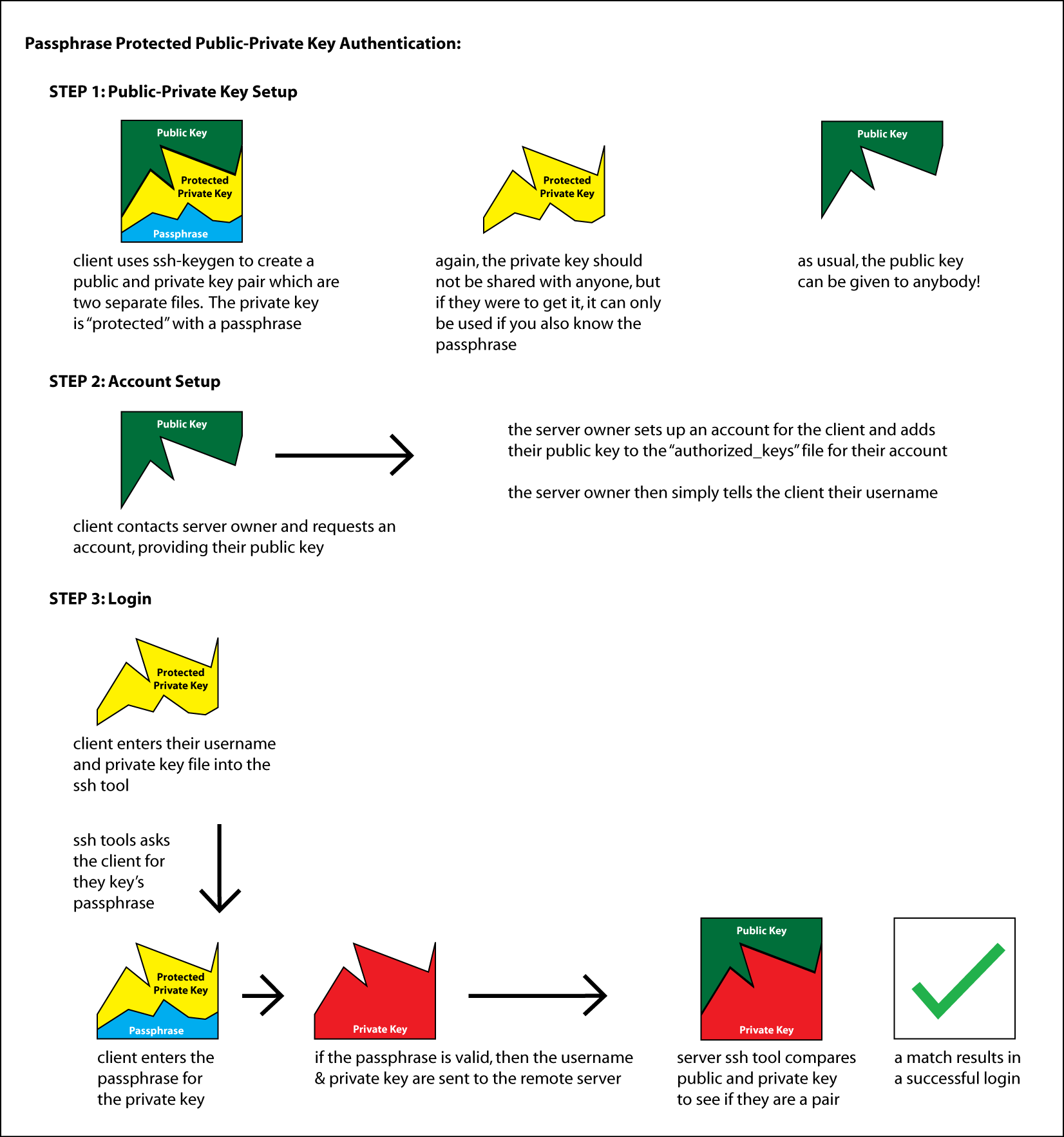
Advantages of Passphrase Protected Public-Private Key Authentication
- All the advantages of Basic Public-Private Key Authentication (see above)
- If someone steals your Private Key, they can only use it if they can guess the passphrase
Disadvantages of Passphrase Protected Public-Private Key Authentication
- If you forget the Passphrase for your key, then you will not be able to use it and you will be locked out of any systems that use that Public-Private key
Creating Key Pairs
Most operating systems support a tool called ssh-keygen that allows you to create a public/private key pair.
Linux / Apple OSX / Windows 10
- Open a Terminal window / prompt
On Windows, you can open a Command Prompt or PowerShell
See Enable OpenSSH on Windows 10 ifssh-keygenis not enabled on Windows 10 (older versions do not have it enabled by default) - Enter the
ssh-keygen -t ed25519command to open up an interactive prompt that takes you through the steps of creating an SSH key - Type a filename for the key, or use the default
- If you are only using one SSH key pair, you can keep the default (usually
~/.ssh/id_ed25519) - If you are creating multiple key pairs for different purposes, you should name it something meaningful (e.g.
~/.ssh/home_github_key)
- If you are only using one SSH key pair, you can keep the default (usually
- Finally, type your passphrase. You should ALWAYS use a passphrase
If your key has a passphrase, then if someone somehow gets your private key file, they will still not be able to use it unless they are able to guess your passphrase. In some cases, such as setting up server/application automation (hadoop, MPI, etc), you may want to create a key without a passphrase. But this should NEVER be done for a key used to remote access a system, repository, etc from public networks- NOTE: When typing passwords in the terminal, no text will appear while you type — press Enter to continue
- Your public and private key pair should now be available in
~/.ssh/or wherever you specified.
Authenticating and Connecting with Key Pairs
Linux / Apple OSX / Windows 10
Authorize your key pair on a remote server
Once you have created your key pair, you need to authorize the key pair to unlock your account.
- Copy your identity (public key) over to the remote server using the
ssh-copy-idcommand:ssh-copy-id username@remoteservername.ca– substituting your particular username and remote server name (or IP address) - NOTE: If you created a specific ssh key file (rather than using the default), you can specify it with the
-ioption:ssh-copy-id -i <PUBLIC KEY FILE> username@remoteservername.ca– giving your public key file
Connect to the remote server using the key pair
Once you have authorized the key pair you can connect with it.
- Connect using your default ssh key using the
sshcommand:ssh username@remoteservername.ca– substituting your particular username and remote server name (or IP address) - NOTE: If you created a specific ssh key file (rather than using the default), you can specify it with the
-ioption:ssh -i <PRIVATE KEY FILE> username@remoteservername.ca– This time specifying your private key file
For information about connecting with PuTTY, visit the Connecting to OpenStack with SSH and PuTTY quick-start guide.
Advanced Topic: Configuring SSH
Once you start using SSH for many different services and making use of multiple key pair identities, it may be useful to start using an SSH configuration file.
SSH configs help simplify tasks:
- Giving servers simpler aliases, e.g. typing ssh openstack rather than ssh 134.117.x.x
- Using different identities with different servers without needing to specify each time
- Forward ports with SSH to access remote services, such as forwarding a Jupyter Notebook server from a remote port to a local port
There is a lot of information available online about setting up ssh configurations for different purposes. Your ssh configuration is typically in your home ssh folder, such as ~/.ssh on Linux or %USERPROFILE%/.ssh/ on Windows, with OpenSSH installed. If there isn’t a file called config you can make one. Below is a sample SSH configuration to have one passwordless private key for Github and another passworded key for OpenStack, with parts that need to be switched for individual use.
-
Host openstack
  User username
  HostName 134.117.x.x
  IdentityFile ~/.ssh/openstack.pem
Host github.com
  IdentityFile ~/.ssh/passwordless.git.pem
Using the above file, you could then connect to your OpenStack instance using ssh openstack rather than ssh -i ~/.ssh/openstack.pem username@134.117.x.x and git will also use the correct identity file when using SSH and working with GitHub.com.