- Exporting the D2L quiz as a Brightspace Package
- Downloading the Brightspace package ZIP file
- Uploading the ZIP file to the converter
- Converter
The QuizToText converter tool allows you to export your quiz questions from Brightspace and then convert them into a text format. The QuizToText Converter tool will accept your questions as a Brightspace package (ZIP file) and convert your quiz questions into a text or HTML file.
| NOTE: The QuizToText converter tool is only able to convert the following question types: True/False, Multiple Choice, Multiselect, Written Answer, Short Answer and, Fill-in-the-Blank. |
Exporting your Quiz using the quiz converter has three process stages: Exporting the quiz, downloading the zip file, and uploading the quiz file.
Exporting the D2L quiz as a Brightspace Package
| TIP: It is strongly recommend that you export quizzes individually. This will make it easier to find the appropriate file after it’s converted. |
- Sign into Brightspace using your MyCarletonOne credentials.
- On the Brightspace homepage, locate your course in one of the following ways:
- Click on the course tile under the My Courses widget.
- Click the Course Selector Grid and select the course from the drop-down menu. If you are enrolled in more than 20 courses, you can search for the course name using the search bar.
- In the navbar, select Course Admin.
- On the course admin page, select the Import/Export/Copy Components tool.
- Select Export as Brightspace Package.
- Select the Start button.
- Choose the quiz you’d like to export and select the Continue button.
- If your quiz includes images, select Include Course Files in the export package.
- Select the Export button.
- You will receive a message that your export has started and that you will receive a notification when the export is complete.
- Select Done.
Downloading the Brightspace package ZIP file
- Complete the Exporting process.
- When the Brightspace Package has finished exporting, you will receive a notification.

- Select the Notification.
- Select Export Finished.
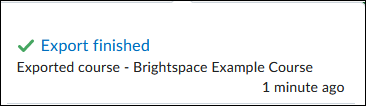
- Select Click here to download the export ZIP package.
Uploading the ZIP file to the converter
- Complete the Exporting and Downloading processes.
- Navigate to the Converter section of this page.
- Select the Choose File button below.
- Select the downloaded ZIP file you wish to convert.
- The converted ZIP file will start to download automatically. This ZIP file will contain two files:
- A .txt file which is best suited to text only quizzes that have no images.
- A .html (HTML) file which is better suited for quizzes with images and text. You can copy the contents of this HTML file into another document and save it as a PDF for later viewing.
| NOTE: The QuizToText converter makes no distinction between a question, answer, feedback, or hint, so some clean-up of the resulting text files will be required. |
Converter
No file chosen
No file chosen yet.
 COPYRIGHT © 2022 Canisius College, Buffalo, NY
License Information:
This program is free software: you can redistribute it and/or modify it under the terms of the GNU General Public License as published by the Free Software Foundation, either version 3 of the License, or (at your option) any later version.
This program is distributed in the hope that it will be useful, but WITHOUT ANY WARRANTY; without even the implied warranty of MERCHANTABILITY or FITNESS FOR A PARTICULAR PURPOSE. See the GNU General Public License for more
details.
You should have received a copy of the GNU General Public License along with this program, located here. If not, see https://www.gnu.org/licenses/.
Was this page helpful?
6 people found this useful
Still need help? Contact us