- Why Use the In-Person Quiz Tool?
- How to Enable Session Restrictions for In-Person Quizzes
- How to Reset Session Restrictions
A new security enhancement designed specifically for in-person assessments is now available within Brightspace at Carleton University. The “Single-Session” restriction helps maintain a controlled testing environment by ensuring a quiz attempt remains tethered to a single device from start to finish.
Related Quiz Support Pages:
Why Use the In-Person Quiz Tool?
- Session Tethering: Once a student begins their quiz in a specific browser (e.g., Chrome on a laptop), they are digitally locked to that session. They cannot resume the quiz on a smartphone, tablet, or secondary device.
- Controlled Resets: If a student closes their browser or loses their connection, the attempt is “locked.” This ensures that the student must consult with the in-class invigilator or instructor to have their session manually reopened.
- Integrity Focus: By preventing device-switching, this tool provides a significant layer of security for high-stakes exams held in physical classrooms or computer labs.
Important Usage Note: Due to the “locking” nature of this feature, it is only intended for in-person quizzes where an instructor is available to assist students in real-time. We strongly advise against using this for remote or home-based exams, as standard home internet fluctuations could result in students being locked out of their exams without immediate technical recourse.
How to Enable Session Restrictions for In-Person Quizzes
- Log into Brightspace with your MyCarletonOne credentials and locate your course.
- In the navbar, select Tools and select Quizzes in the drop-down menu. You will be taken to the Manage Quizzes page.

- Create a new quiz or click the drop-down menu next to an existing quiz and select Edit.
- On the Edit Quiz page, click Availability Dates & Conditions.
- Go to the Session Restrictions for In-Person Quizzes section.
- Select the checkbox next to Lock each attempt to a single login session.

How to Reset Session Restrictions
If you previously enabled Lock each attempt to a single login session to require learners to complete a quiz within a single Brightspace login session, you can reset the session restriction on a specific attempt if needed. When you reset a session lock for an attempt, and the learner re-enters the quiz, all previously submitted answers are retained.
- Log into Brightspace with your MyCarletonOne credentials and locate your course.
- In the navbar, select Tools and select Quizzes in the drop-down menu. You will be taken to the Manage Quizzes page.
- Click the drop-down menu next to the quiz and select Grade.
- On the Users tab, find the learner who is restricted.
- Click on the learner’s in-progress attempt to open it.
- Click the Reset button (often located near the attempt details).
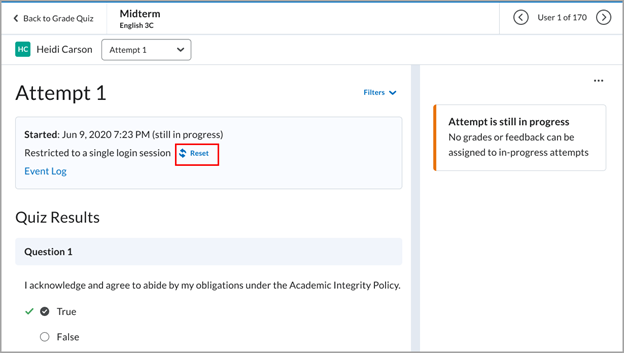
- In the confirmation window, click Reset Restriction to allow the learner to re-enter the quiz.
Was this page helpful?
no one has found this useful yet.
Still need help? Contact us