- Tracking Attendance in D2L Brightspace
- Accessing the Attendance Tool
- Setting an Attendance Scheme
- Creating an Attendance Register
- Entering Attendance Data (Taking Attendance)
- Exporting Attendance Data
- Viewing Course Access
The attendance tool allows instructors to track student’s presence and participation in any number of course activities. Attendance information can be useful as a metric of student engagement in combination with other course participation information. Typically, attendance provides a record of whether a student was present in a face-to-face or virtual class event.
Examples of activities where you may want to track attendance:
- A seminar or in-person class session
- Discussion Participation
- Guest speaker presentations
- Group work sessions
- Labs or experiential learning activities
If you intend to track attendance, keep in mind that students may have valid reasons for missing class. For example, some students with disabilities may miss a large number of classes for undisclosed health reasons or medical appointments. Students with complicated family needs may miss classes to support their loved ones at home. Attendance is one metric of engagement, but it is not the only metric. If you are concerned about your student’s engagement, connect with the student for a direct conversation about your concerns.
Tracking Attendance in D2L Brightspace
The Attendance tool can be used to record and keep track of student presence and participation in a course. There are a few processes to involved to enable course attendance:
- Setup your attendance scheme: Attendance information in Brightspace is calculated based on the Attendance Scheme. The default System Scheme in Brightspace has two attendance statuses: Present (100%) or Absent (0%). You have the option to create a custom Attendance Scheme with statuses that suit your course needs. For example, some instructors choose to use Present, Absent, and Excused. For more information on how attendance is calculated in Brightspace, see D2L’s How Attendance is Calculated.
- Setup an attendance register: Attendance registers are specific to an activity or event in the course. Instructors can create multiple registers to record student participation/presence in course events.
- Create a grading column: There is no way to link the attendance tool to an grade item in Brightspace. If you want to assign attendance grades to a specific activity, you will need to manually create a grade item. The grade item would be a manual entry column where you can either enter grades directly, or import grades from a tracking spreadsheet.
- Manually record grades: Grades must be manually entered or manually imported into the attendance grade column. There is no way to do automated grading of attendance in Brightspace. The attendance tool does not yet push to the gradebook in Brightspace.
Instructions are included below for accessing and configuring attendance in your course. For assistance with course attendance, please reach out to tlssupport.carleton.ca.
Accessing the Attendance Tool
- Log in to Brightspace with your MyCarletonOne credentials.
- On the Brightspace homepage, locate your course in one of the following ways:
-
- Click on the course tile under the My Courses widget.
- Click the Course Selector Grid
 and select the course from the drop-down menu. If you are enrolled in more than 20 courses, you can search for the course name using the search bar.
-
- In the navbar, click Tools.

- Select Attendance from the drop-down menu.
Setting an Attendance Scheme
An attendance scheme defines the criteria for tracking attendance. When you create a new attendance register, you will need to assign an attendance scheme or use the default System Scheme. The default attendance scheme in Brightspace has two statuses: Present (100%) or Absent (0%). If you want to create a custom scheme for your course with additional statuses, you will need to create a new attendance scheme, and then apply it to an individual attendance register or set it as the new default scheme for your course.
The Default Attendance Scheme in Brightspace
The default attendance scheme in Brightspace is called the System Scheme. The System Scheme has two statuses: Present (100%) or Absent (0%). The System Scheme is selected by default when you create a new attendance register. You have the option to set a different scheme as the default under the Attendance Schemes tab (see instructions below).

Creating an Attendance Scheme
- Log in to Brightspace with your MyCarletonOne credentials.
- On the Brightspace homepage, locate your course in one of the following ways:
-
- Click on the course tile under the My Courses widget.
- Click the Course Selector Grid and select the course from the drop-down menu. If you are enrolled in more than 20 courses, you can search for the course name using the search bar.
-
- In the navbar, click Tools.
- Select Attendance from the drop-down menu.
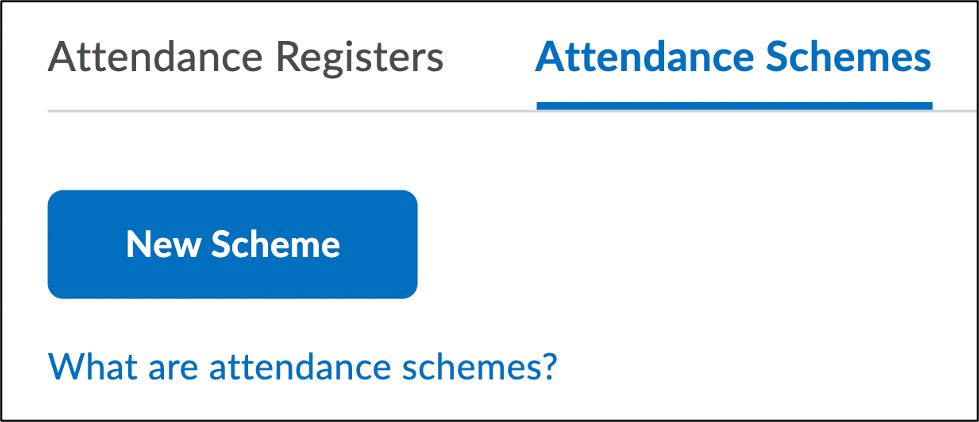
- Click the Attendance Scheme tab at the top of the page.
- Click New Scheme.
- Enter a name for the attendance scheme.
- Under Attendance Statuses, you can customize the following:
- Symbol – Assign a symbol for each status. For example, A for Absent.
- Status Full Name – Enter the names of the statuses (i.e. Present, Absent, Late)
- Assigned % (optional)- If you enter a percentage in this column, the attendance status will count towards the percent attendance calculation).
- Order (optional)- Adjust the order of each status.
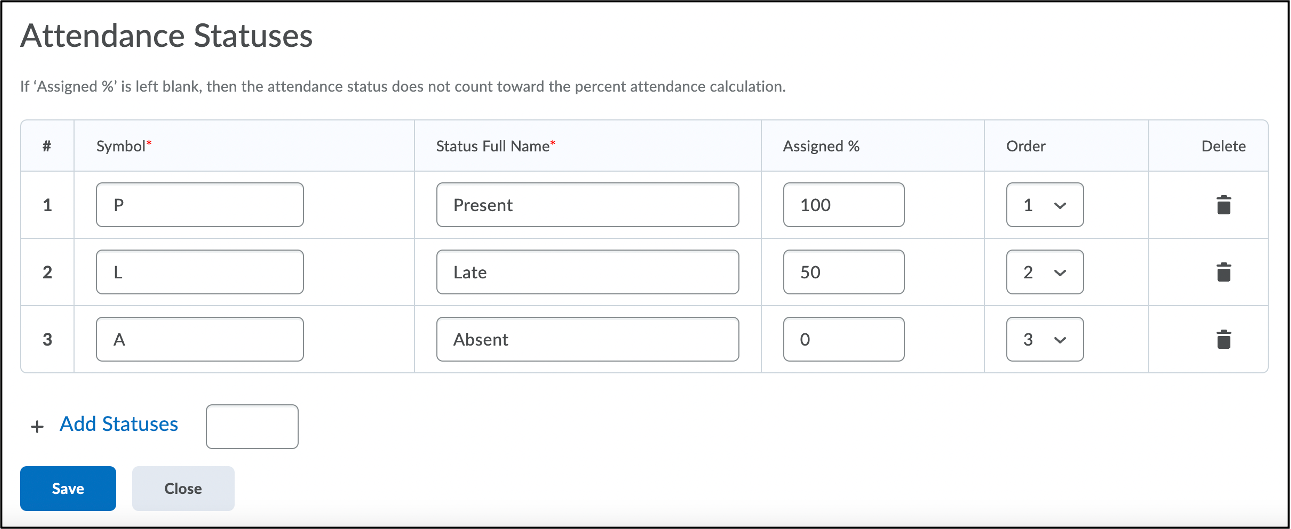
TIP: To add additional statuses, enter a number in the Add Statuses field and click the + Add Statuses. To delete a status, click the trash icon  under the Delete column.
- Click Save.
- Click Close to return to the Attendance page. You will now see the scheme listed under Course Schemes (see example below)

Setting a New Default Scheme
- Log in to Brightspace with your MyCarletonOne credentials.
- On the Brightspace homepage, locate your course in one of the following ways:
-
- Click on the course tile under the My Courses widget.
- Click the Course Selector Grid and select the course from the drop-down menu. If you are enrolled in more than 20 courses, you can search for the course name using the search bar.
-
- In the navbar, click Tools.
- Select Attendance from the drop-down menu.
- Click the Attendance Schemes tab at the top of the page.
- Click Set next to the scheme you wish to make the default. Schemes that you have created in your course wil lbe listed under Course Schemes.
- You will be prompted to confirm that you want to set the scheme as the default. Click Yes. You will now see Current Default next to your chosen Scheme.
Editing an Attendance Scheme
- Log in to Brightspace with your MyCarletonOne credentials.
- On the Brightspace homepage, locate your course in one of the following ways:
-
- Click on the course tile under the My Courses widget.
- Click the Course Selector Grid and select the course from the drop-down menu. If you are enrolled in more than 20 courses, you can search for the course name using the search bar.
-
- In the navbar, click Tools.
- Select Attendance from the drop-down menu.
- Click arrow
 next to the attendance register you want to edit.
 - Select Edit Scheme from the drop-down menu.
- You will be taken to the Edit Scheme page where you can adjust your scheme settings.
- When you are finished editing, click Save and Close.
Creating an Attendance Register
Attendance registers are used to track attendance for course activities, such as weekly seminars or lectures. For example, if you want to track lecture attendance, you could create a “Lecture Attendance” register. When creating a new register, you will need to define the number of sessions and select an attendance scheme.
To create an Attendance Register:
- Log in to Brightspace with your MyCarletonOne credentials.
- On the Brightspace homepage, locate your course in one of the following ways:
-
- Click on the course tile under the My Courses widget.
- Click the Course Selector Grid and select the course from the drop-down menu. If you are enrolled in more than 20 courses, you can search for the course name using the search bar.
-
- In the navbar, click Tools.
- Select Attendance from the drop-down menu.
- Click New Register.
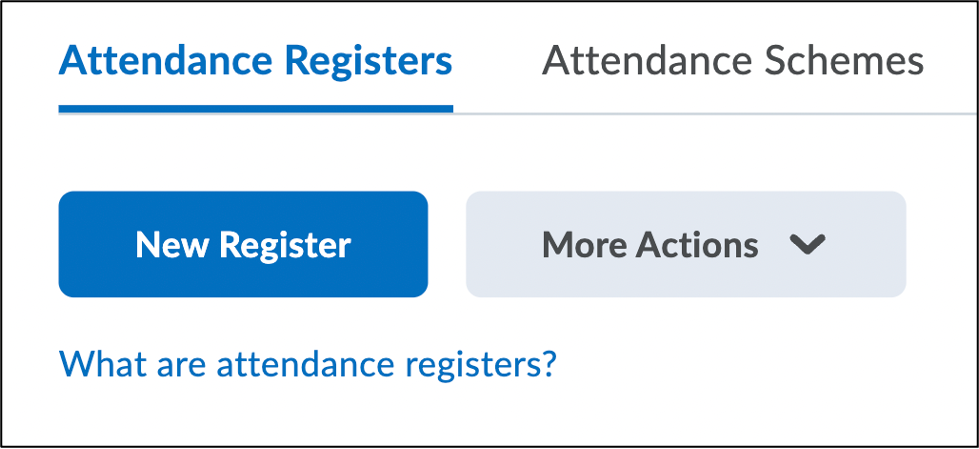
- Enter a name for your register and a description (optional).
- Under Attendance Scheme, select a scheme from the drop-down menu.
- Enter a cause for concern value (optional).
- If you would like participants to be able to view the attendance register, select the Allow users to view this attendance register box.
- Under Users, select if you want to include all students in the register or a specific group/section.
- Under Sessions, you will see 3 sessions listed by default. Click the Add Session button to add sessions for the number of days that you plan to take attendance.
- Enter names for each of your sessions. Typically, these are the dates the class meets. For example, if you want to track attendance for a weekly seminar, create a “Weekly Seminar” register and then add sessions for each seminar (week 1, week 2, week 3, etc.).
- Click Save to save your attendance register.
- Click Close.
Editing an Attendance Register
- Log in to Brightspace with your MyCarletonOne credentials.
- On the Brightspace homepage, locate your course in one of the following ways:
-
- Click on the course tile under the My Courses widget.
- Click the Course Selector Grid and select the course from the drop-down menu. If you are enrolled in more than 20 courses, you can search for the course name using the search bar.
-
- In the navbar, click Tools.
- Select Attendance from the drop-down menu.
- Click arrow next to the attendance register you want to edit.
- Select Edit Register from the drop-down menu.
- You will be taken to the Edit Register page where you can adjust your Attendance Register settings.
- When you are finished editing, click Save and Close.
Deleting an Attendance Register
- Log in to Brightspace with your MyCarletonOne credentials.
- On the Brightspace homepage, locate your course in one of the following ways:
-
- Click on the course tile under the My Courses widget.
- Click the Course Selector Grid and select the course from the drop-down menu. If you are enrolled in more than 20 courses, you can search for the course name using the search bar.
-
- In the navbar, click Tools.
- Select Attendance from the drop-down menu.
- Click arrow next to the attendance register you want to edit.
- Select Delete from the drop-down menu.
- You will be prompted to confirm that you want to delete the register. Click Yes.
Entering Attendance Data (Taking Attendance)
Once you have created an Attendance Register, you can enter attendance data at any time. Attendance cannot be automatically tracked in Brightspace. You will need to manually enter attendance information for each session in your Attendance Register.
To enter attendance data:
- Log in to Brightspace with your MyCarletonOne credentials.
- On the Brightspace homepage, locate your course in one of the following ways:
-
- Click on the course tile under the My Courses widget.
- Click the Course Selector Grid and select the course from the drop-down menu. If you are enrolled in more than 20 courses, you can search for the course name using the search bar.
-
- In the navbar, click Tools.
- Select Attendance from the drop-down menu.
- Click the name of the attendance register.
- Locate the session you want to enter attendance information for and click the Calendar icon next to the session name.
- Use the drop-down menus under the Attendance Status column to select an attendance status for each student.
TIP: To set a bulk attendance status, select the checkboxes next to the student names and click Set Status. To set a status for all students (i.e. all students Present), click the Set Status for All Users button at the top of the page. - Click Save.
Exporting Attendance Data
You can export attendance register data to a CSV file.
- Log in to Brightspace with your MyCarletonOne credentials.
- On the Brightspace homepage, locate your course in one of the following ways:
-
- Click on the course tile under the My Courses widget.
- Click the Course Selector Grid and select the course from the drop-down menu. If you are enrolled in more than 20 courses, you can search for the course name using the search bar.
-
- In the navbar, click Tools.
- Select Attendance from the drop-down menu.
- Click arrow next to the attendance register you want to view.
- Select View Attendance Data from the drop-down menu.
- Click Export all Data.
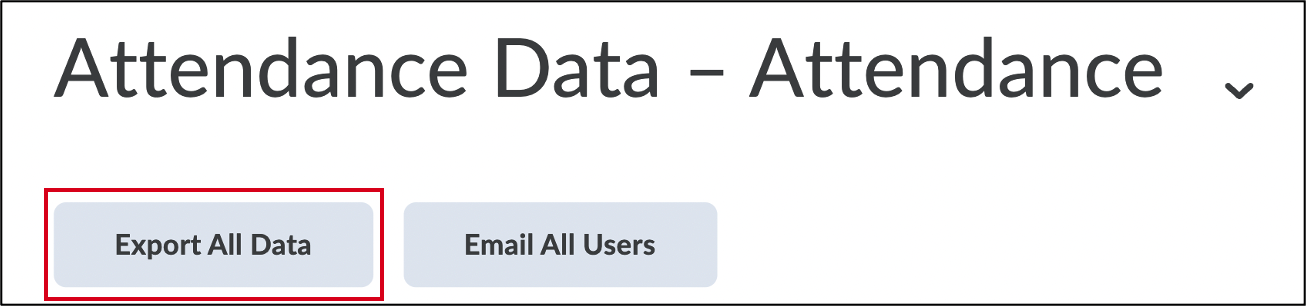
- An Export Attendance Data pop-up window will open with a link to your file. Click the link to download the file.
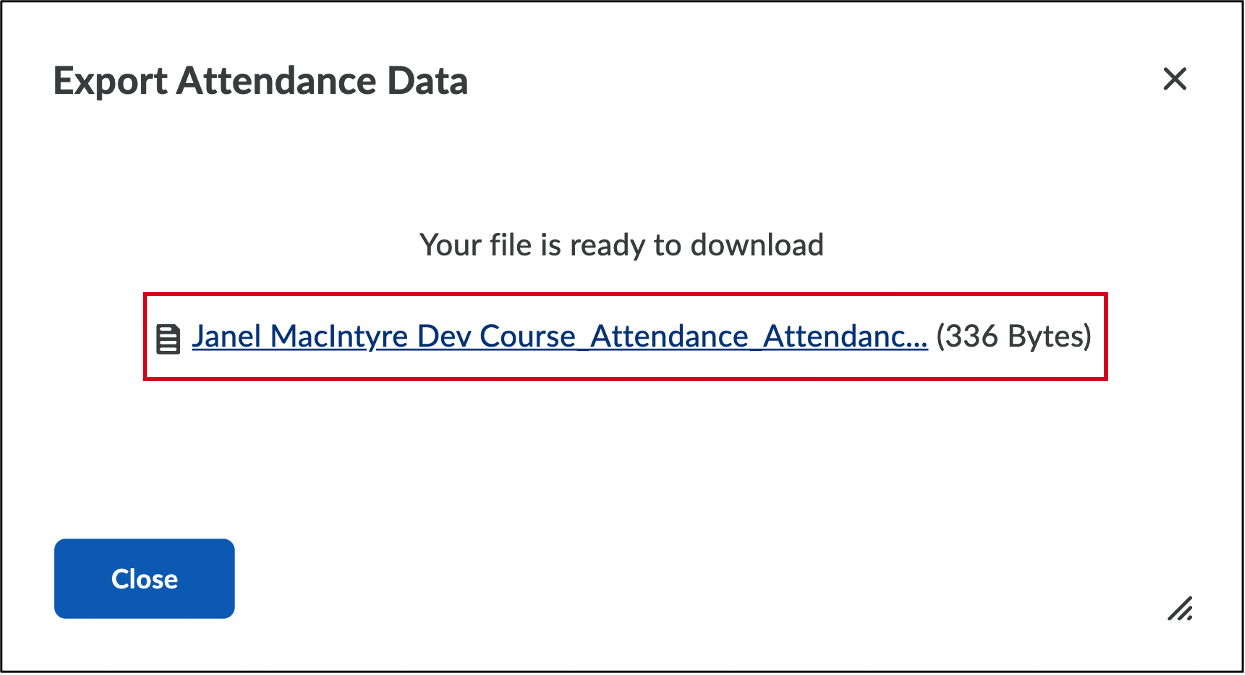
- You have now downloaded the .csv file to your computer. The location of the downloaded file will depend on your browser.
Viewing Course Access
The Class Progress tool provides a detailed overview of student activity in your Brightspace course. Instructors can view course access history for the last 30 days and the date that students have last accessed their course under the Course Access tab of the Class Progress tool. For instructions, see Viewing Course Access in the Class Progress tool.
Was this page helpful?
2 people found this useful
Still need help? Contact us